
Quick Summary
Set a monthly budget cap in a role so staff can't overspend. Then watch spending in Team Analytics.
We'll Cover:
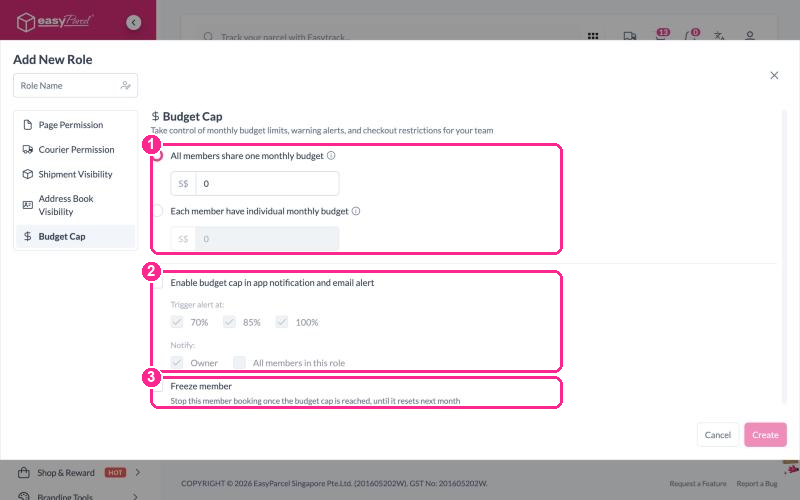
Set a budget cap
- Open Setup Roles & Permissions, then click Add New Role or Edit on a role.
- Click Budget Cap.
- Choose All members share one monthly budget or Each member have individual monthly budget and enter the amount in S$ (1).
- Tick Enable budget cap in app notification and email alert and choose when to alert (70%, 85%, 100%) and who to notify (2).
- Tick Freeze member (3) to stop the member booking once the cap is reached, until it resets next month.
- Save the role.
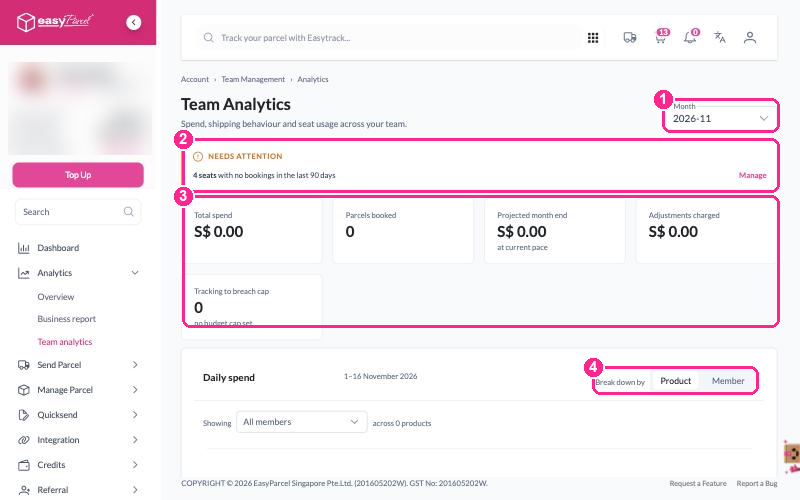
Track spending in Team Analytics
- Click Analytics > Team analytics, or View Analytics on the Team Management page.
- Choose the Month (1).
- Needs attention (2) shows things to act on, for example seats with no bookings in 90 days.
- The cards (3) show total spend, parcels booked, projected month end, adjustments charged and members close to their cap.
- Under Daily spend, break down by Product or Member (4).
- Under Spend by member, click View Detail to see what drove a member's spend.
What's next?
Still need help?
Our team is happy to help. ? Live Chat | ✉️ Contact Us