
Quick Summary
To send your first parcel, go to Send Parcel > Domestic Delivery, enter the postcodes and parcel weight, and click "Quote". Compare couriers and click "Book" on the one you like. Fill in the sender, receiver and parcel details, choose any add-ons and your pick up date, then click "Checkout" and "Pay with Credit".
New to EasyParcel? Make sure you have topped up credit first. See What is the difference between Top Up Credit and Free Credit?
We'll Cover:
- Before you start
- Get a quote and choose a courier
- Fill in the shipment details
- Check out and pay
- After you pay
Before you start
- You have an EasyParcel account and are logged in.
- You have Top Up Credit to pay for the parcel.
- Your default pick-up address is set in Settings > Account Profile > Pick Up Address.
- Your parcel is packed, and you know its weight and size.
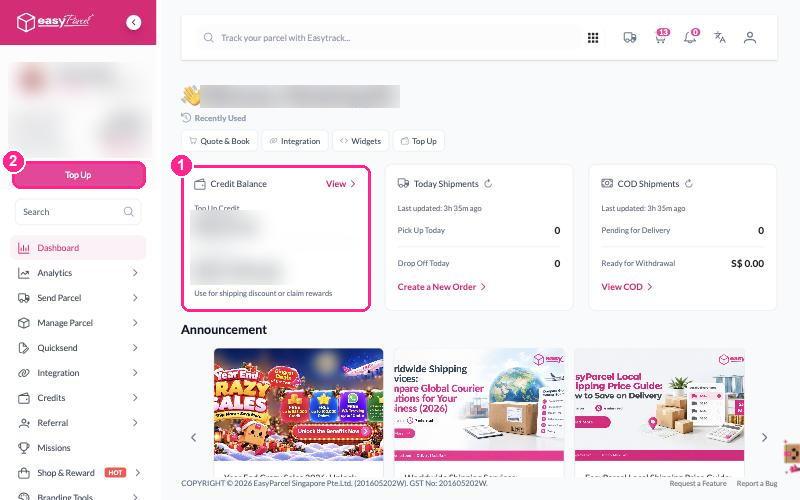
Check your Top Up Credit on the Dashboard (1). Need more? Click Top Up (2).
Get a quote and choose a courier
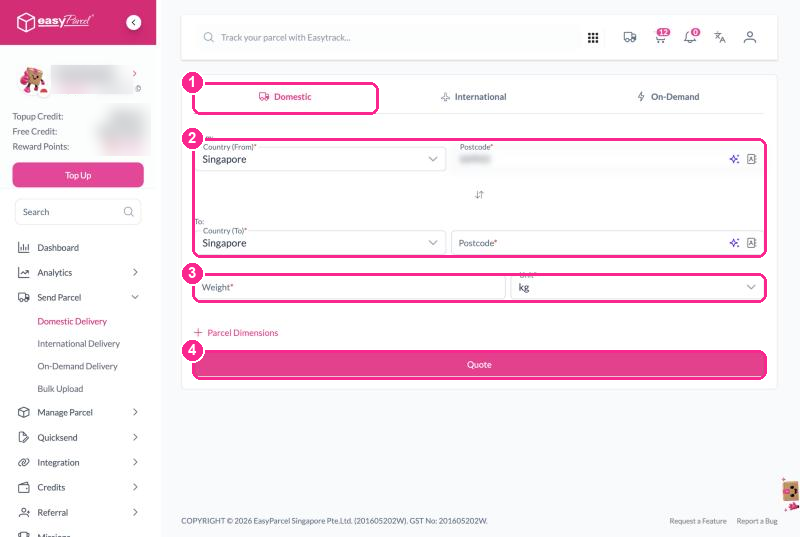
Step 1: In the left menu, click "Send Parcel" > "Domestic Delivery" (1). You can also click the Quote & Book icon on the top bar.
Step 2: Enter the sender and receiver postcodes (2) and the parcel weight (3). Click "+ Parcel Dimensions" to add the size (recommended). Then click "Quote" (4).
Step 3: Compare the couriers. Use Sort by and Filter by (1) to narrow the list and check Your Rate (2), then click "Book" (3) on your chosen courier.
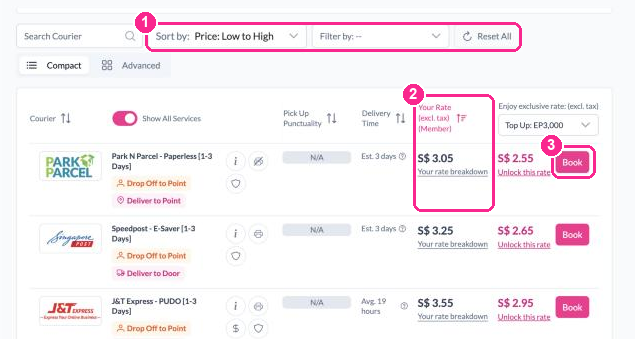
Note: The "Enjoy exclusive rate" column shows the lower rate you can unlock with a top up package.
Fill in the shipment details
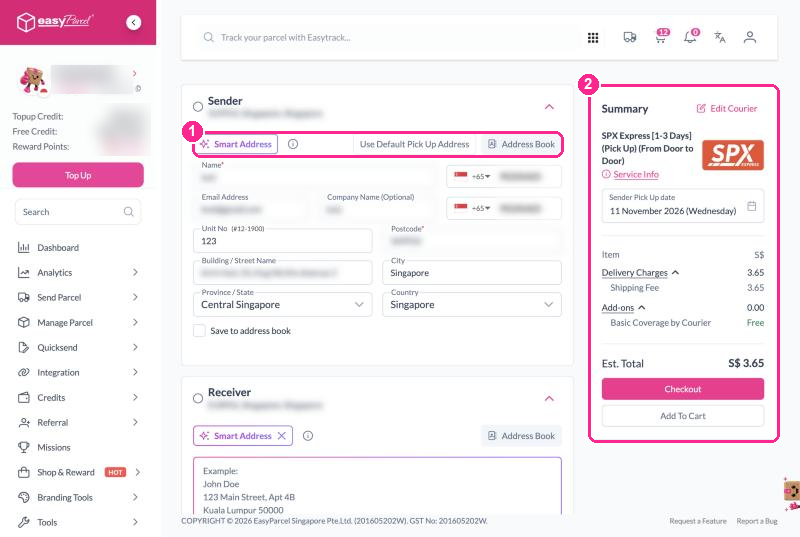
Step 4: Under Sender, click "Use Default Pick Up Address" or pick one from your Address Book (1), and check the details.
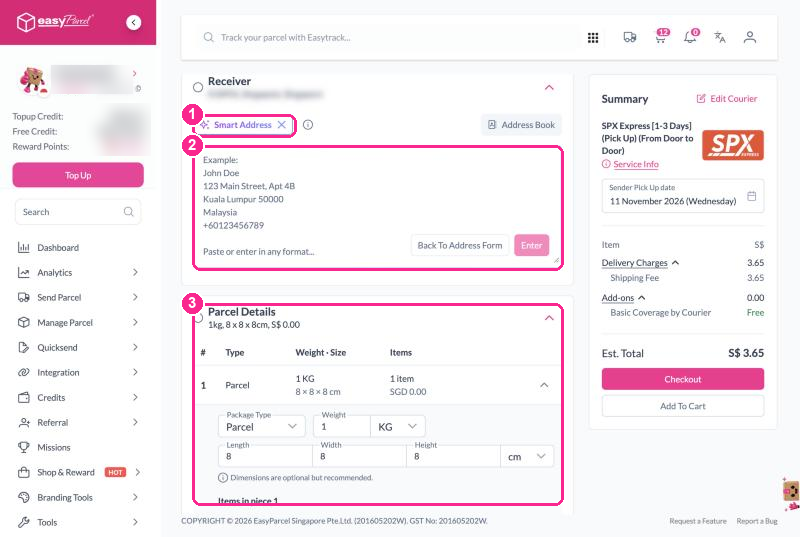
Step 5: Under Receiver, click "Smart Address" (1), paste the full address (name, address, postcode and phone) (2) and click "Enter". The fields are filled in for you. Please check them before you continue.
Step 6: Under Parcel Details (3), check the weight and size, and enter the item name, price per item and quantity.
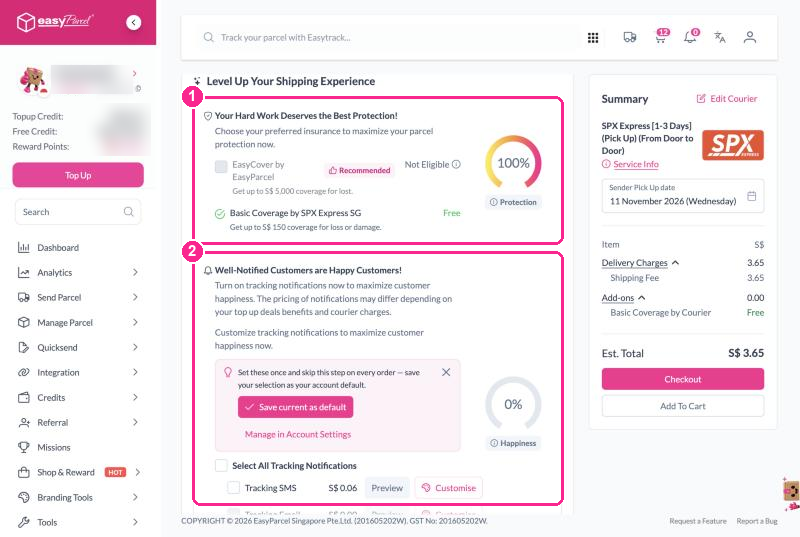
Step 7 (optional): Choose extra protection such as EasyCover (1) and tracking notifications by SMS, Email or WhatsApp (2). You can also add privacy masking or branding.
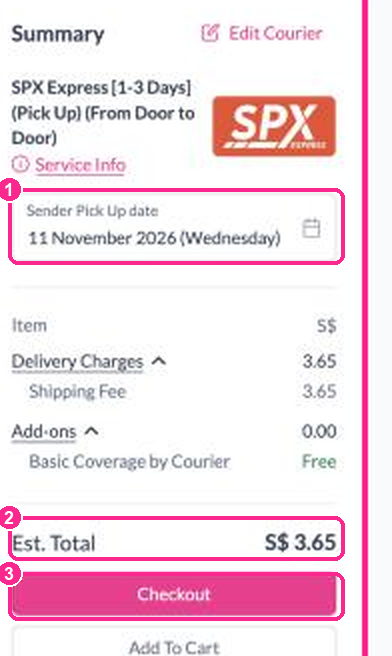
Step 8: In the Summary on the right, choose your Sender Pick Up date (1) and check the Est. Total (2). Then click "Checkout" (3) to pay now, or "Add To Cart" to pay later.
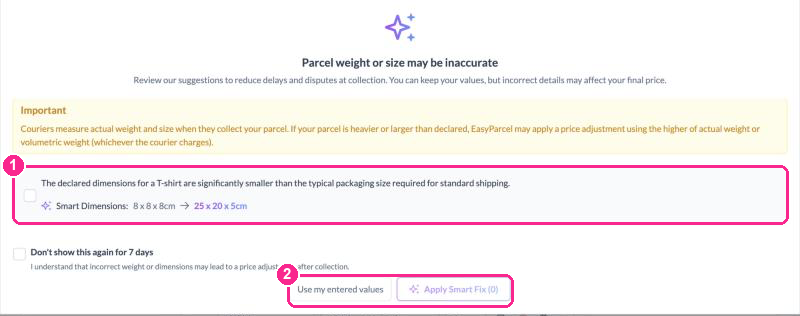
Note: If the parcel size looks unusual for your item, a Smart Dimensions message suggests a more realistic size (1). Click "Apply Smart Fix" or "Use my entered values" (2). Couriers measure parcels at collection, so wrong details may lead to a price adjustment.
Check out and pay
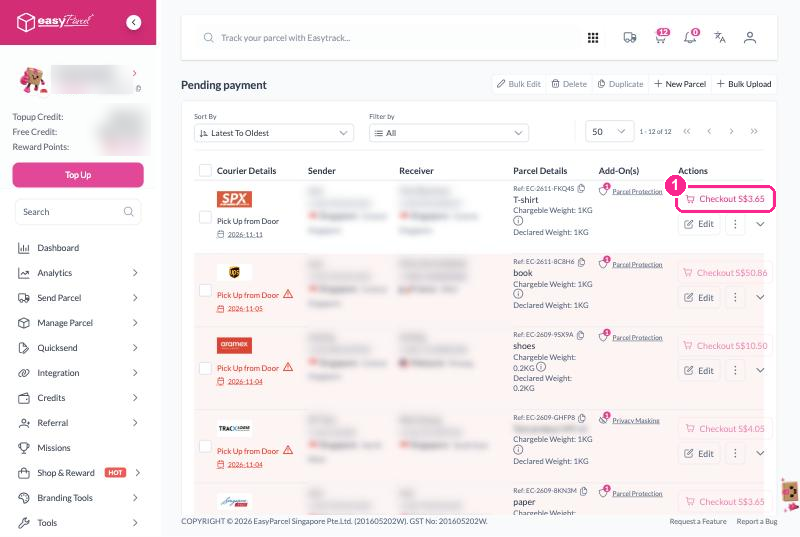
Step 9: Parcels added to cart wait in Pending payment (click the Cart icon on the top bar). Click "Checkout" (1) on the parcel you want to pay for.
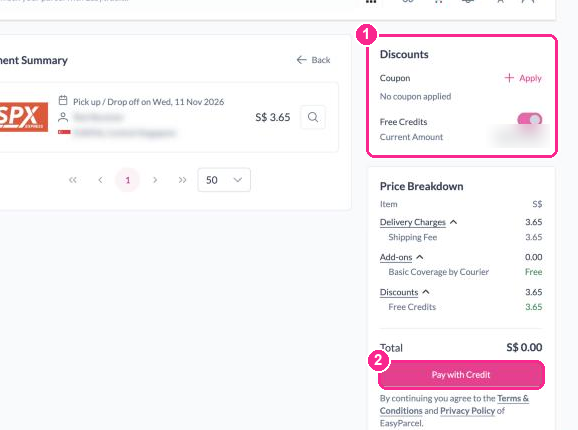
Step 10: Apply a Coupon or switch on Free Credits (1) if you have them, check the Price Breakdown, then click "Pay with Credit" (2).
Note: After payment, you can find your parcel under Manage Parcel > All Parcels.
After you pay
- Print your shipping label (AWB) and stick it on the parcel.
See What is an AWB, and how do I print or download it? - Wait for the courier on your pick-up date, or drop the parcel off at the courier's point.
- Track your parcel in Manage Parcel > All Parcels.
See How do I track my parcel?
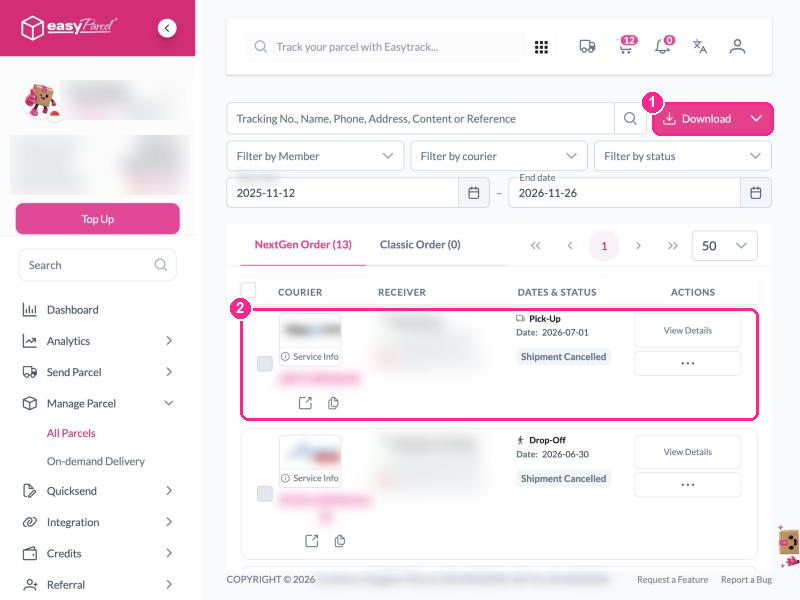
In Manage Parcel > All Parcels, find your parcel (2) and click Download (1) to print the shipping label.
What's next?
Still need help?
Our team is happy to help. ? Live Chat | ✉️ Contact Us