
Quick Summary
See your credit movements in Credits > Transaction Statements. Filter by date and type, and download as PDF or Excel.
We'll Cover:
- Find a transaction
- Download
- The tabs
- The columns
- Reading the list
- Related articles
Find a transaction
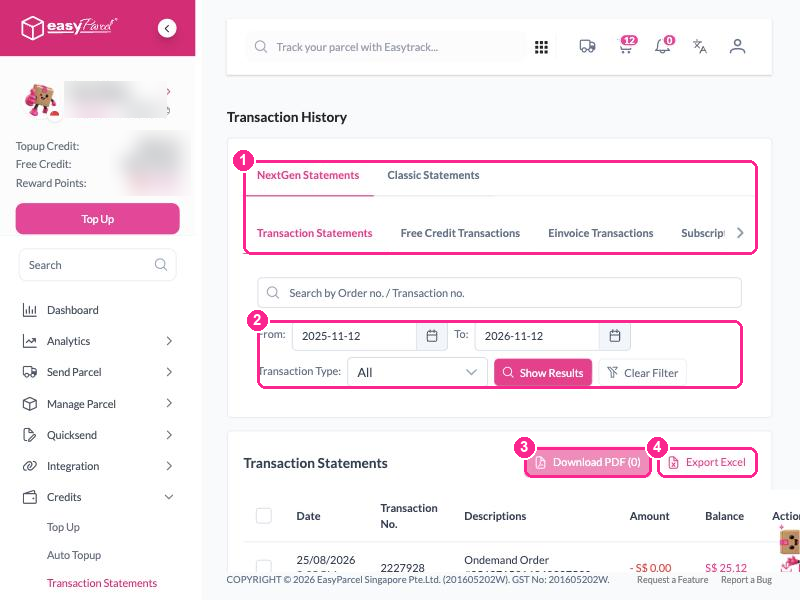
The tabs (1) are Transaction Statements, Free Credit Transactions, Einvoice Transactions and Subscription. Search by order or transaction number and filter (2) by date and transaction type. Orders, refunds and top-ups all show here with the amount and balance.
Download
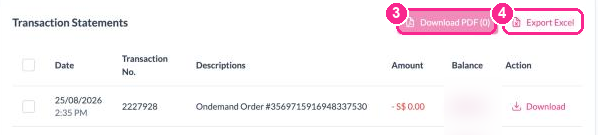
Tick transactions and click Download PDF (3), or Export Excel (4). Each row has a Download action.
The tabs
| Tab | What it shows |
|---|---|
| Transaction Statements | Your credit movements, such as orders, top-ups and refunds |
| Free Credit Transactions | Movements of your Free Credit |
| Subscription | Subscription payments |
The columns
Each row shows the Date, Transaction No., Descriptions, Amount and Balance, with a Download button in the Action column.
Reading the list
- An amount with a minus sign (for example for an order) is credit you used.
- An amount with a plus sign is credit added back, for example "Refund shipping fees for shipment number …" when a parcel is cancelled.
- Keep the Transaction No. handy when you ask our support team about a payment.
Related articles
What's next?
Still need help?
Our team is happy to help. ? Live Chat | ✉️ Contact Us