
Quick Summary
Use the actions menu next to a member to change their role or remove them from your account.
We'll Cover:
Change a member's role
- Click Settings > Team Management.
- Click the ⋮ button (3) next to the member.
- Click Change Role (4).
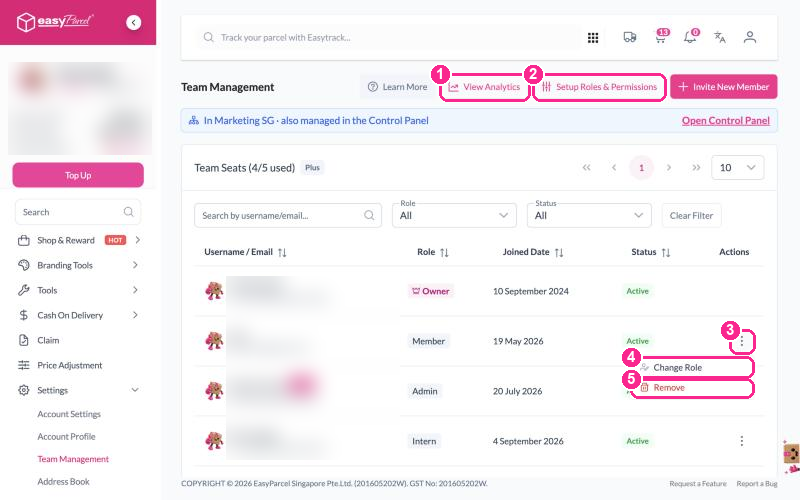
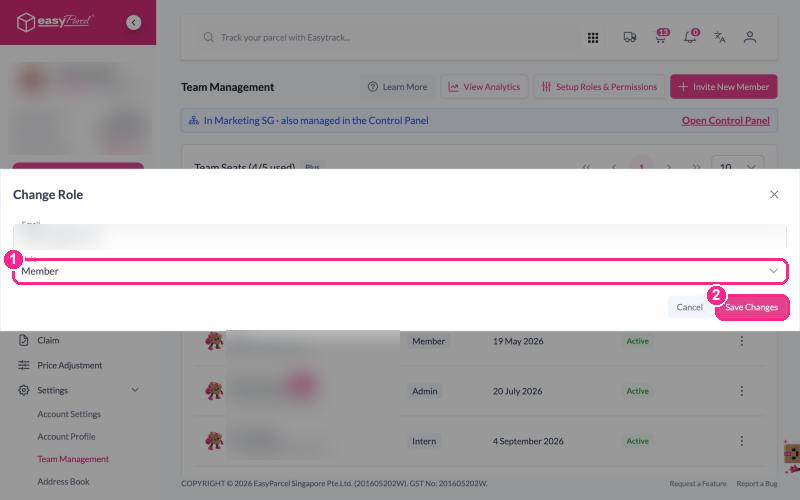
- Choose the new Role (1).
- Click Save Changes (2).
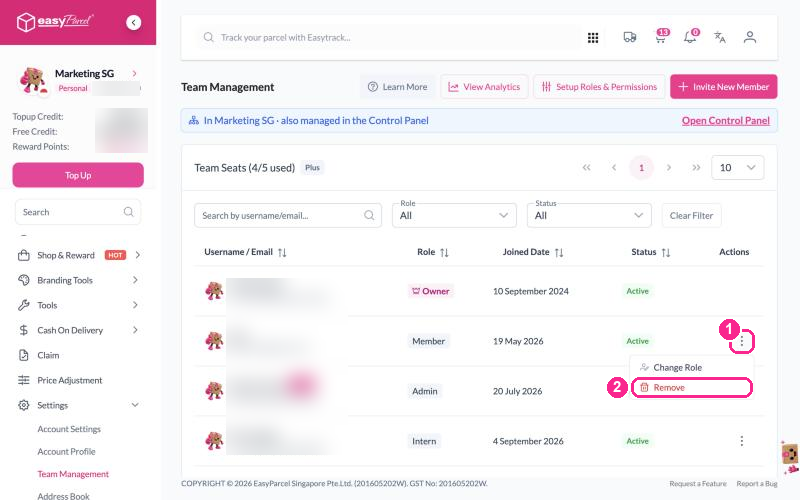
Remove a member
- Click the ⋮ button next to the member.
- Click Remove (5) and confirm.
Click ⋮ (1) next to the member, then Remove (2). The member can no longer open your account. Their past shipments stay in your account.
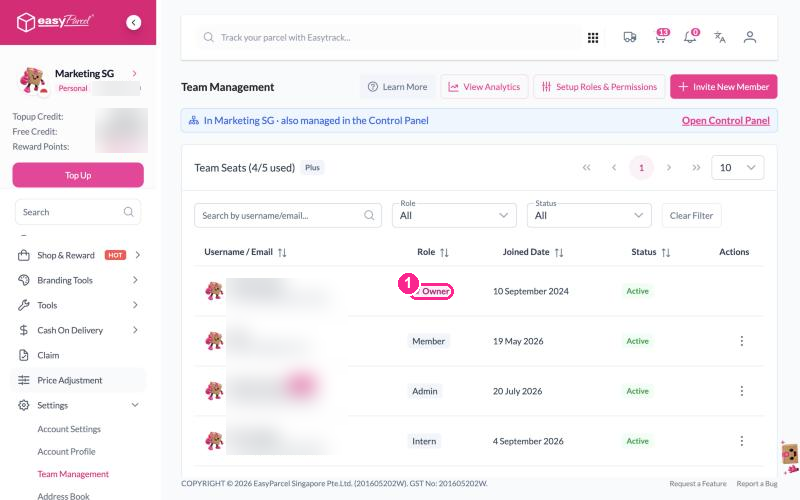
Change the account owner
The Owner cannot be changed.
The account owner shows the Owner (1) tag.
What's next?
Still need help?
Our team is happy to help. ? Live Chat | ✉️ Contact Us