Quick Summary
To fulfill Lazada orders using EasyParcel, go to EasyConnect > Installed Ecommerce Apps in your EasyParcel account and click “Open App” next to Lazada. Import your orders by selecting the order date and status, then click “Search.” Choose the orders you want to process and click “Fulfill.” After that, click “Get Quote,” select your preferred courier, and proceed to payment to generate the shipping label. Once completed, the order will appear in your EasyParcel order list where you can view shipment details and tracking information.
We'll Cover:
1: How to fulfill Lazada single order to EasyParcel?
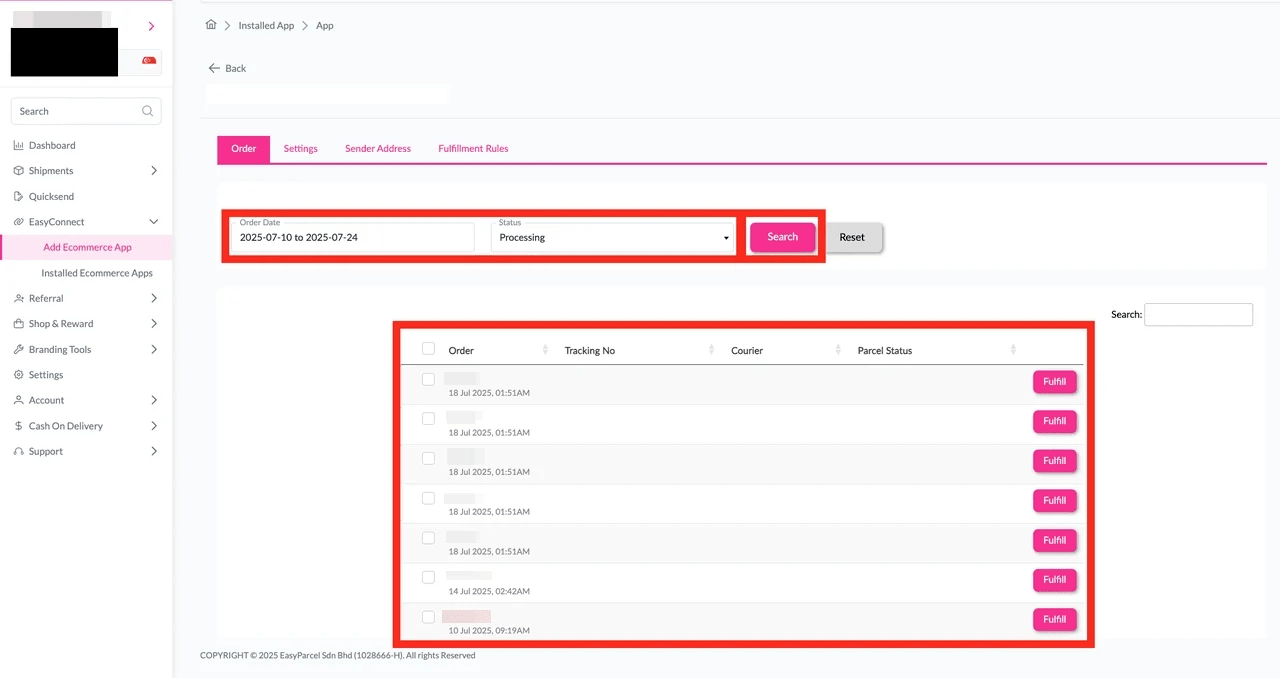
Step 1: Under “EasyConnect”, click on “Installed Ecommerce Apps”, find “Lazada Import” and click on “Open App” button.
Click on “Order”, select the order date and order status and click on the “Search” button. The order will be imported and shown in the list below.
Then, click the “Fulfill” button on the order you want to fulfill.
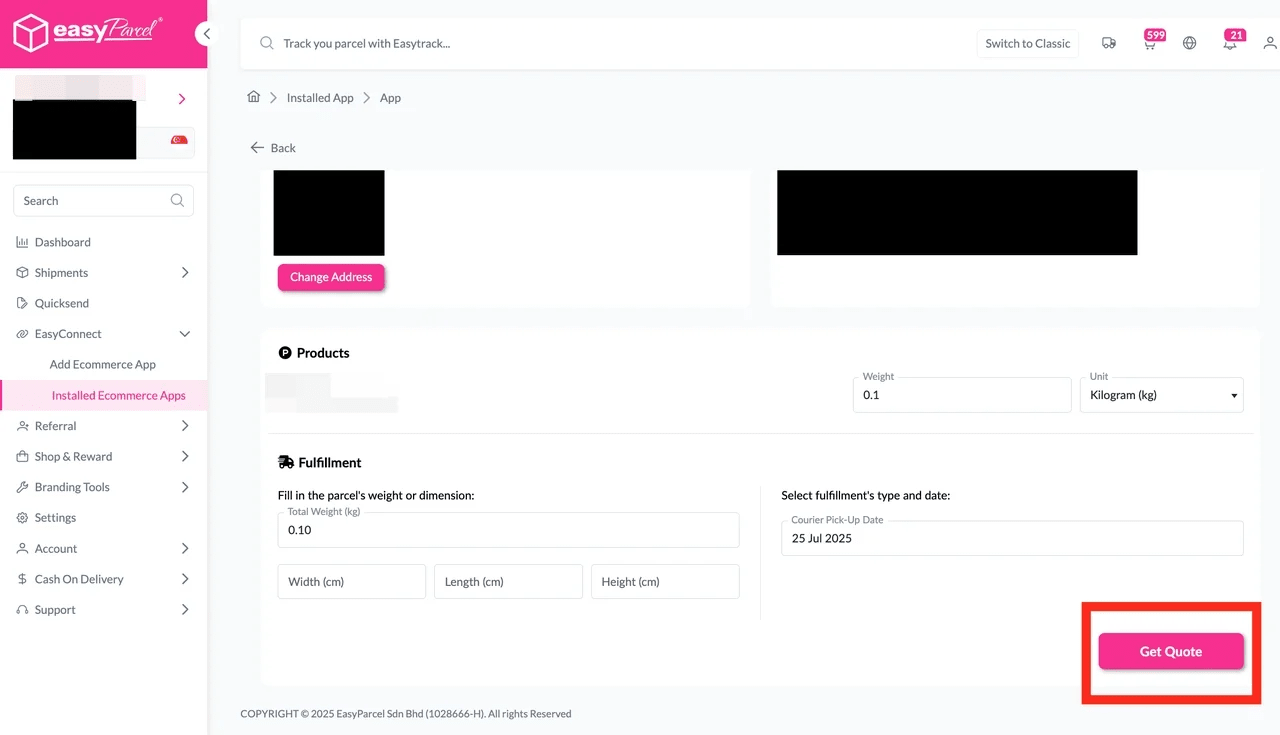
Step 2: After clicking the “Fulfill” button, you can find your order details and click on the “Get Quote” button.
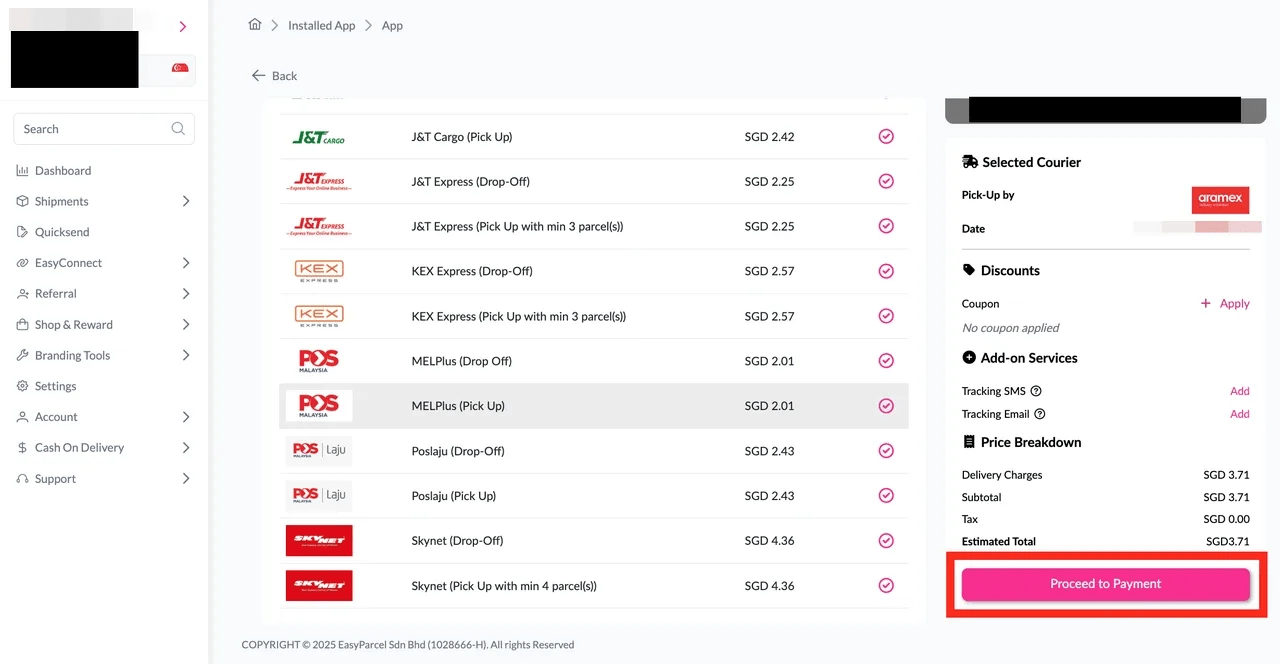
Step 3: Choose the preferred courier option and click on the “Proceed to Payment” button.
Step 4: The order status, order number, shipment number, and price will be displayed. Click on the “View Orders” button.
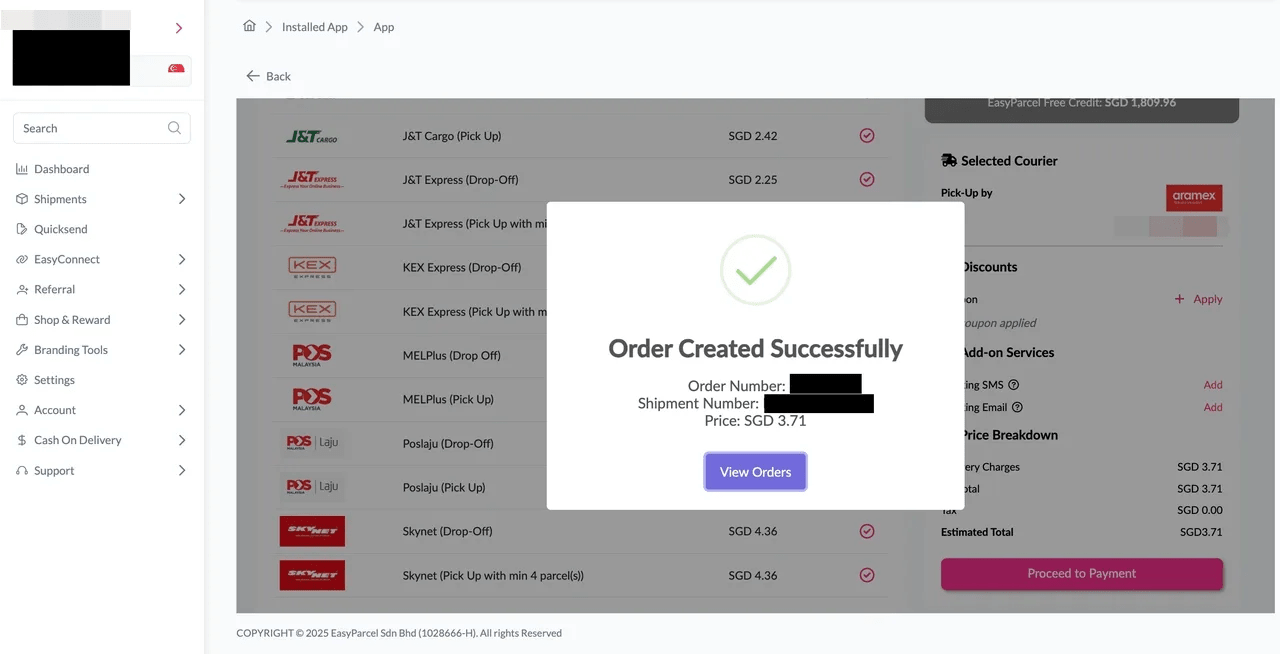
Step 5: The fulfilled order will now be displayed on the Order Page.
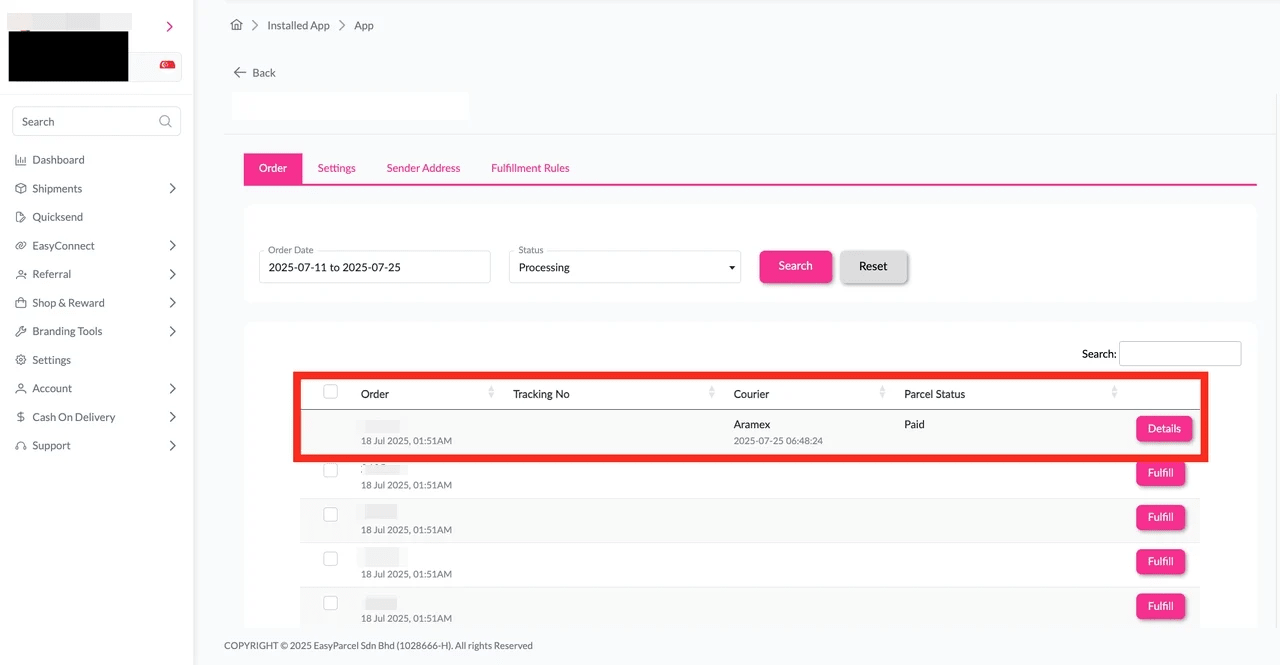
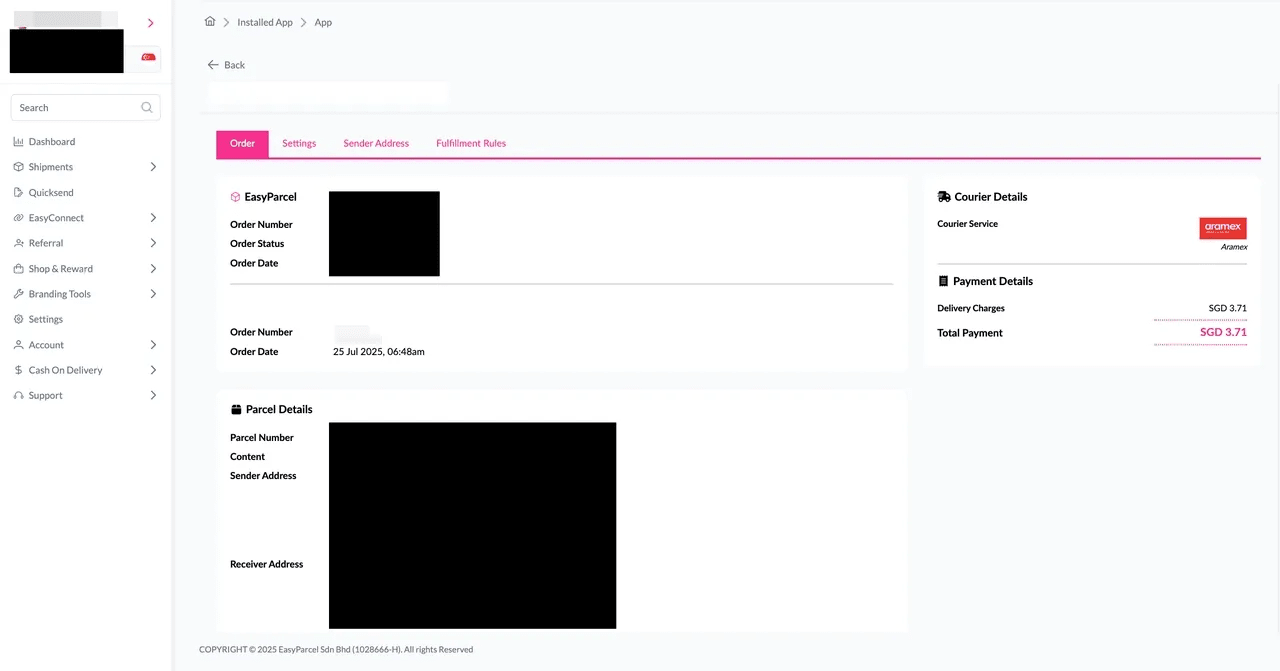
Step 6: Click on the “Details” button. Order details will be displayed on the page.
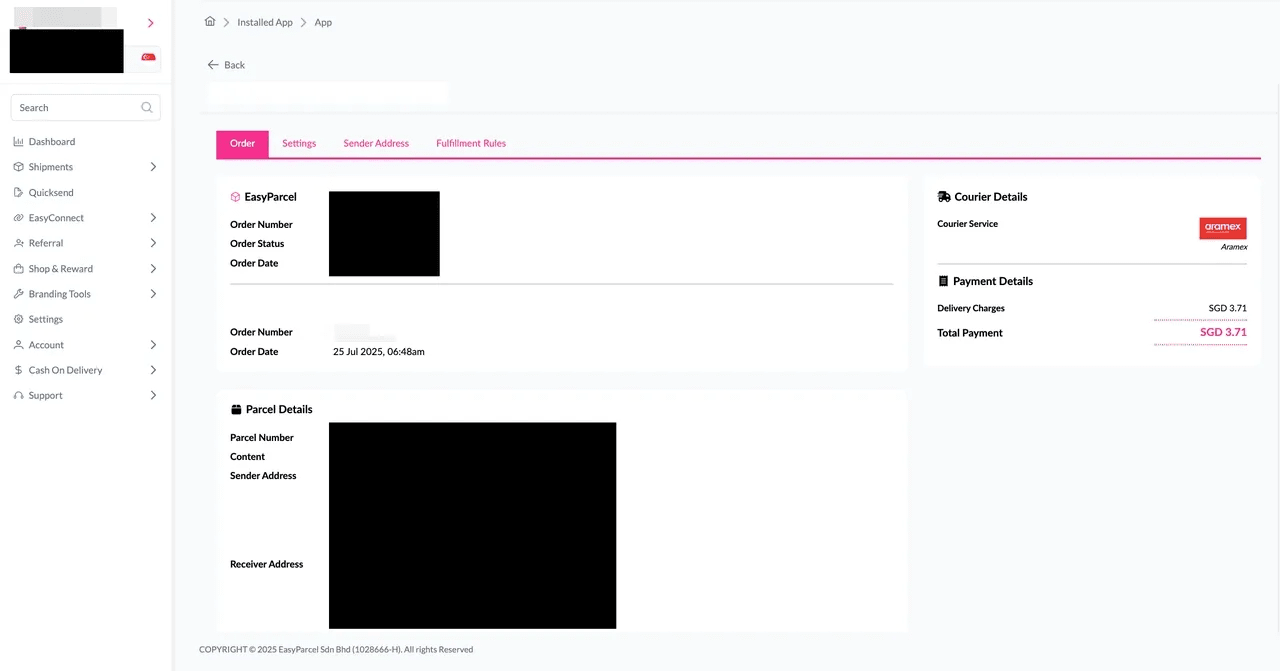
2: How to fulfill Lazada bulk orders to EasyParcel?
Step 1: Under “EasyConnect”, click on “Installed Ecommerce Apps”, find “Lazada” and click on the “Open App” button.
Click on “Order”, and select the order date and order status, then click on the “Search” button.
The orders will be imported and displayed in the list below.
Select the orders you wish to fulfill, then click the Fulfill Selected button.
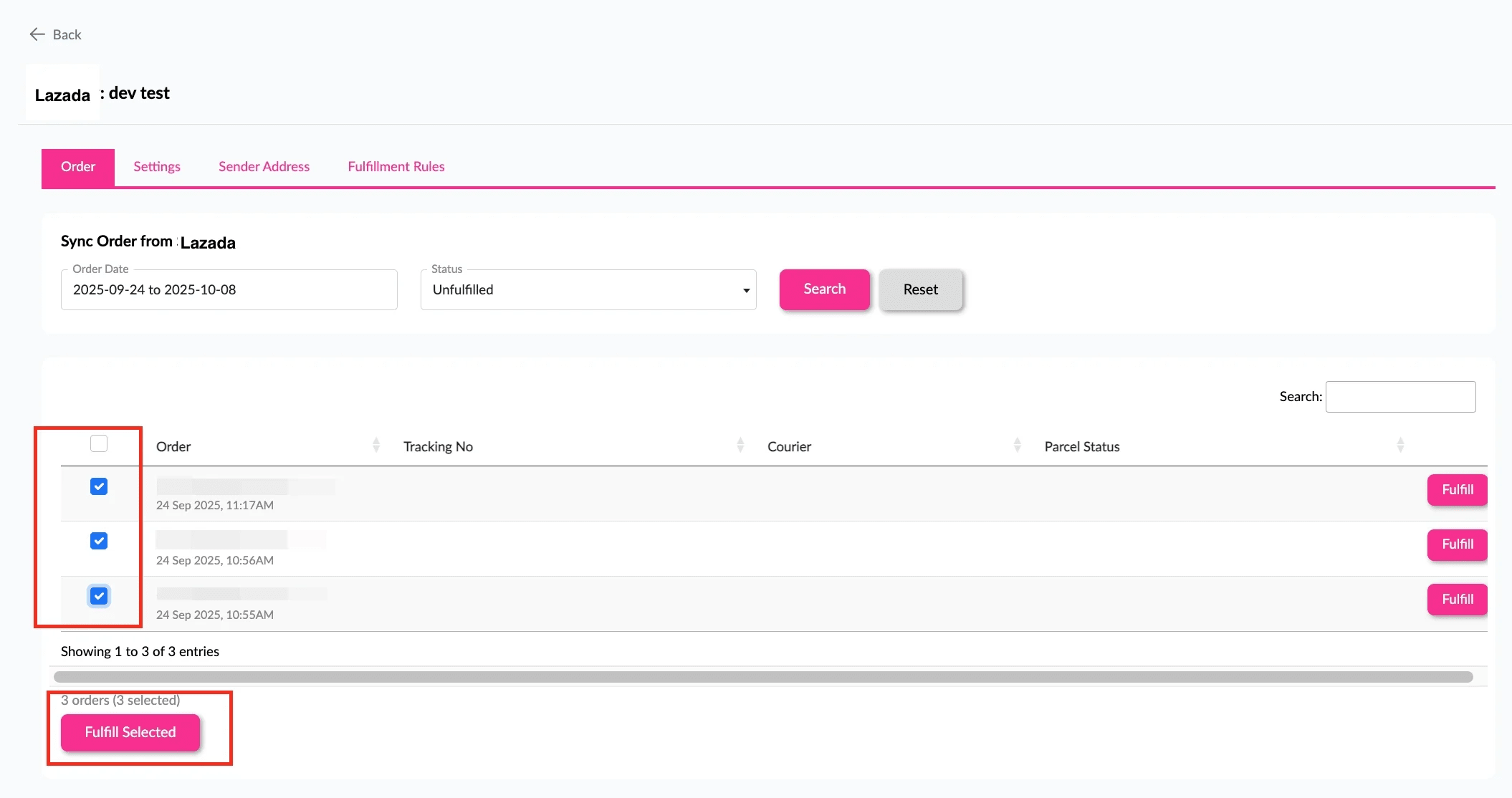
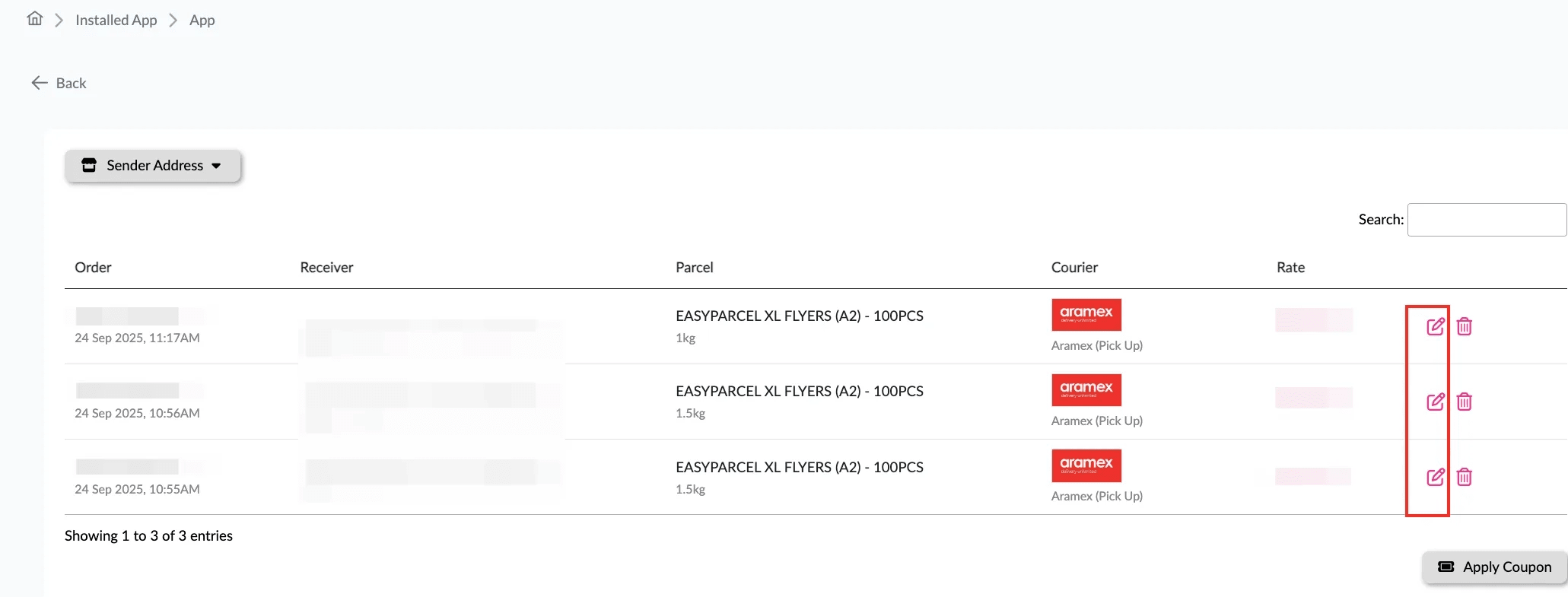
Step 2: Click on the pencil button.
Step 3: Select the courier you prefered and press “Save” button.
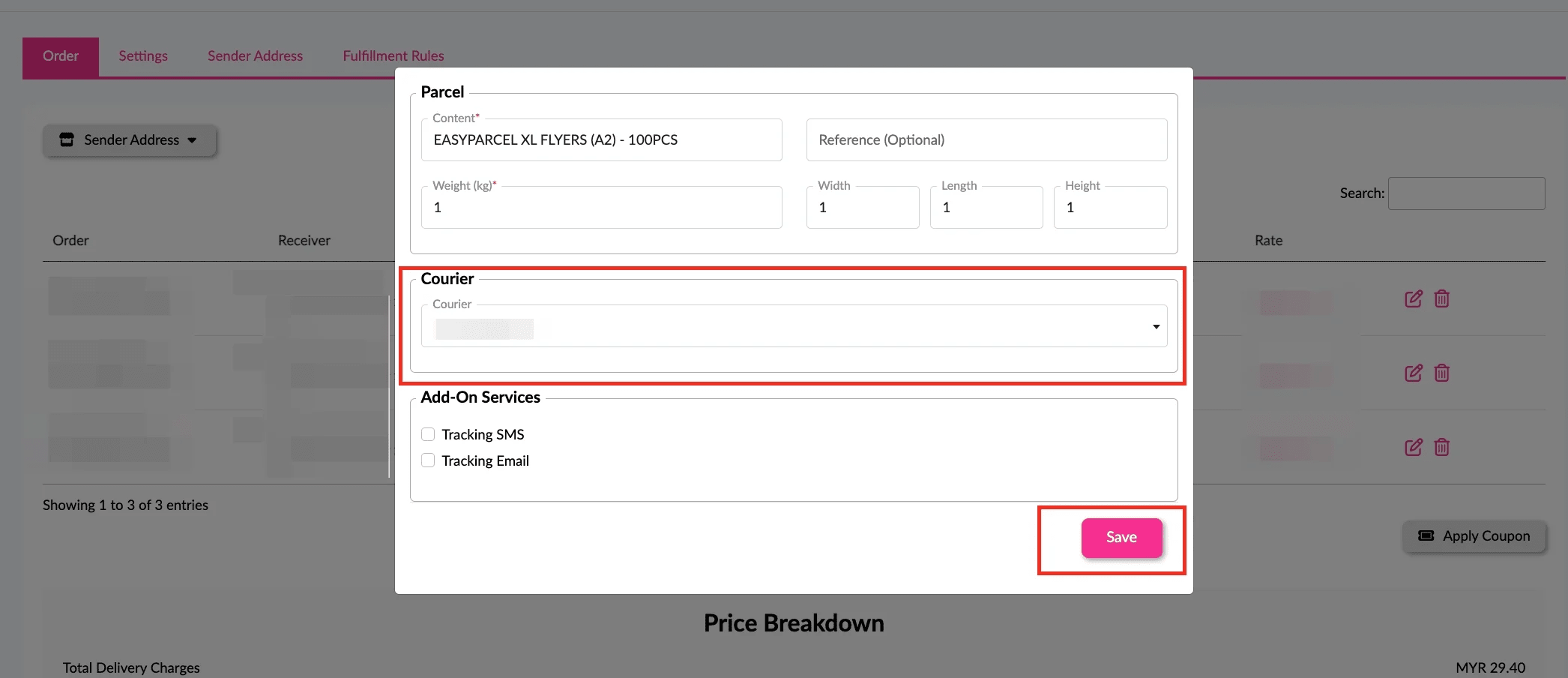
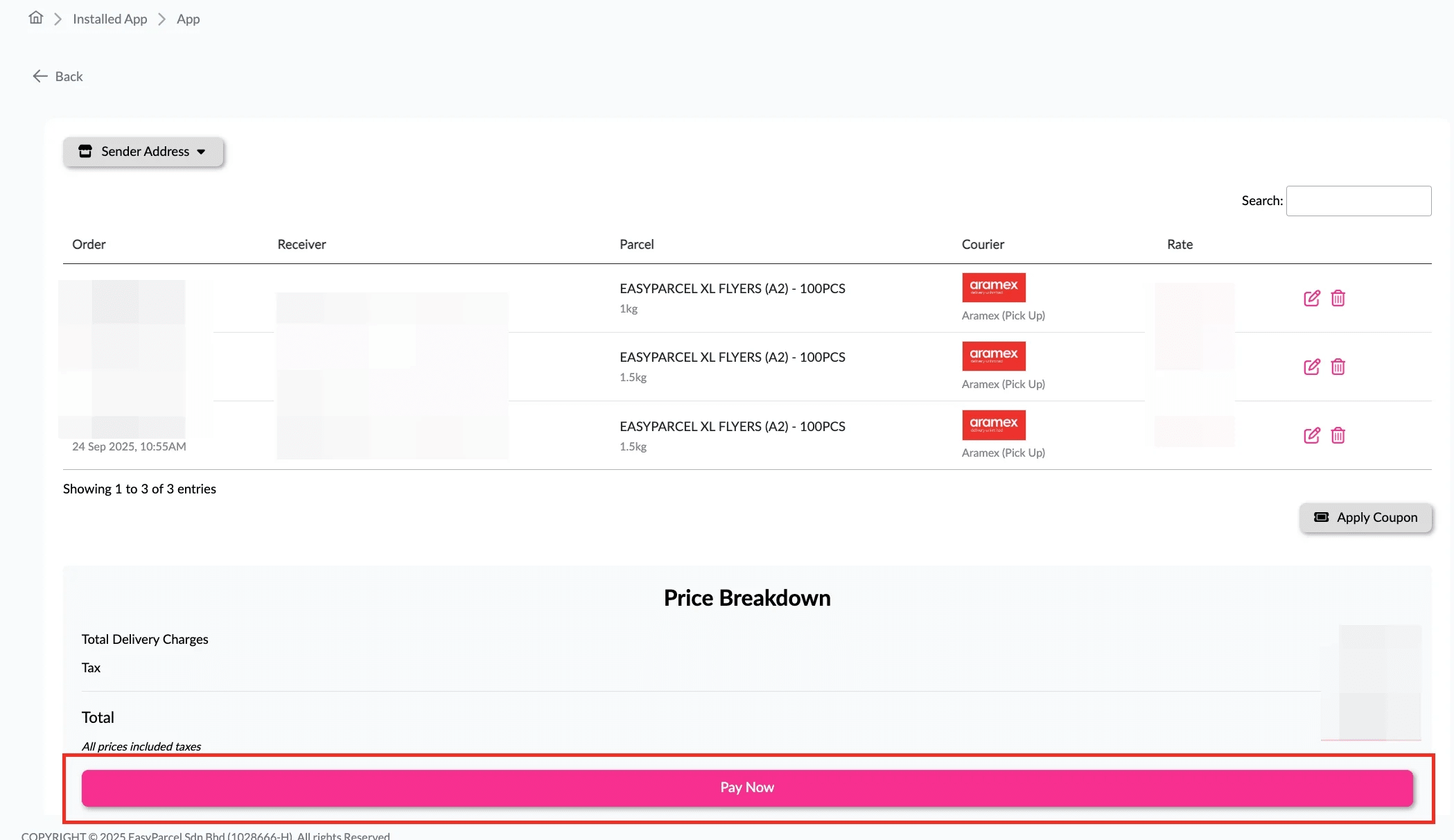
Step 4: The courier will be automatically selected based on your chosen rule (e.g., Cheapest Courier or Specific Courier).
Click “Pay Now” to make payment for the selected orders.
Step 5: The fulfilled order will now be displayed on the Order Page.
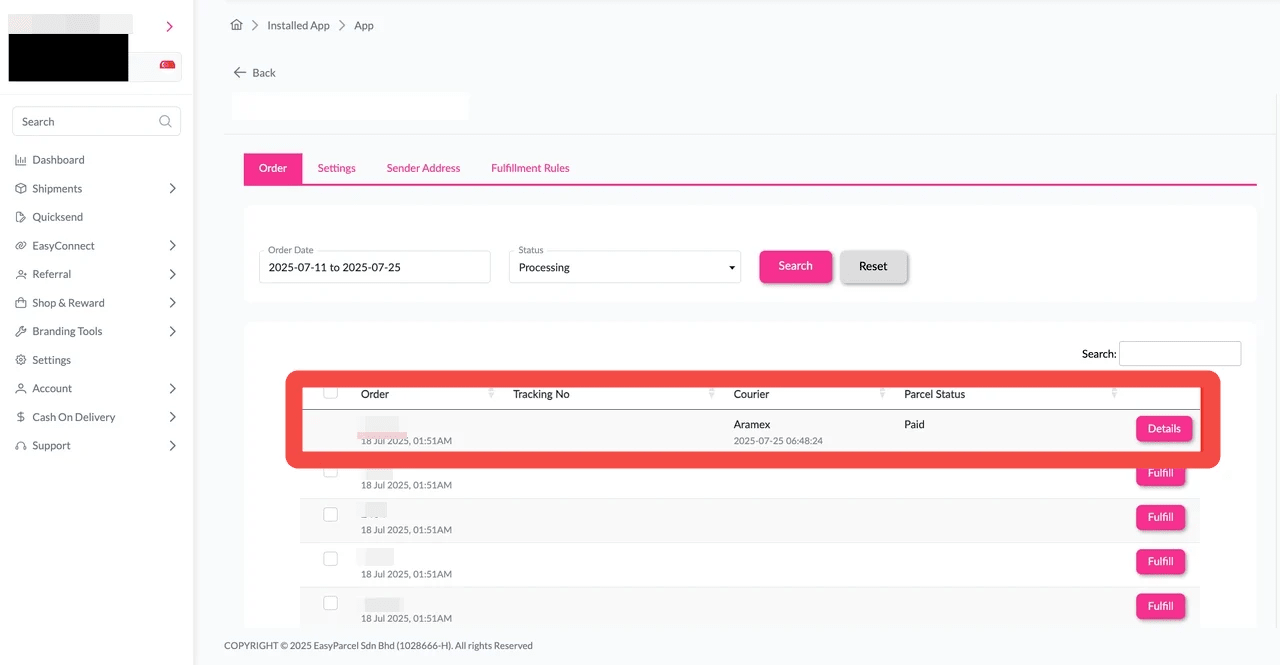
Step 6: Click on the “Details” button. Order details will be displayed on the page.