
Quick Summary
Save the addresses you use often in your Address Book, so you do not have to type them each time. Go to Settings > Address Book to add, edit or delete addresses. While booking, click Address Book in the Sender or Receiver section to pick a saved one. Your default pick-up, billing and delivery addresses are saved in Settings > Account Profile.
We'll Cover:
- Open your Address Book
- Add a new address
- Edit or delete an address
- Use a saved address when booking
- Use a saved address for billing
- Use a saved address for delivery and pick-up
Open your Address Book
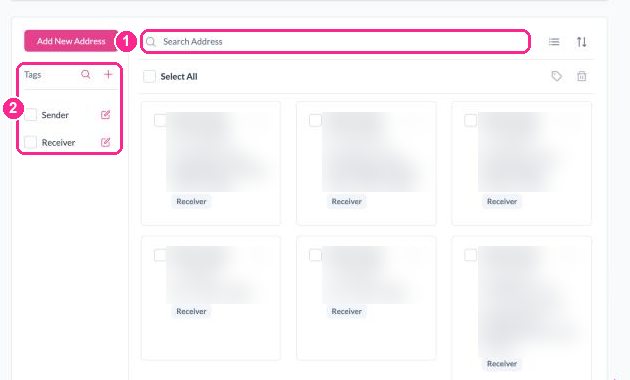
Click Settings > Address Book in the left menu. Your saved addresses show as cards.
- Use Search Address (1) to find an address.
- Use the Tags (2) list to group your addresses, for example Sender and Receiver.
Add a new address
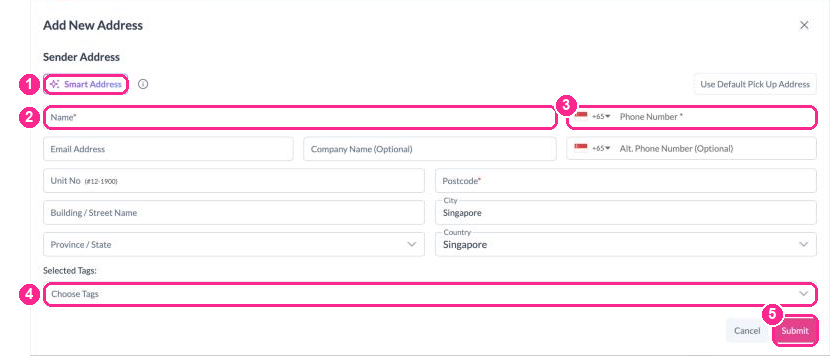
- Click Add New Address at the top of the Address Book.
- Click Smart Address (1) to paste a full address, or fill in the Name (2), Phone Number (3) and address fields yourself.
- Pick a tag in Choose Tags (4) if you want.
- Click Submit (5) to save.
Edit or delete an address
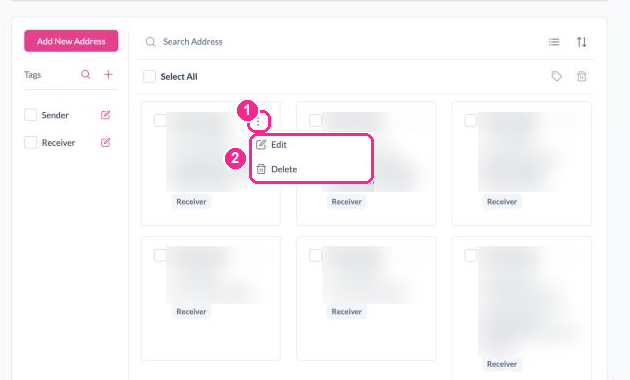
- Click the ⋮ (1) icon on the address card.
- Choose Edit or Delete (2).
Use a saved address when booking
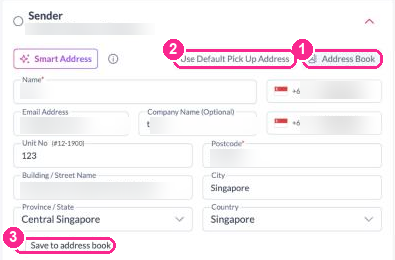
In the Sender or Receiver section of the booking page, click Address Book (1) and choose the address. In the Sender section, you can also click Use Default Pick Up Address (2). You can tick Save to address book (3) to save a new address as you book.
Use a saved address for billing
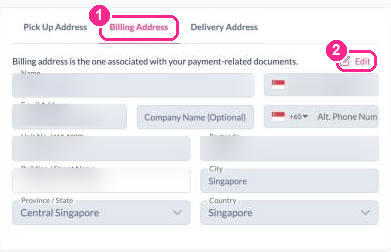
Your billing address is the address shown on your payment documents, such as invoices and receipts.
- Go to Settings > Account Profile.
- Open the Billing Address (1) tab.
- Click Edit (2), update the details and save.
Use a saved address for delivery and pick-up
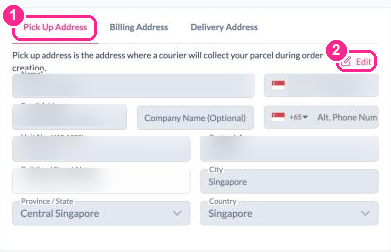
In Settings > Account Profile you can also save:
- Pick Up Address (1): the address where a courier collects your parcels. It fills in the Sender section when you click Use Default Pick Up Address on the booking page.
- Delivery Address (1): the address where you receive free gifts or reward items from EasyParcel.
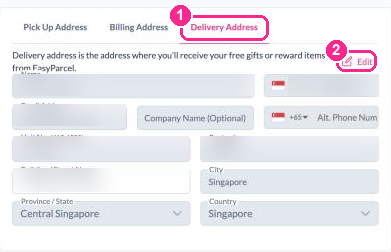
Click Edit (2) on the tab to change the address, then save.
What's next?
Still need help?
Our team is happy to help. ? Live Chat | ✉️ Contact Us