
Quick Summary
Each team member has a role that decides which pages, couriers and shipments they can see. Go to Settings > Team Management > Setup Roles & Permissions to use a ready-made role, or create and edit your own.
We'll Cover:
Open roles
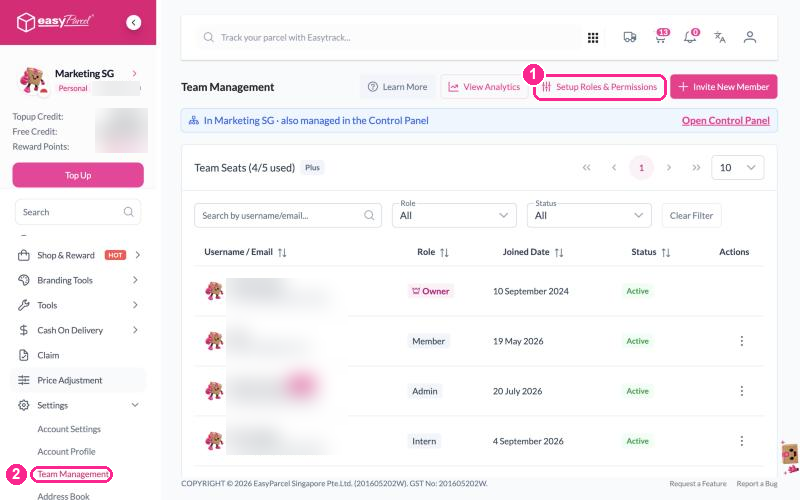
- Click Settings > Team Management.
- Click Setup Roles & Permissions.
Click Setup Roles & Permissions (1) in Settings > Team Management (2).
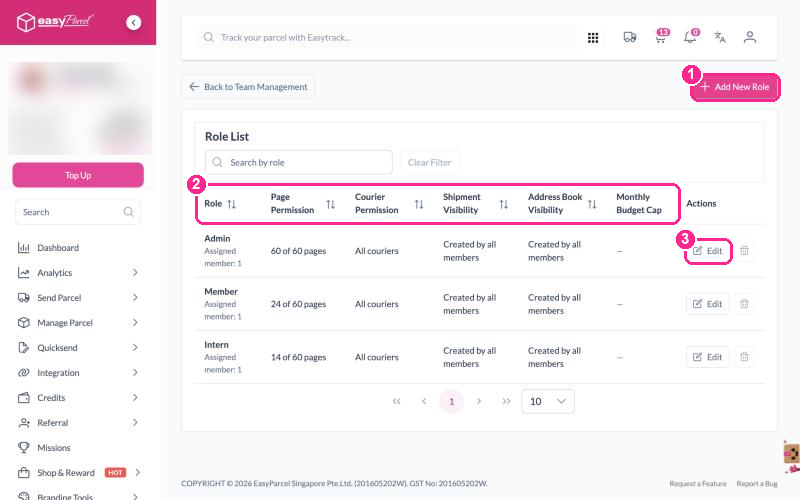
The Role List
- Click Add New Role (1) to create your own role.
- Each column (2) shows what the role allows.
- Click Edit (3) to change a role.
What each setting means?
| Setting | What it controls |
|---|---|
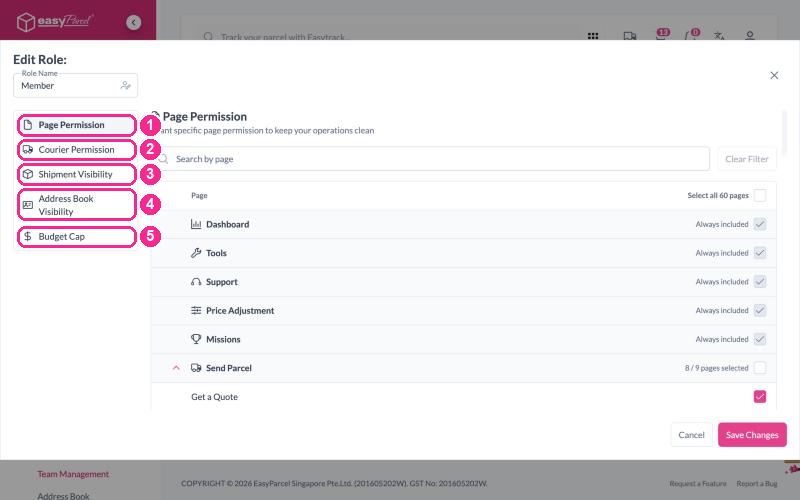
| Page Permission | Which pages the member can open (for example 24 of 60 pages) |
| Courier Permission | Which couriers the member can book, including your own courier accounts |
| Shipment Visibility | Whose shipments the member can see and manage: everyone in the account, everyone in the role, or only their own |
| Address Book Visibility | Whose saved addresses the member can see: everyone in the account, everyone in the role, or only their own |
| Monthly Budget Cap | How much the member or role can spend each month |
You set them in the role window: Page Permission (1), Courier Permission (2), Shipment Visibility (3), Address Book Visibility (4) and Budget Cap (5).
Ready-made roles
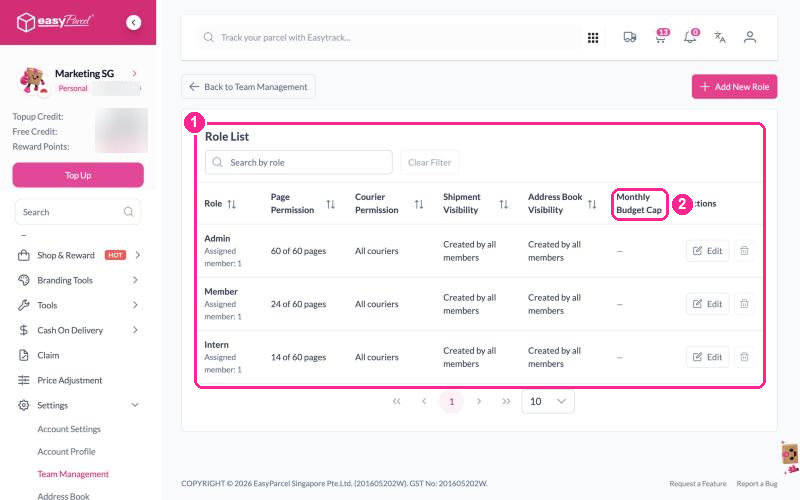
| Role | Typical use |
|---|---|
| Owner | Main account holder. Has full access |
| Admin | Manages the account and team (all pages) |
| Member | Books and manages parcels |
| Intern | Limited access for new or part-time staff |
The Role List (1) shows each role and its settings, including the Monthly Budget Cap (2).
Create a role
- Click Settings > Team Management > Setup Roles & Permissions.
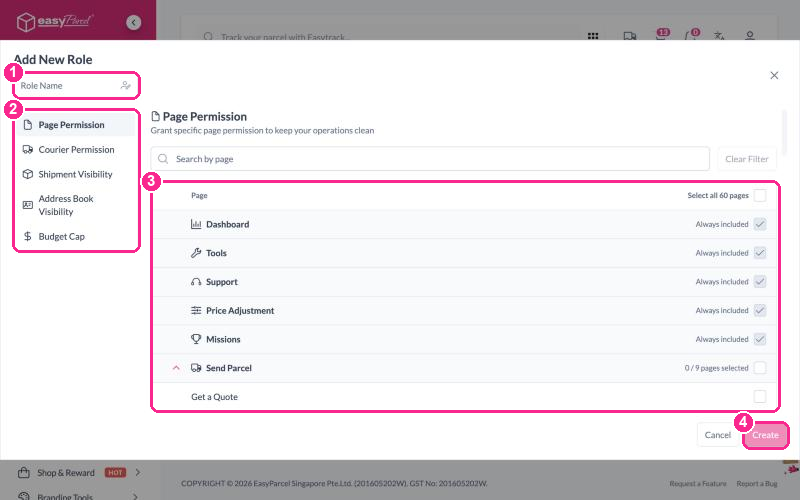
- Click Add New Role.
- Enter a Role Name (1).
- Go through each tab on the left (2): Page Permission, Courier Permission, Shipment Visibility, Address Book Visibility and Budget Cap.
- In Page Permission, tick the pages this role can open (3). Dashboard, Tools, Support, Price Adjustment and Missions are always included.
- Click Create (4).
Edit a role
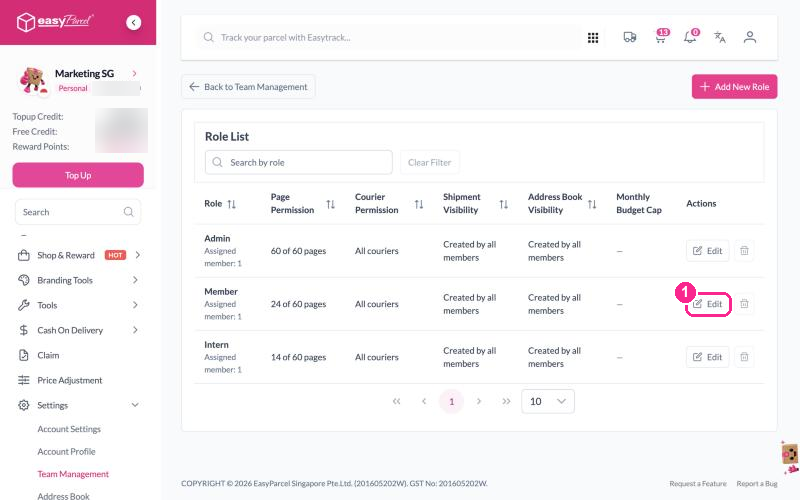
In the Role List, click Edit next to the role, change the settings and save. The change applies to everyone with that role.
Click Edit (1) next to the role.
Tips
- Give staff only the pages they need.
- Use Courier Permission to stop staff booking the wrong courier.
- Set Shipment Visibility to 'themself only' if staff should not see each other's customers.
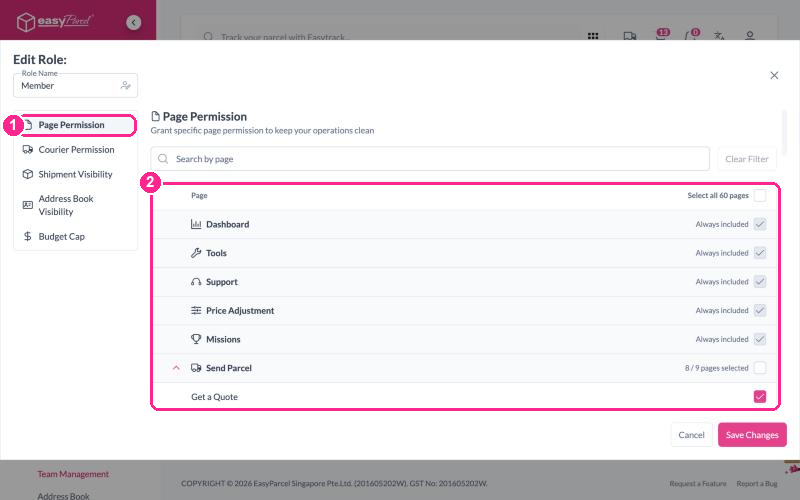
In Page Permission (1), tick only the pages (2) the role needs.
What's next?
Still need help?
Our team is happy to help. ? Live Chat | ✉️ Contact Us