
Quick Summary
To integrate Shopify with EasyParcel SG, you can choose between the Shopify App Version (highly recommended for live shipping rates and automated fulfillment) or the Import Version (for manual batch processing). Simply log into your EasyParcel account, navigate to 'Integrations' > 'Add New Store', and select 'Shopify' to connect your store URL. Once linked, you can automate your Singapore logistics with one-click bulk fulfillment, real-time courier rate comparisons, and automatic tracking number notifications via SMS or WhatsApp.
We'll Cover:
I. Introduction
Hey, EasyParcel fam! This article will explain how you can integrate your EasyParcel account with your Shopify store. By using EasyParcel Shopify APP, you are able to:
✔ One-Click Bulk Fulfillment
Fulfill single or bulk shipments with just one click, streamlining your shipping process and saving you time.
✔ Live Rate At Checkout
Real-time shipping rates from EasyParcel, ensuring accurate pricing every time.
✔ Auto-generate Bulk Shipping Label
Minimize manual errors and save time by creating multiple shipping labels in a single step.
✔ Partial Order Fulfilment
Send what you have, and ship the rest later. Keep your customers happy.
✔ Auto Tracking Number Notification (SMS, WhatsApp, Email)
Keep customers informed and reduce support inquiries.
✔ Compare 60+ Courier Options
Quickly find the best shipping options for your business and customers.
2. Start integrating - Add your store in EasyParcel account
2.1: Plugin Version
Step 1: Log into your EasyParcel account and Click 'EasyConnect'.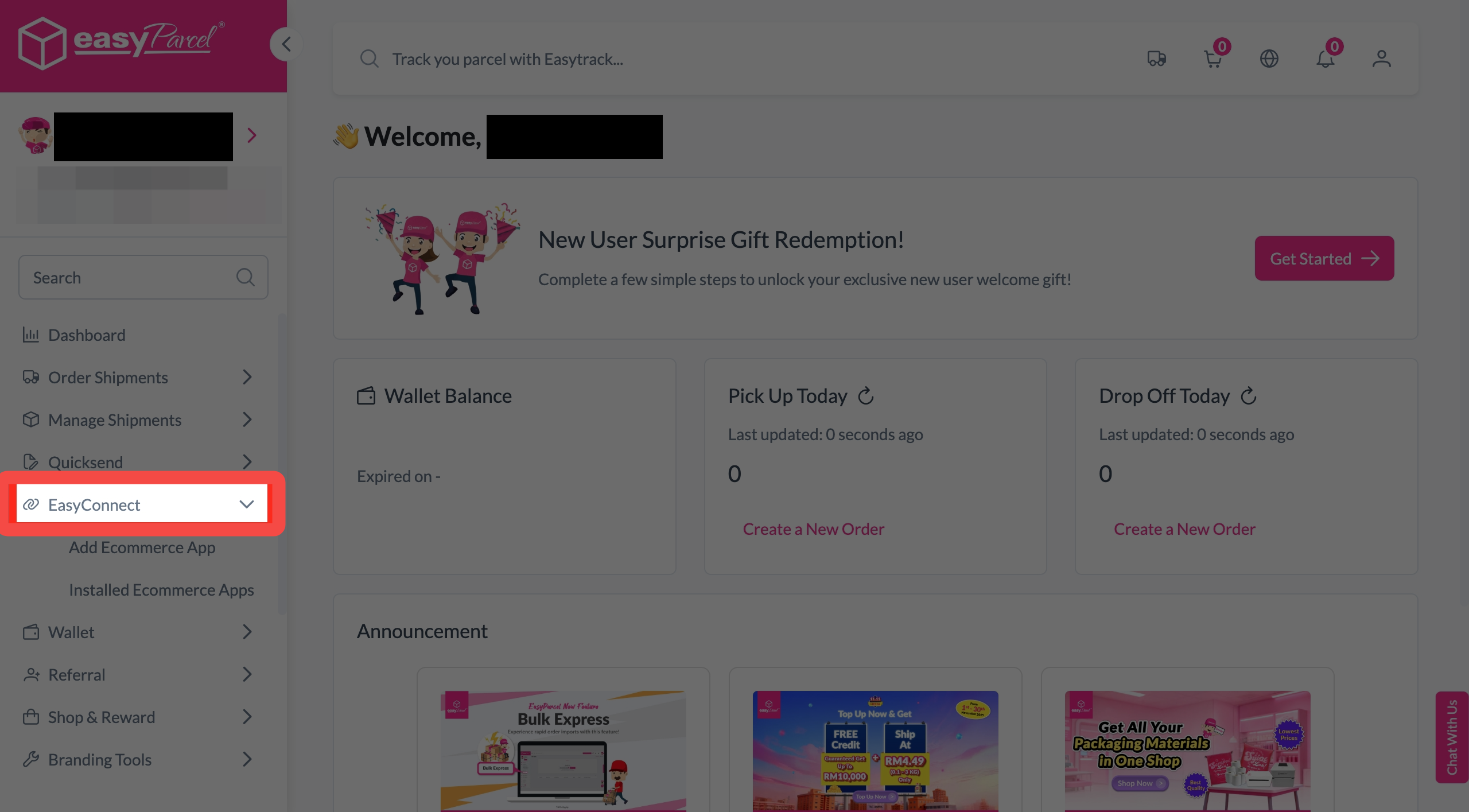
Step 2: Click 'Add Ecommerce App'. Find 'Shopify', and then click 'Install App'. 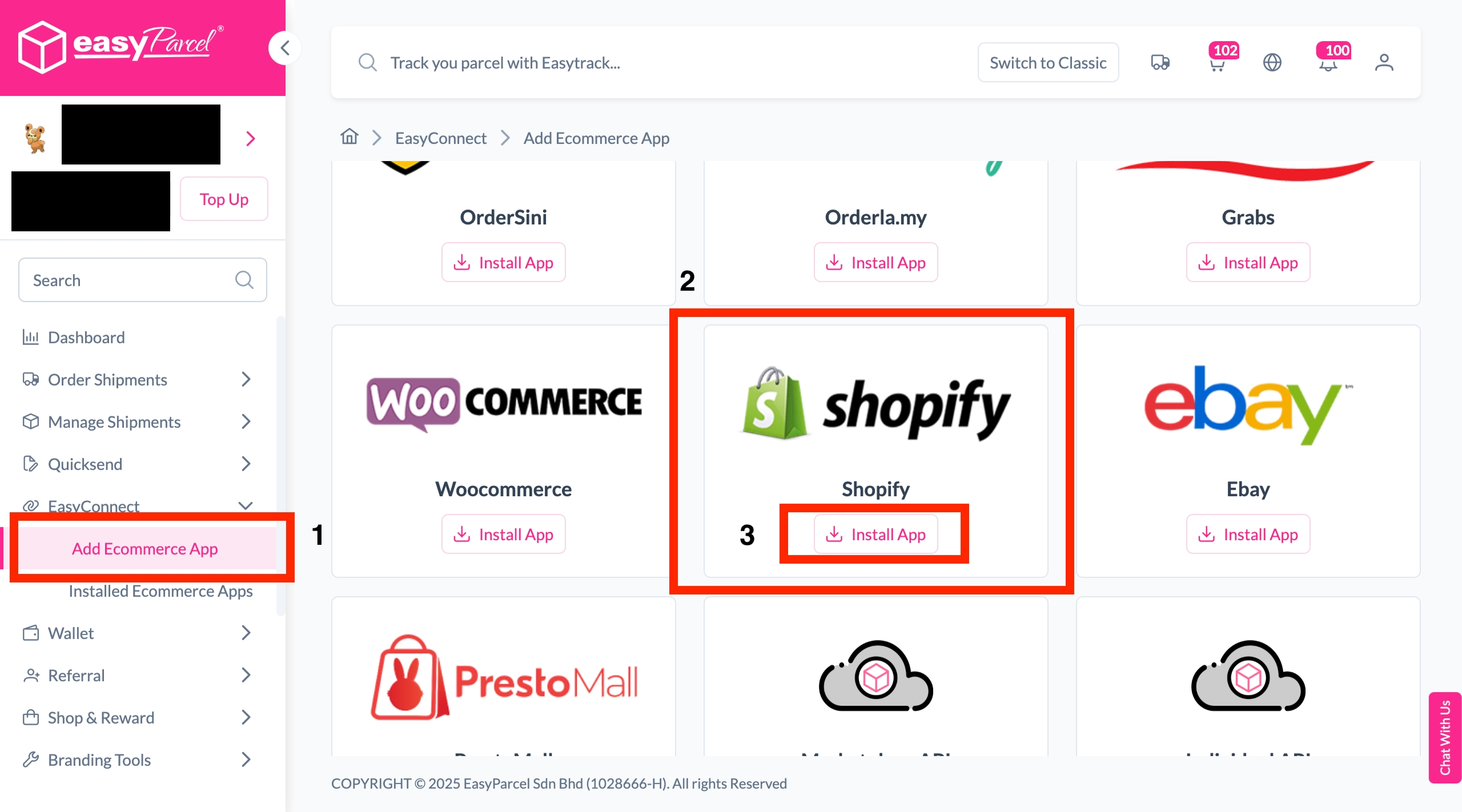
Step 3: Select 'Seamless Version'
Step 4: Fill in the 'Store name' and 'Store URL'. After that, click 'Add'.
Step 5: Your store API key/Integration ID will be generated. Copy it to integrate with your store.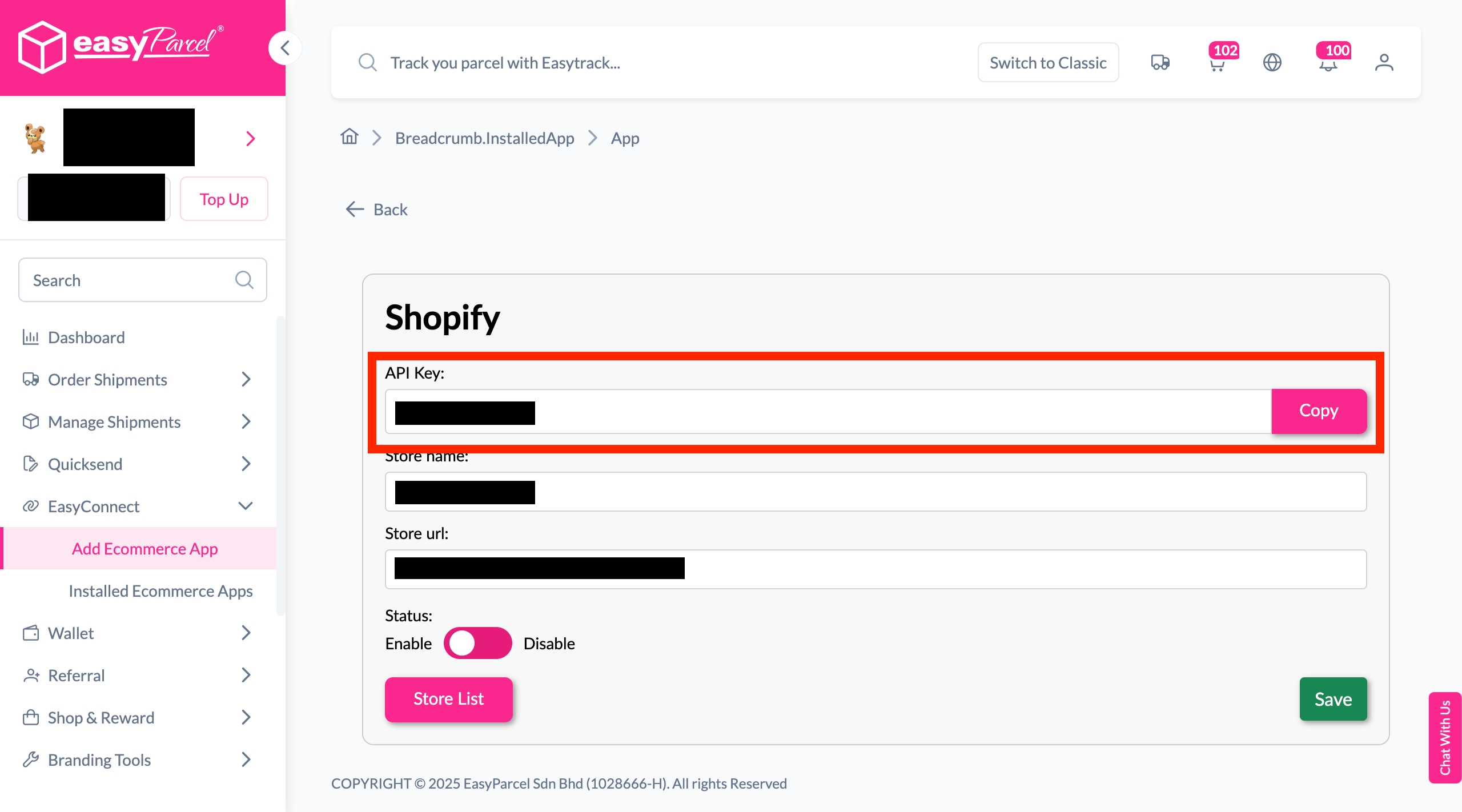
Step 6: Go to your Shopify admin panel, click on 'Apps', search for "EasyParcel - Delivery Made Easy", and click 'Install'.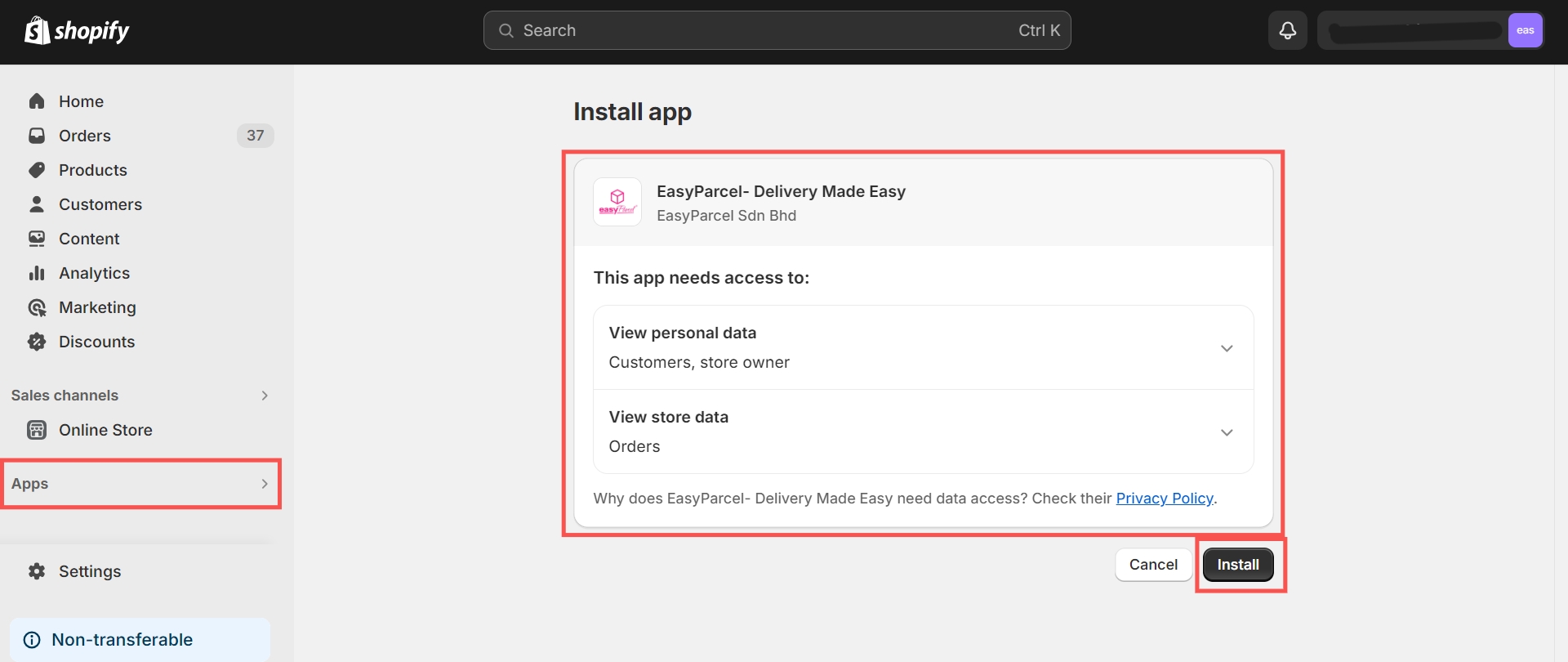
Step 7: You'll be redirected to the EasyParcel settings under the 'Getting Started' tab. Read through the instructions and click 'Start Setup'.
Step 8: You'll be brought to the 'Shipping Setting' tab to fill in your details. Choose which country you'd like to ship from and insert your integration ID (which you obtained in Step 5). Copy the integration ID to paste into the 'Shipping Setting' tab.
Step 9: Please review the auto-filled 'Sender's Details' to ensure accuracy. If any information needs editing, make the necessary adjustments. Once you have verified the details, click 'Save' to store the information.
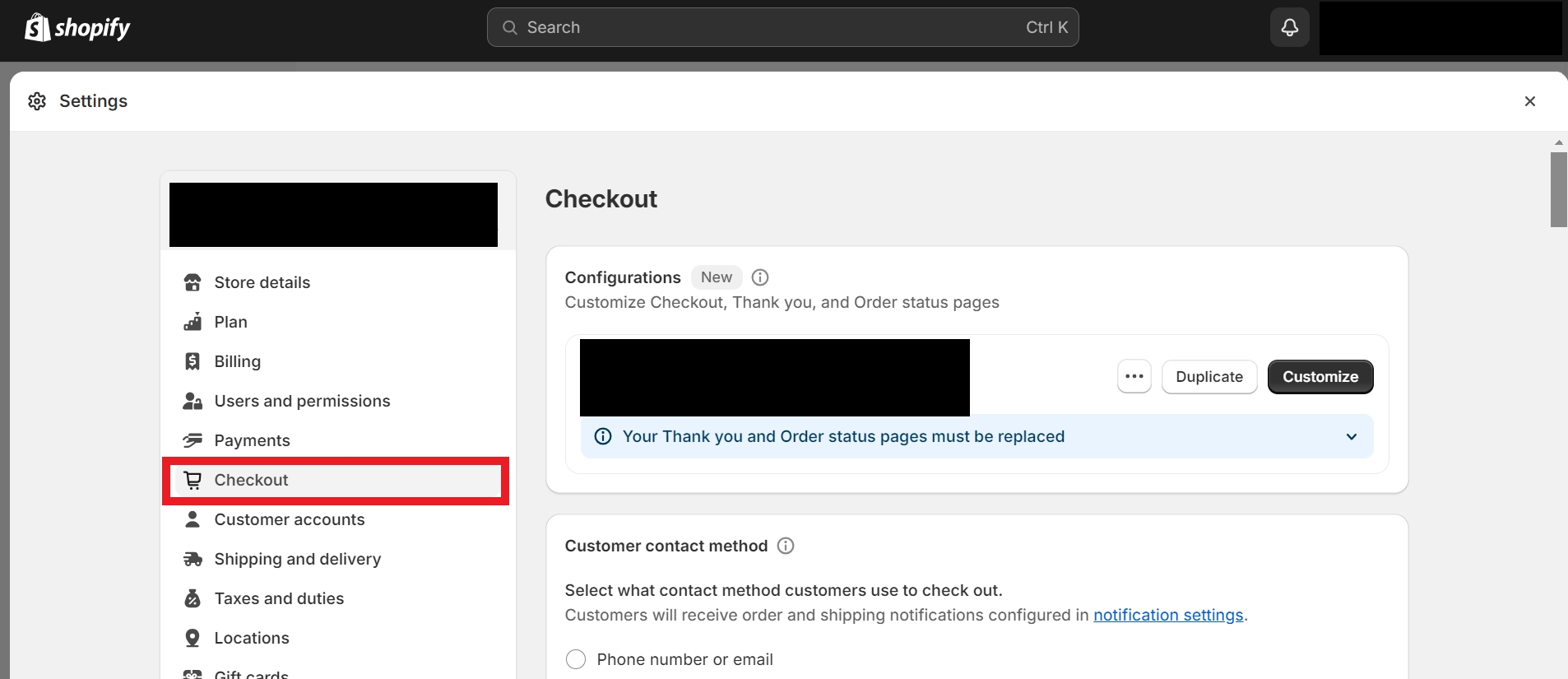
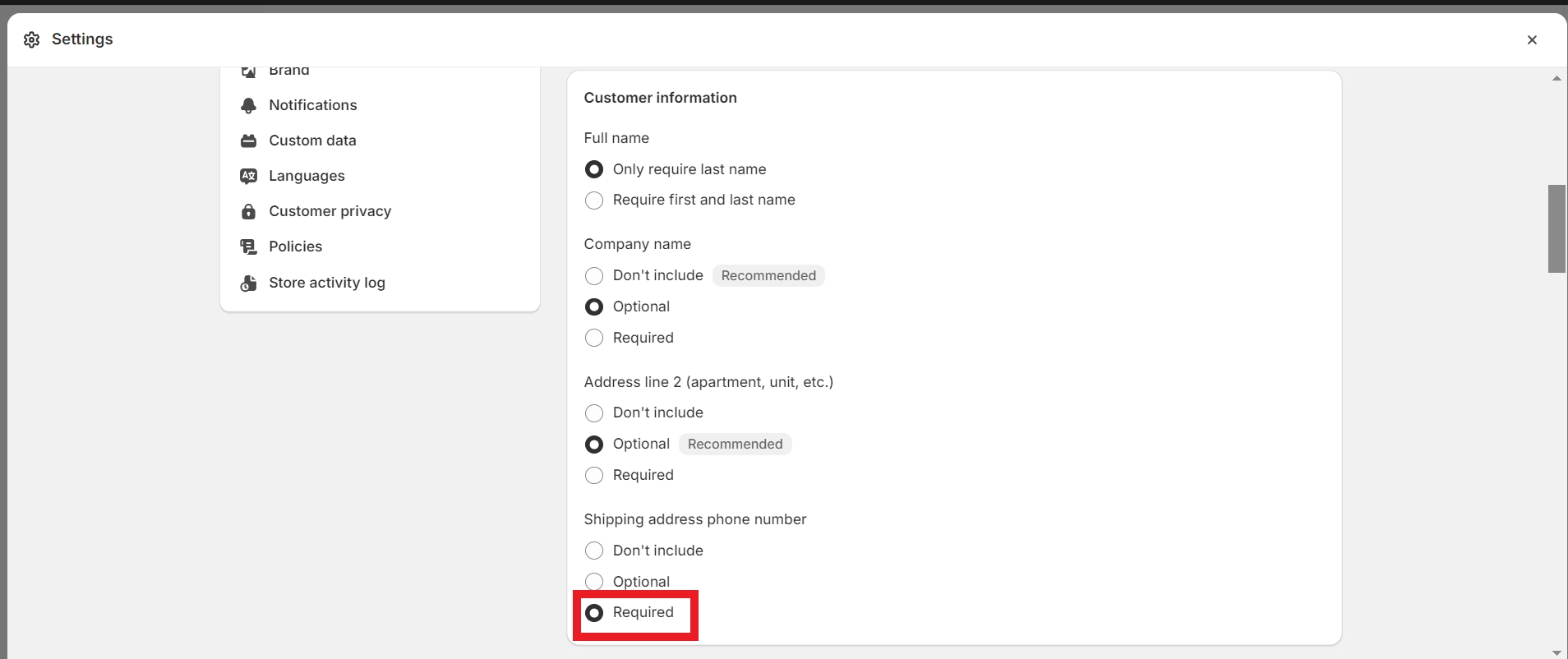
Step 10: Go to your Shopify admin panel, click 'Settings', click 'Checkout', then under 'Shipping address phone number', choose 'Required' to ensure your customer's contact number is captured by EasyParcel's Shopify app.
Note: Failure to adhere to these steps may result in the buyer's contact number not being captured by the EasyParcel app. Consequently, when the order is imported into EasyParcel, it may indicate a failed import due to an empty receiver_contact field. Additionally, for app versions, successful order fulfillment may occur, but no AWB (Air Waybill) will be generated or provided to the customer due to the receiver_contact field being empty.
2.2: Import Version
Step 1: Log into your EasyParcel account. Under EasyConnect section, click on "Add Ecommerce App", find "Shopify" and click on "Install App"
Step 2: Select 'Import Version'.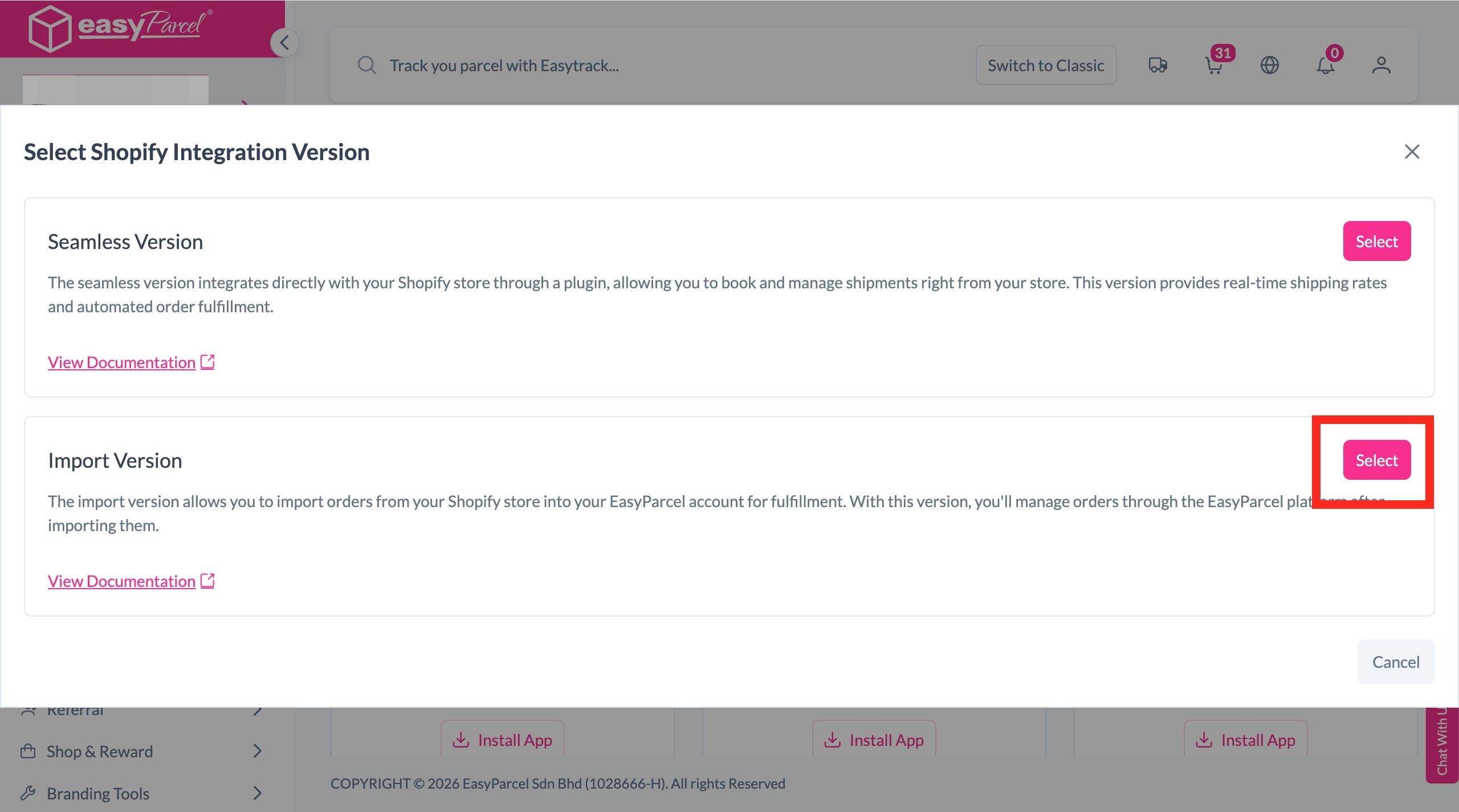
Step 3: Key in your "Store Name" and "Store URL" and click on the "Connect" button
Kindly take note:
Please Key in URL without https:// (Example : testing.myshopify.com)

Step 4: You will then be redirected to your Shopify admin page, and click on the "Update" button. 
Step 5: Under "EasyConnect", click on "Installed Ecommerce Apps", find "Shopify Import" and click on "Open App" button. 
Step 6: Find your connected store on the store page, and click into the store. 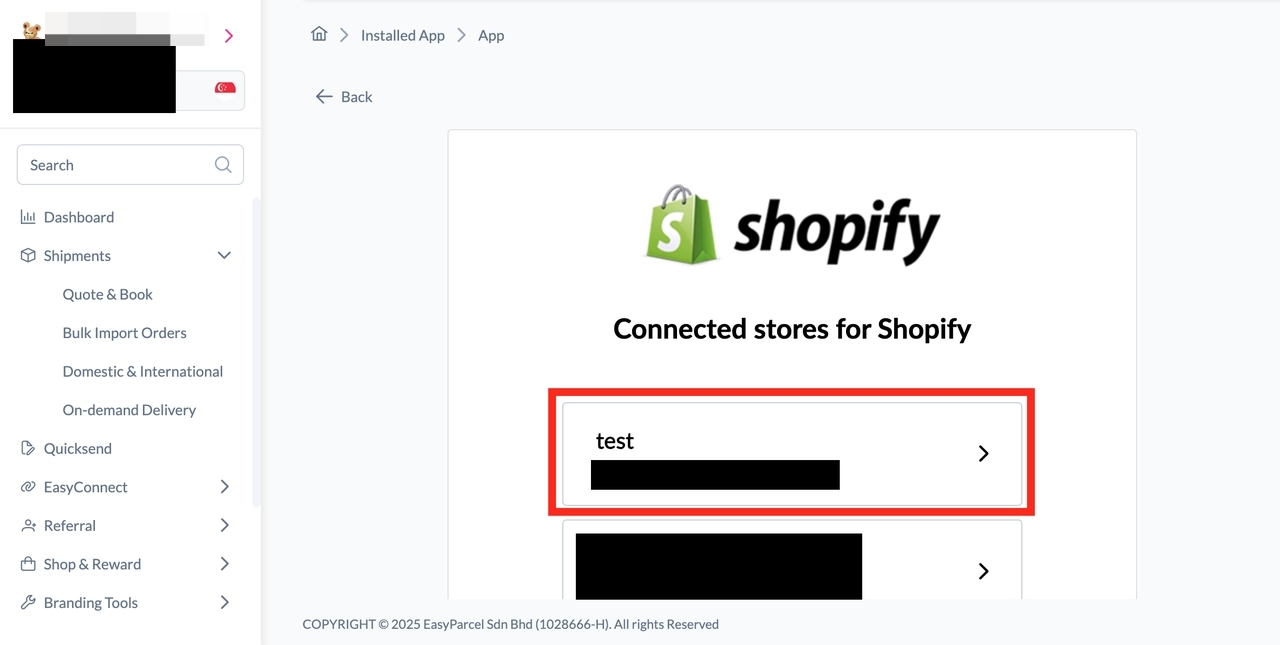
Step 7: In the store, click "Sender Address" and key in your sender details and click on the "Update" button. 
Step 8: Click on "Order", select the order date and order status and click on the "Search" button. The order will be imported and shown in the list below.
