
Quick Summary
To combine multiple Shopify orders with the same order number, navigate to Integrations > Your Store in your EasyParcel account. Click Edit on your Shopify store and set "Auto Merge" to "Yes." This feature automatically consolidates imported orders sharing the same order ID, helping you reduce manual data entry and avoid duplicate shipments for your Singapore e-commerce business.
Overview
This article will explain how you can merge all imported Shopify orders with same order number automatically.
What is Auto Merge
Auto Merge is a function that allows you to merge all imported Shopify orders with the same order number automatically. This feature helps reduce manual work, avoid duplication, and ensure that any updates made to an order are reflected across all merged entries. It’s especially useful when you’re dealing with bulk orders, making your Shopify store operations more efficient by keeping things organized and consistent.
Guide to activate Auto Merge function
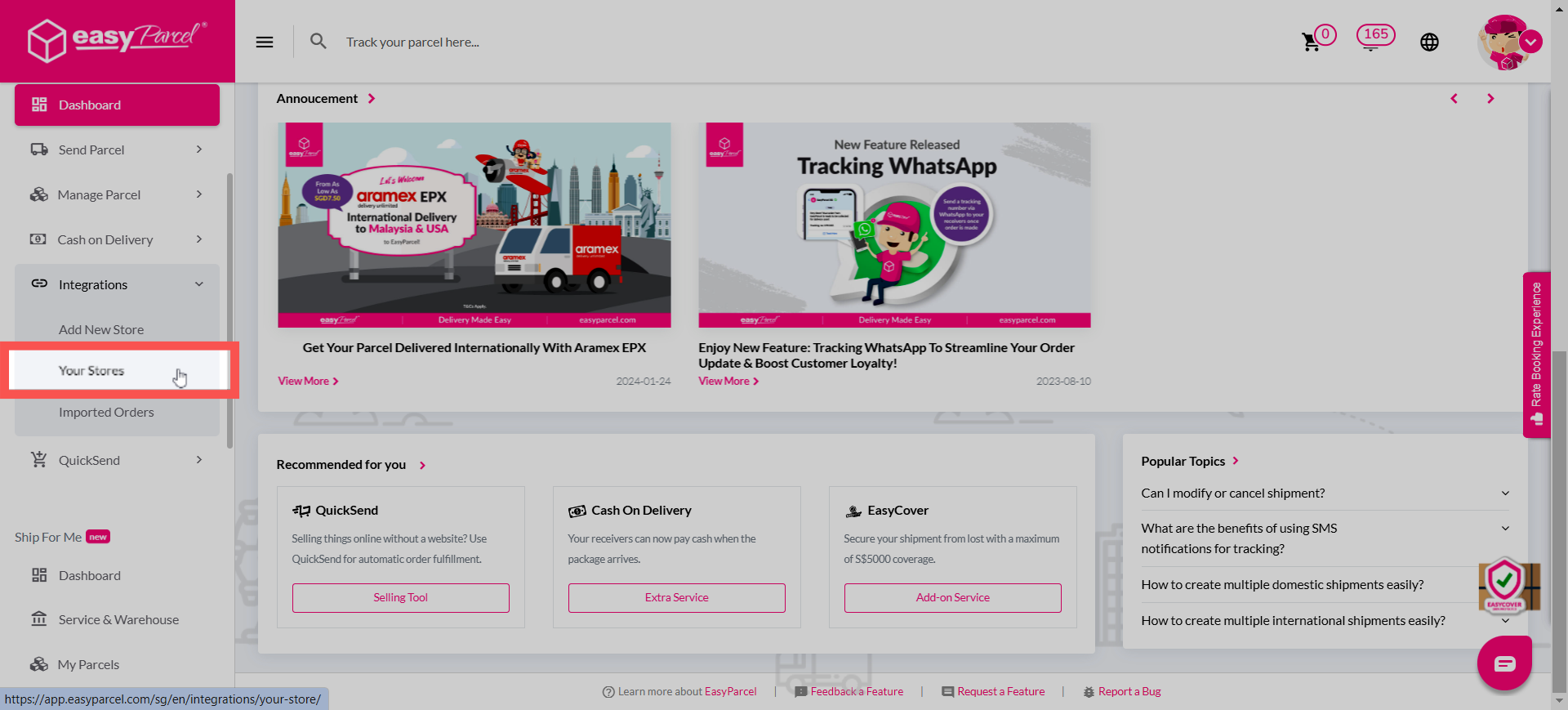
Step 1: Go to your EasyParcel account, under 'Integration' then click on 'Your Store'.
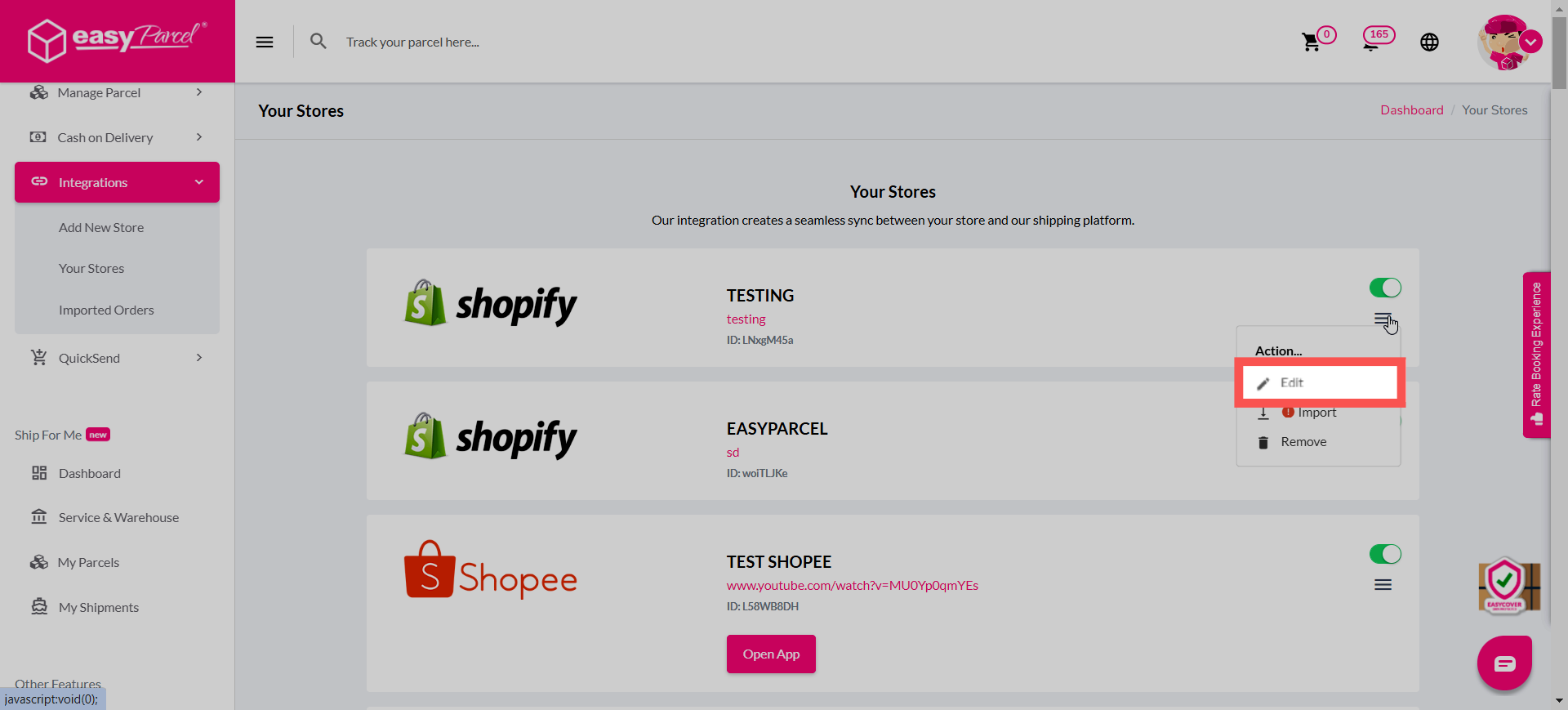
Step 2: Choose your integrated Shopify store, click on the three-line and click 'Edit'.
Step 3: Under Edit Shopify Integration, find 'Auto Merge', change Auto Merge to 'Yes' to allow all imported Shopify orders with same order number merge into one automatically.
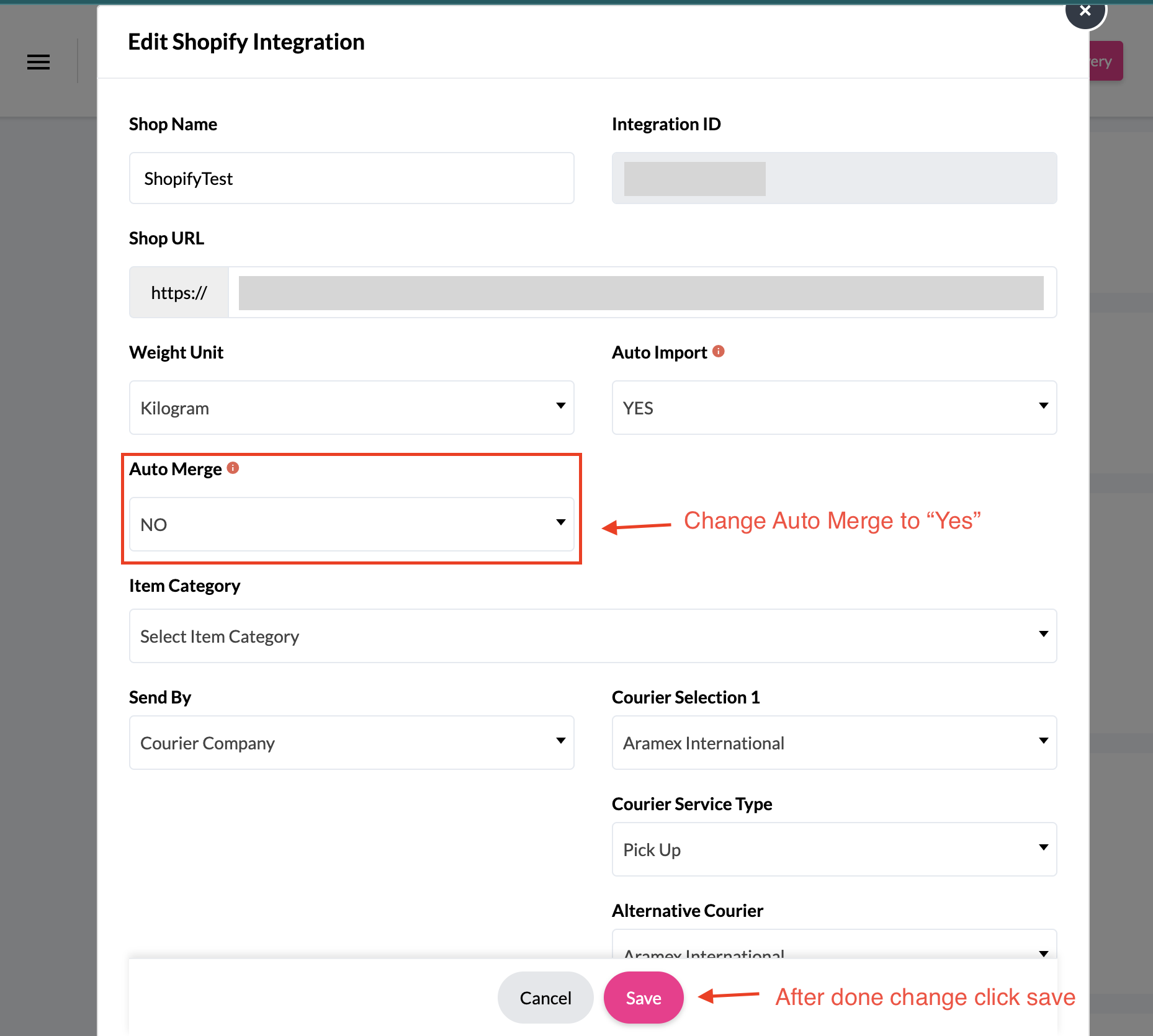
Note: If you select 'No', you may manually merge orders after import.
