
Quick Summary
Tracking SMS sends your receiver a text message about their parcel. Customise the message under Branding Tools > Tracking SMS, and turn it on for a parcel in the add-ons section when you book.
We'll Cover:
Customise your SMS
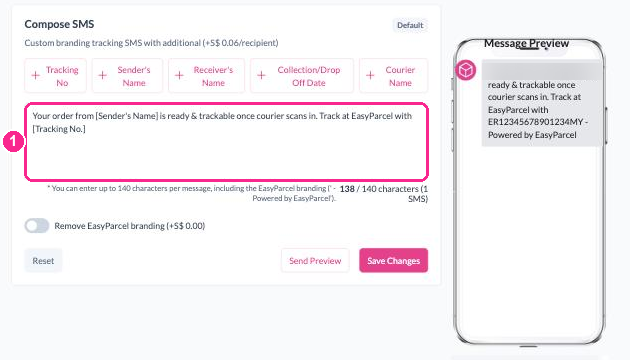
Open Branding Tools > Tracking SMS. Edit the SMS Content (1). The message can be up to 140 characters, including the EasyParcel branding (" -Powered by EasyParcel").
Tags you can use
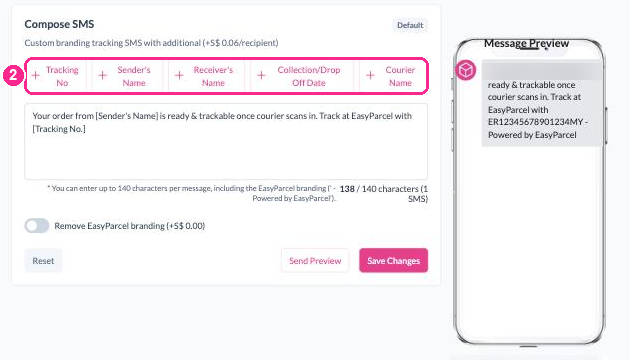
Click a tag (2) to add it: [Tracking No], [Sender's Name], [Receiver's Name], [Courier Name] and [Collection/Drop Off Date].
Branding and price
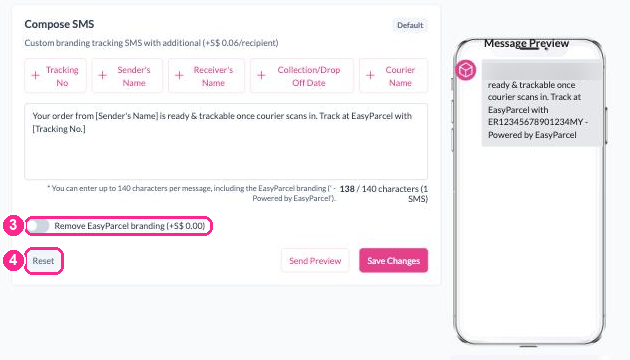
Use Remove EasyParcel branding (3) to remove the EasyParcel text. The page shows the price for this option. Click Send Preview to see your message, Save Changes to keep it, or Reset (4) to start again.
Receiver tracking notifications for new orders
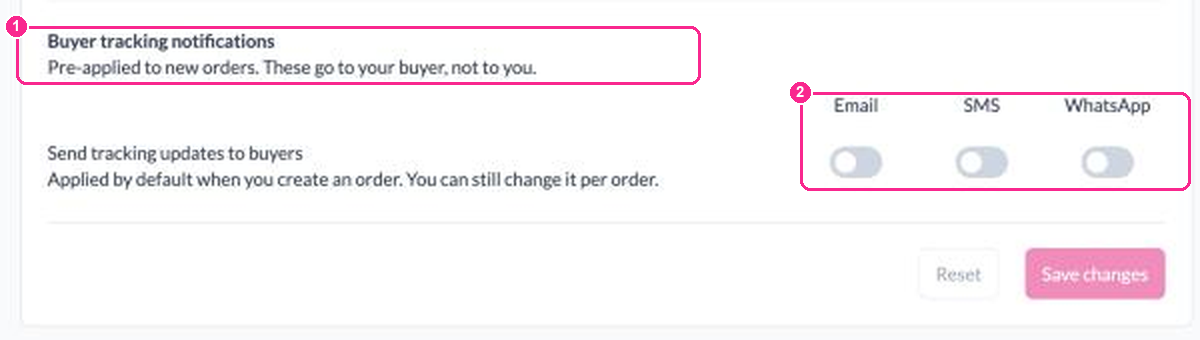
You can choose which tracking notifications are switched on by default for new orders. Go to Settings > Account Settings and find Buyer tracking notifications (1). These notifications go to your receiver, not to you. Switch on Email, SMS or WhatsApp (2) and click Save changes. You can still change them for each order.
Note: On the booking page, Tracking SMS shows its price per parcel before you pay.
What's next?
Still need help?
Our team is happy to help. ? Live Chat | ✉️ Contact Us