
Quick Summary
Invite team members from Settings > Team Management > Invite New Member. They get an email invitation. After they accept, they can switch to your account from the account menu.
We'll Cover:
The Team Management page
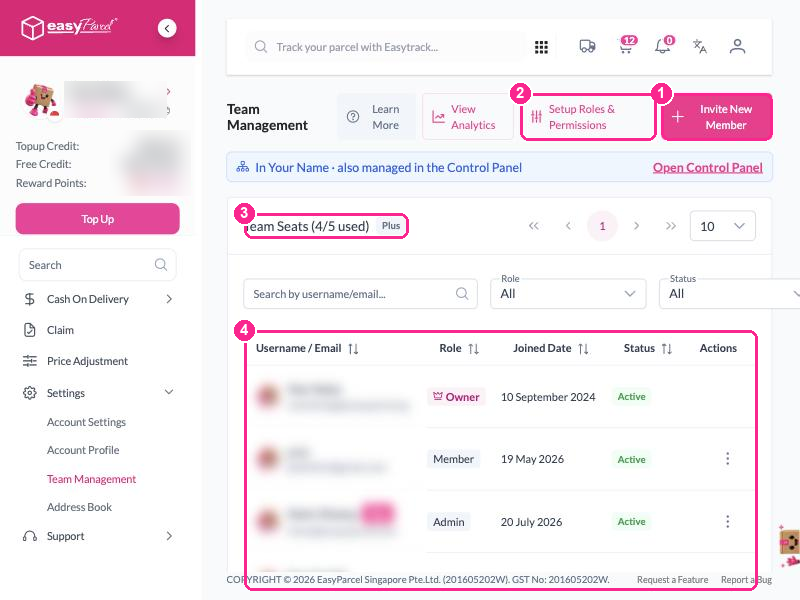
The page shows your team seats (3) and a table (4) with each member's role, joined date and status. Use View Analytics to see team activity and Setup Roles & Permissions (2) to set what each role can do.
Invite a member
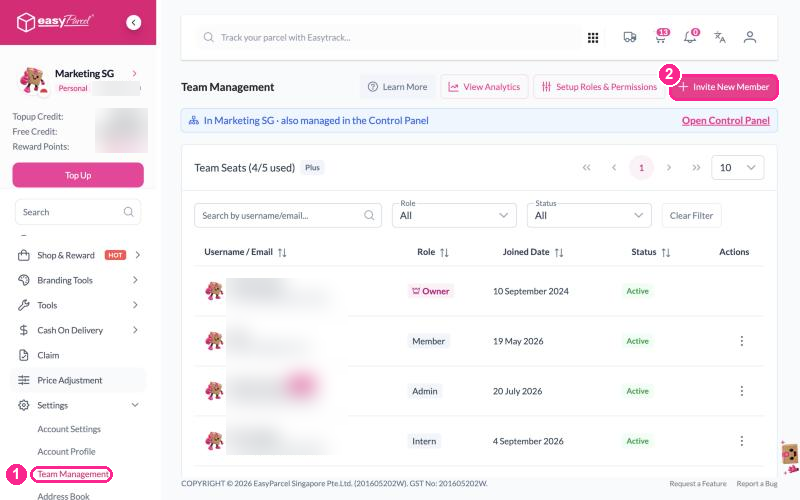
In Settings > Team Management (1), click Invite New Member (2), then follow the steps.
Accept the invitation
- Open the invitation email or link.
- Log in, or sign up if you do not have an EasyParcel login yet.
- Accept the invitation. The account now appears under Switch Account in your account menu.
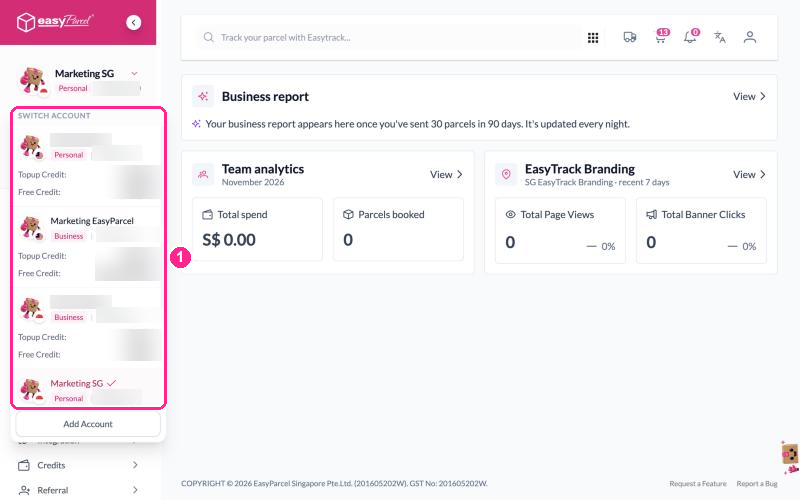
After you accept, the account shows under Switch Account (1) in the account menu.
After you join
- Switch to the team account from the account menu.
See How do I switch between my EasyParcel accounts? - Your role decides what you can see and do.
See How do roles and permissions work for my team?
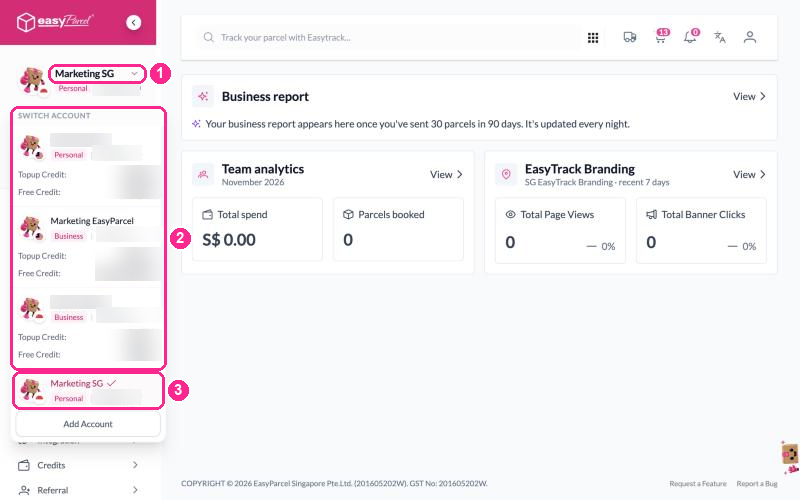
Click your account name (1) and choose the team account under Switch Account (2).
What's next?
Still need help?
Our team is happy to help. ? Live Chat | ✉️ Contact Us