EasyParcel (Singapore) Help Centre

Login Sign Up
Welcome
Login

How to fulfil Shopify orders via EasyParcel Shopify APP?

Quick Summary

To fulfill your Shopify orders, ensure the order status is set to "Paid" and open the EasyParcel Shopify App. Within the app's "Orders" tab, click "Sync Orders" to import your latest transactions. For single orders, select the items, click "Get Quote", and choose your courier; for bulk orders, select multiple checkboxes and click "Fulfill Orders" to batch-process your shipments. Once fulfilled, your Air Waybills (AWBs) are automatically generated for download, and tracking numbers are synced back to your Shopify store. This streamlined process is relevant to Singapore retailers looking to automate local deliveries and reduce manual fulfillment tasks.


1: How to fulfill Shopify single orders?

Step 1: After a customer places an order in your Shopify store, ensure the order's payment status is "Paid.Shopify order list showing payment status as Paid

Step 2: In your Shopify admin, click on "Apps" and select the "EasyParcel- Delivery Made Easy" app.
Note: If you haven't yet installed the EasyParcel Shopify app, refer to these instructions to learn more about integrating with EasyParcel.Selecting EasyParcel Delivery Made Easy app from Shopify Apps menu

Step 3: Sync and Select Order:

  • Click on the "Orders" tab (or similar, depending on the app's interface).
  • Click "Sync Orders from Shopify" to refresh the list of orders.
  • Click on the order number you wish to fulfill.

Syncing orders and selecting a specific order ID in EasyParcel app

Step 4: Fulfill Order:

  • Enter the quantity of items you wish to ship.
  • Click "Get Quote" to view available courier options and rates.
  • Select your preferred courier service.
  • Click "Fulfill Order" to complete the shipping process.

Entering package details and getting shipping quotesNote: You can choose drop-off service, you may choose your preferred drop-off location here.Selecting a drop-off point location

Step 5: AWB auto-generated

  • You can get the tracking number here
  • Click 'Download AWB' to attach them on your parcels
  • You may refer the tracking status of your order here too.

Order fulfilled status showing tracking number and download AWB button


Save time and effort on order processing! Enable Auto-Fulfil to automate courier selection and AWB generation for your incoming orders. Learn more

2: How to fulfill multiple Shopify orders at once?

Step 1: After a customer places an order in your Shopify store, ensure the order's payment status is "Paid.Shopify order list with payment status Paid

Step 2: In your Shopify admin, click on "Apps" and select the "EasyParcel- Delivery Made Easy" app.
Note: If you haven't yet installed the EasyParcel Shopify app, refer to these instructions to learn more about integrating with EasyParcel.Opening EasyParcel app from Shopify Apps menu

Step 3: Select Orders

  • In the "Orders" section, apply filters to find the orders you want to fulfill.
  • Select the checkbox next to each order.
  • Click "Fulfill Orders.

Selecting multiple checkboxes and clicking Fulfill Orders button

Step 4: Choose Courier and Pickup Date

  • A pop-up window will appear. 
  • Select your desired courier and pickup date. 
  • Click "Submit."

Bulk fulfillment popup to select courier and pickup date

Step 5: AWB Generation and Tracking

  • Your Air Waybills (AWBs) will be generated automatically.
  • You can find the tracking numbers on "Tracking Number" coulumn.
  • Click "Download AWB" to print and attach the AWBs to your parcels.

Viewing generated tracking numbers for bulk orders

Download AWB button for bulk orders

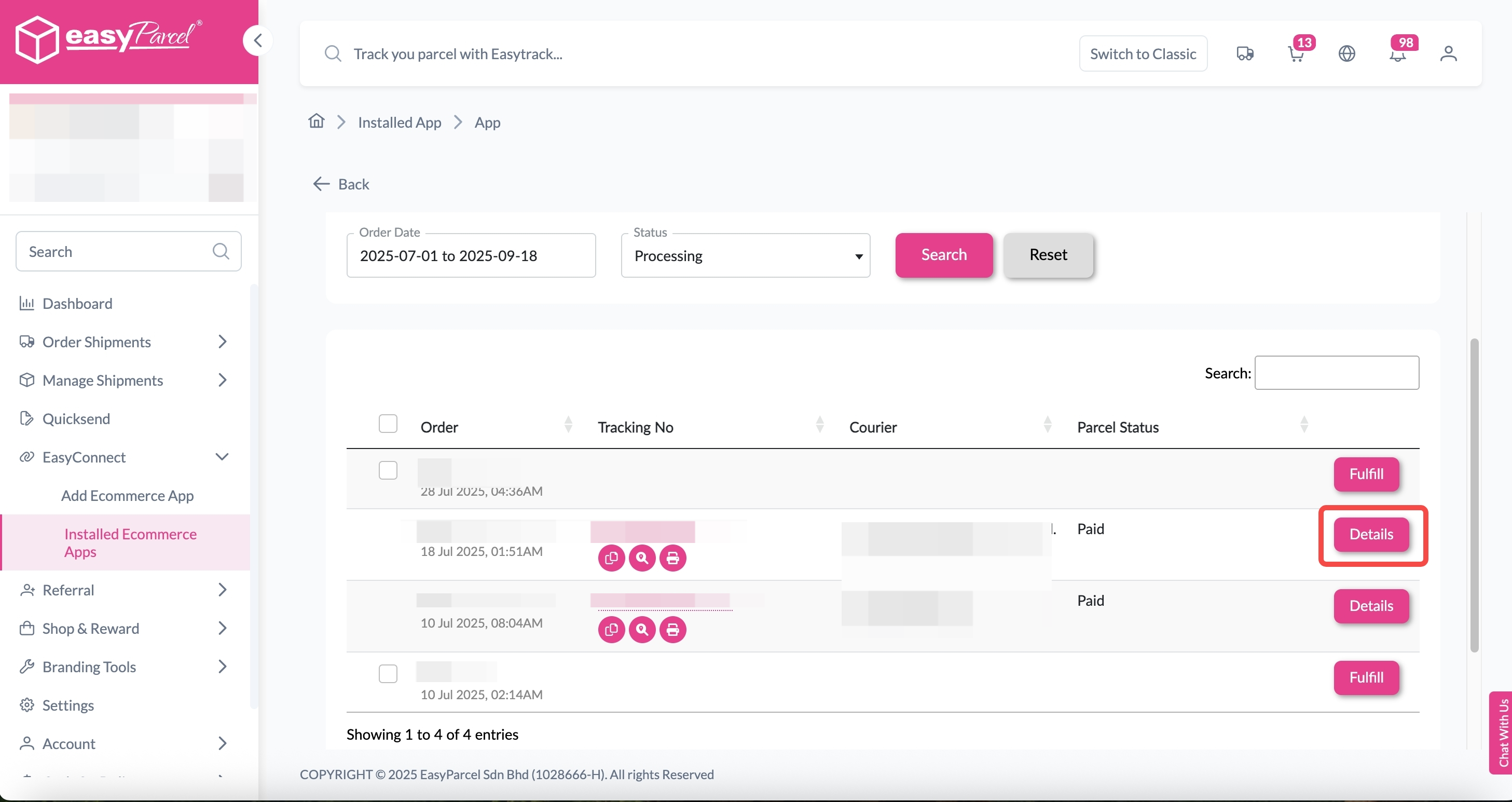
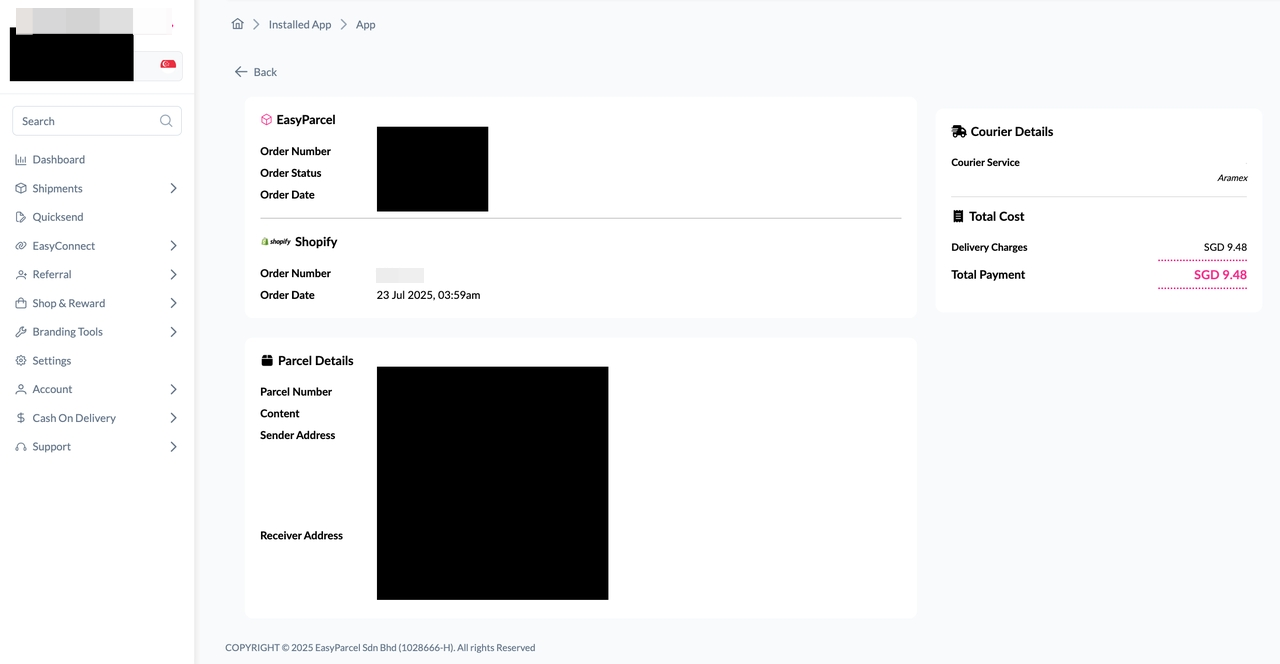
Step 6: You may refer the tracking status of your order here too.Order details page showing tracking status


Save time and effort on order processing! Enable Auto-Fulfil to automate courier selection and AWB generation for your incoming orders. Learn more


E
EasyParcel is the author of this solution article.

Did you find it helpful? Yes No

Send feedback
Sorry we couldn't be helpful. Help us improve this article with your feedback.