
Quick Summary
To customize label names, open the EasyParcel Shopify App, go to Settings, and enable Shipping Label Rename. You can choose to use the Shopify Order Number or the Tracking Number as the file name, and optionally add a custom Prefix or Suffix. This helps Singapore sellers organize and identify Air Waybills (AWBs) more efficiently during the fulfillment process.
Introduction:
By default, the shipping label file names display the tracking number. However, fulfillment centers or personnel often prefer to identify each label by its corresponding order number. This allows for easier organization and streamlined processing. With the EasyParcel Shopify app, you can customize shipping label file names to meet your specific needs.
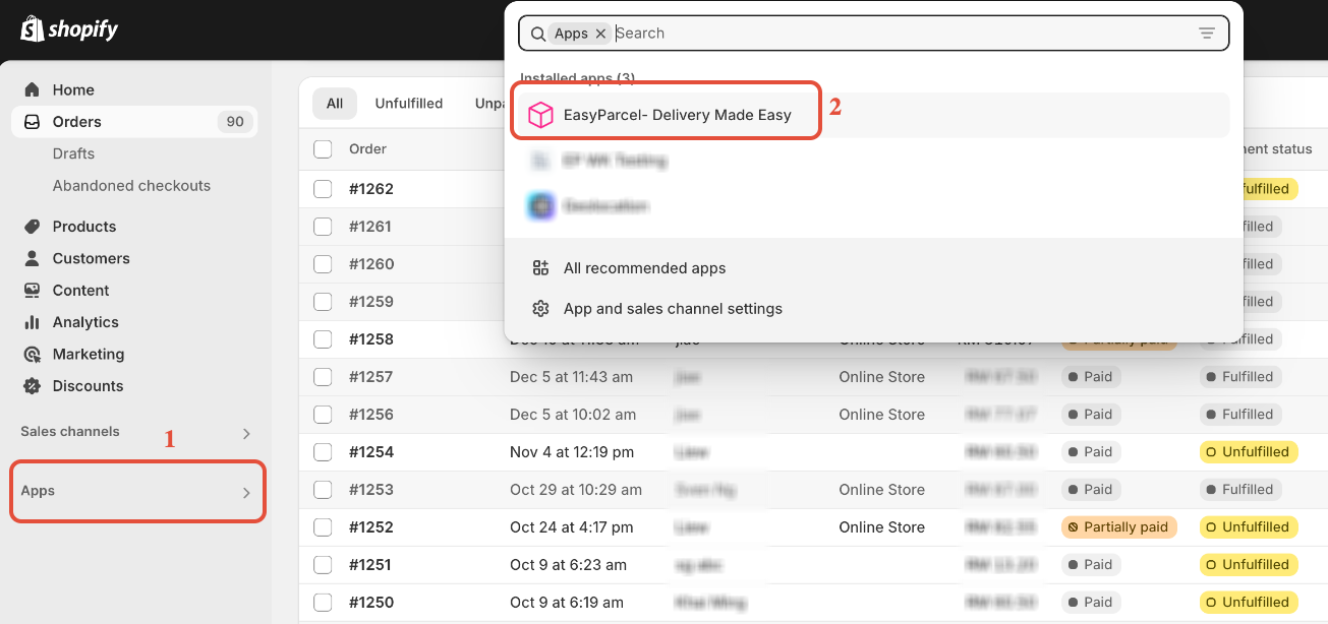
Step 1: Access the EasyParcel's Shopify App
In your Shopify admin, click on "Apps" and select the "EasyParcel- Delivery Made Easy" Shopify APP.
- Note: If you haven't installed the EasyParcel Shopify app, learn how to integrate with EasyParcel here.
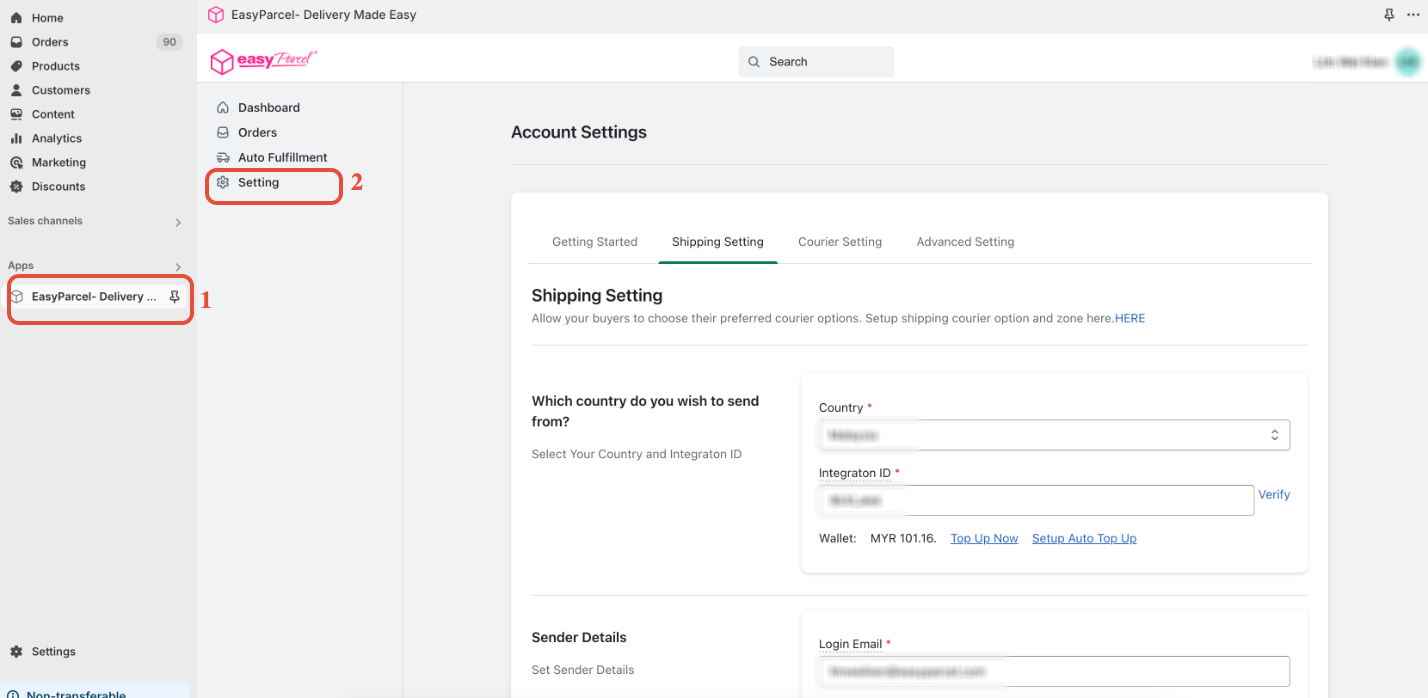
Step 2: Navigate to Settings
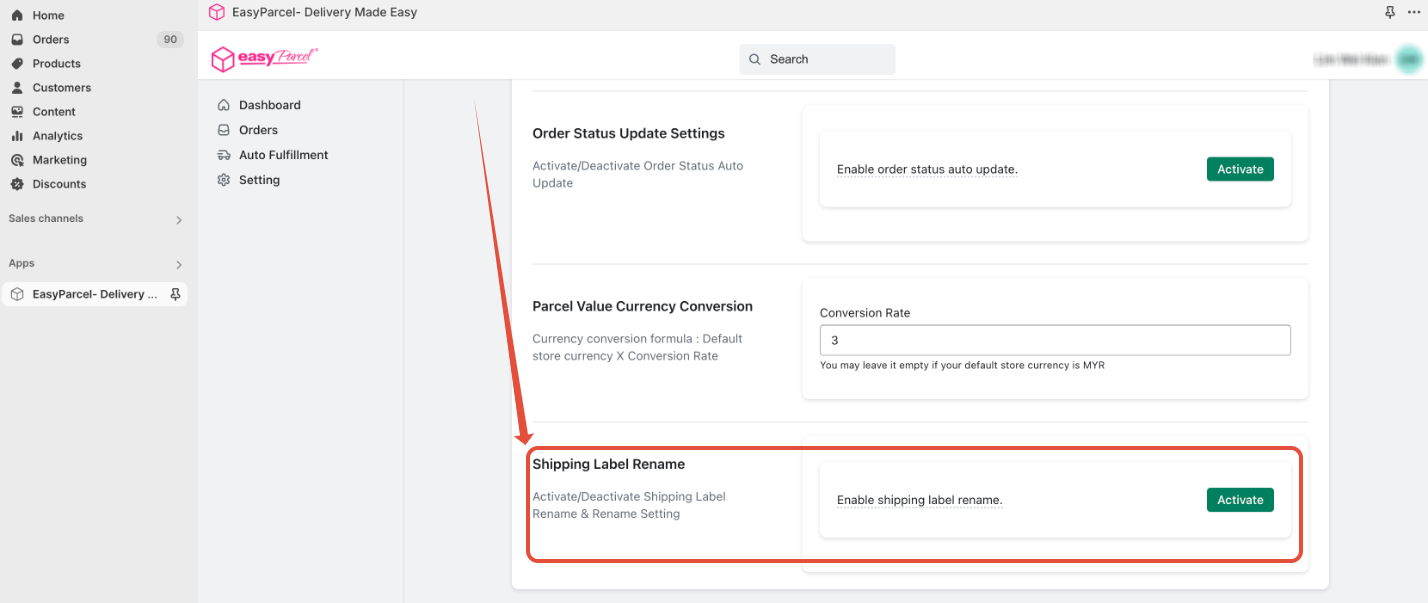
- Within the EasyParcel Shopify app, click on the "Settings" tab. Then, scroll down to the "Shipping Label Rename" section.
- Click the "Active" button to enable the Shipping Label Rename feature.
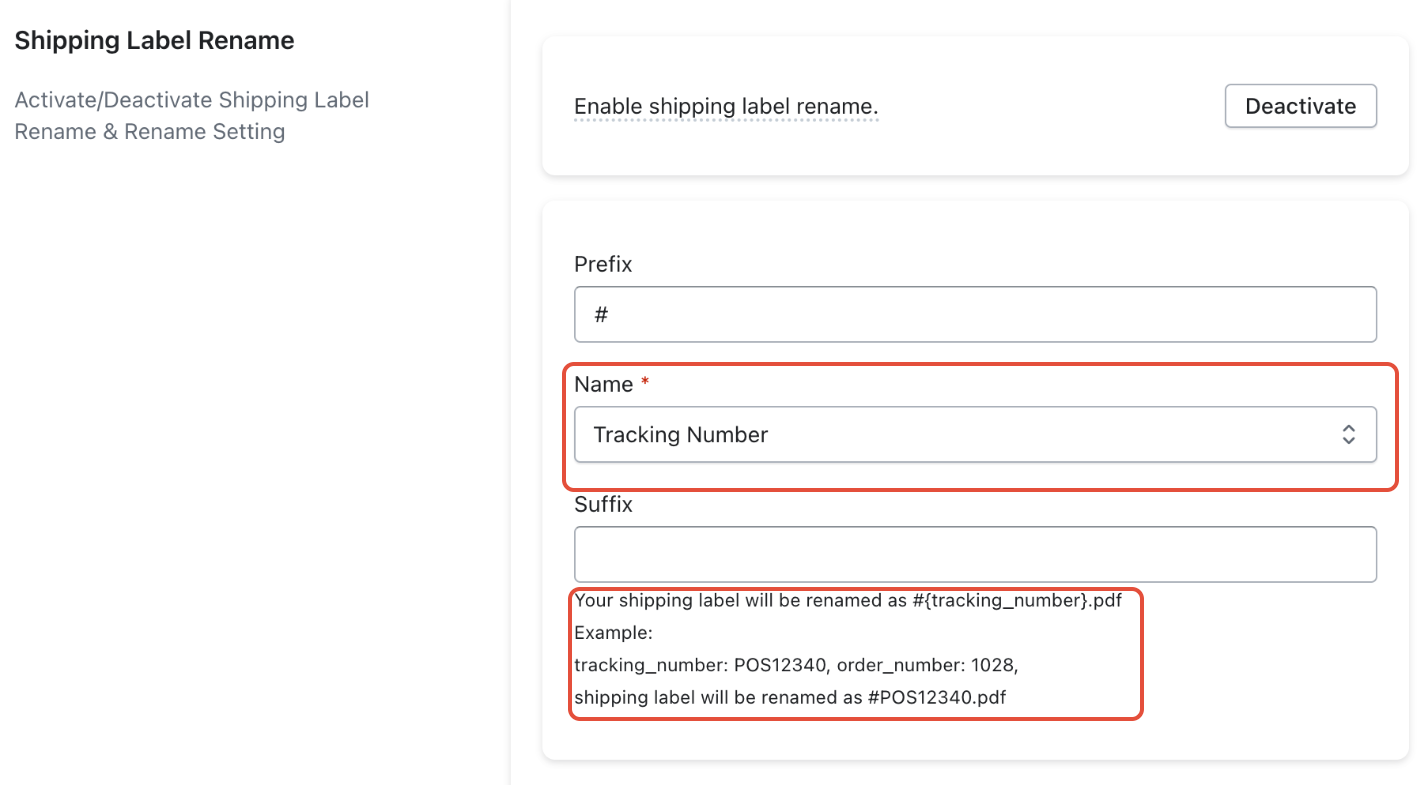
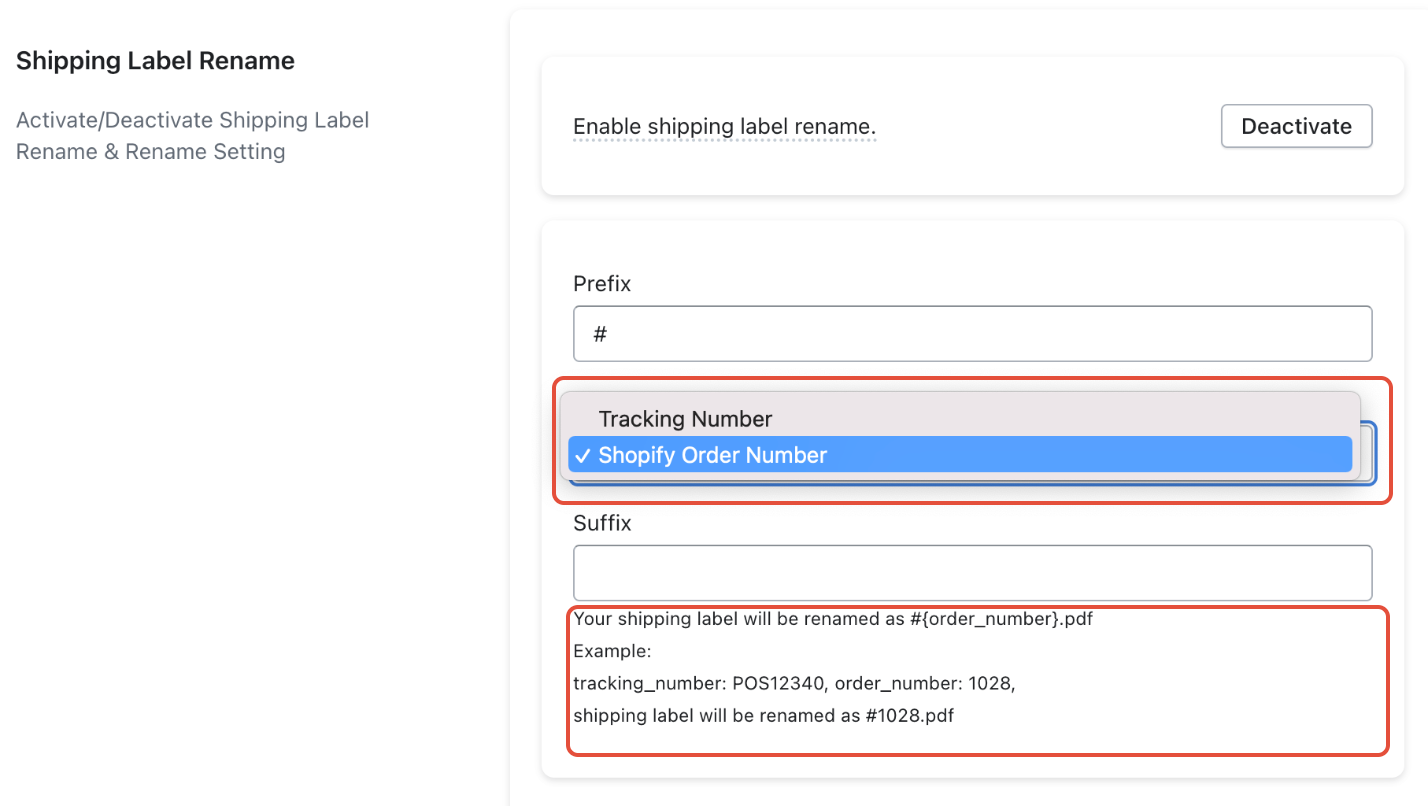
Step 3: Select Your Preferred File Name Format:
- 3.1 Tracking Number: The shipping label file name will display the tracking number.
- 3.2 Shopify Order Number: The shipping label file name will display the Shopify order number.
Step 4: Configure Prefix or Suffix (Optional)
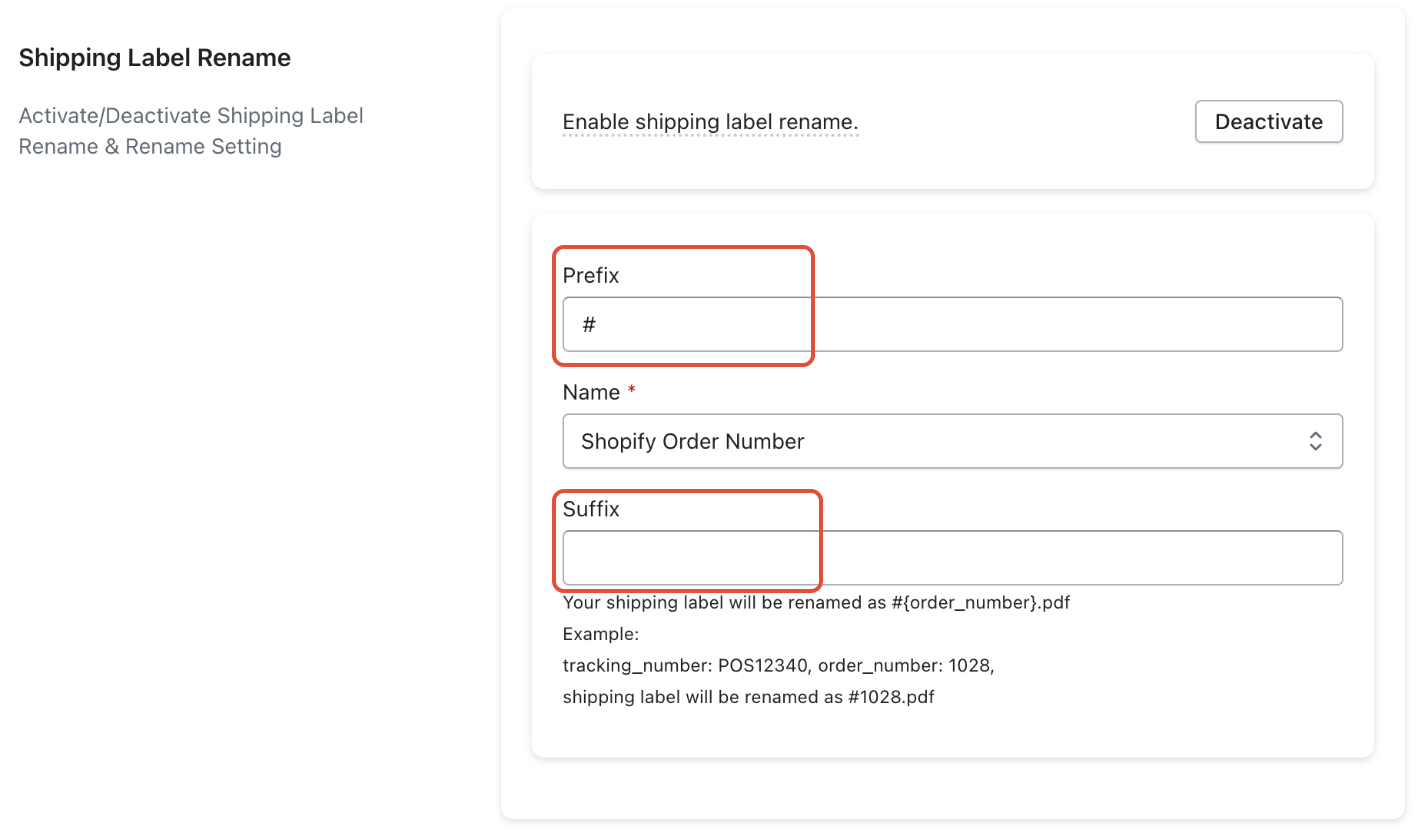
You can customize the shipping label file names by adding a prefix or suffix based on your requirements.
4.1 Prefix: A prefix is text added beforethe chosen file name (e.g., if you choose Shopify Order Number and add "Order-" as a prefix, the file name might be "Order-12345").
- Example: If your shop name is "MyShop" and you want to put it infront of the order number, you can put "MyShop-" as the prefix.
4.2 Suffix: A suffix is text added afterthe chosen file name (e.g., if you choose Tracking Number and add "-Label" as a suffix, the file name might be "123456789-Label").
- Example: If you want to add the date on the back of the tracking number, you can put "-20240401" as a suffix.
Step 5: Before and After Examples
- Before (Default): 123456789.pdf (Tracking Number)
- After (Shopify Order Number with Prefix): Order-12345.pdf
- After (Tracking Number with Suffix): 123456789-Label.pdf
