
Quick Summary
Install the EasyParcel plugin in WooCommerce, then paste your Integration ID and fill in your address under WooCommerce > Settings > Shipping > EasyParcel Shipping.
We'll Cover:
Get your Integration ID
- Log in to your EasyParcel account and click Integration > Add Ecommerce App.
- Find WooCommerce and click Install App.
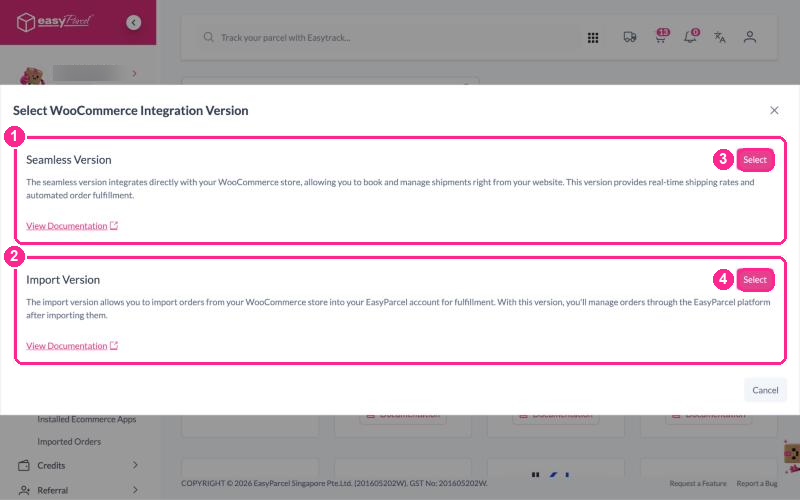
- Select Seamless Version.
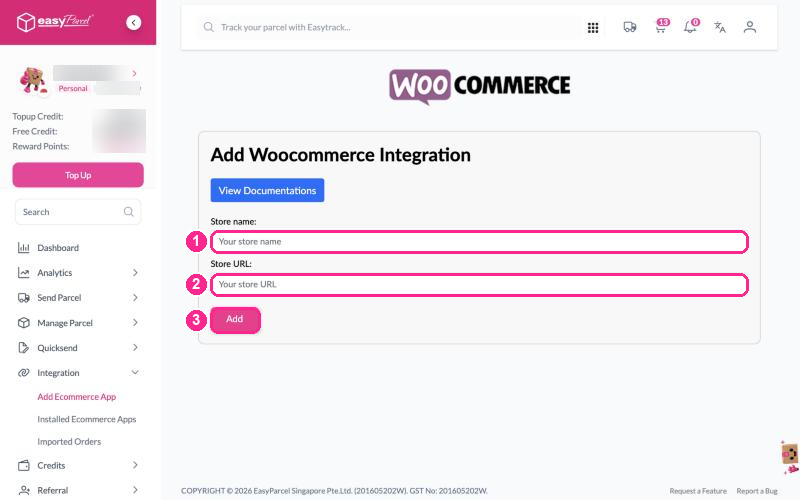
- Enter your Store name and Store URL and click Add.
- Copy your store API key (Integration ID).
See How do I add an ecommerce app to my EasyParcel account?
When you click Install App, choose the version: Seamless Version (1) or Import Version (2). Click Select on the one you want (3).
Then enter your Store name (1) and Store URL (2), and click Add (3).
Install the plugin
- In your WooCommerce admin, open Plugins and search for EasyParcel.
- Click Install Now, then Activate Plugin.
Enter your details
- Go to WooCommerce > Settings > Shipping > EasyParcel Shipping.
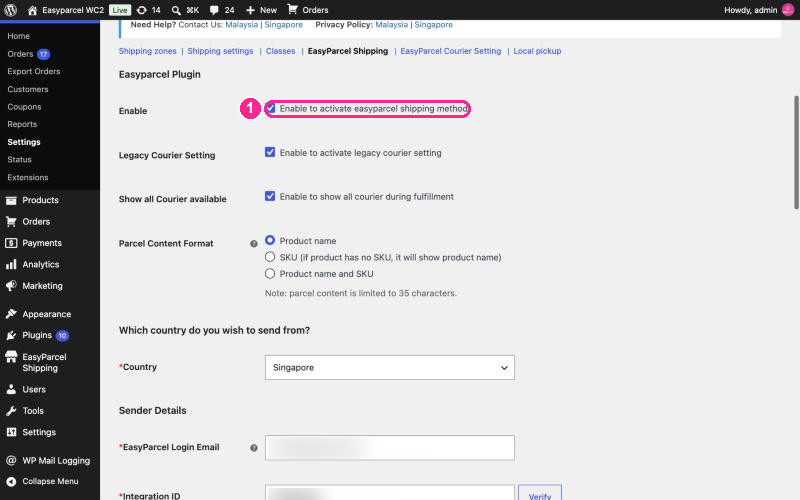
- Tick Enable.
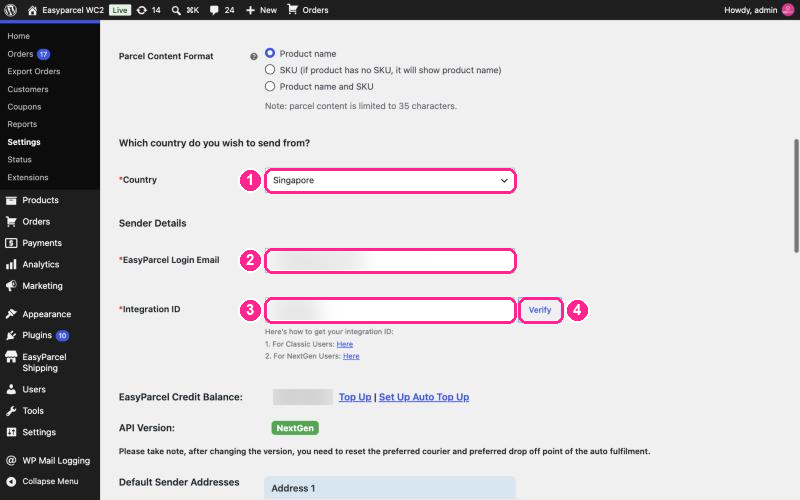
- Choose your Country: Malaysia or Singapore.
- Enter your EasyParcel Login Email.
- Paste your Integration ID. Copy it from your EasyParcel account. Do not type it by hand. Click Verify next to the field.
- Click Save changes.
Tick Enable (1).
Choose your Country (1), enter your EasyParcel Login Email (2), paste your Integration ID (3) and click Verify (4).
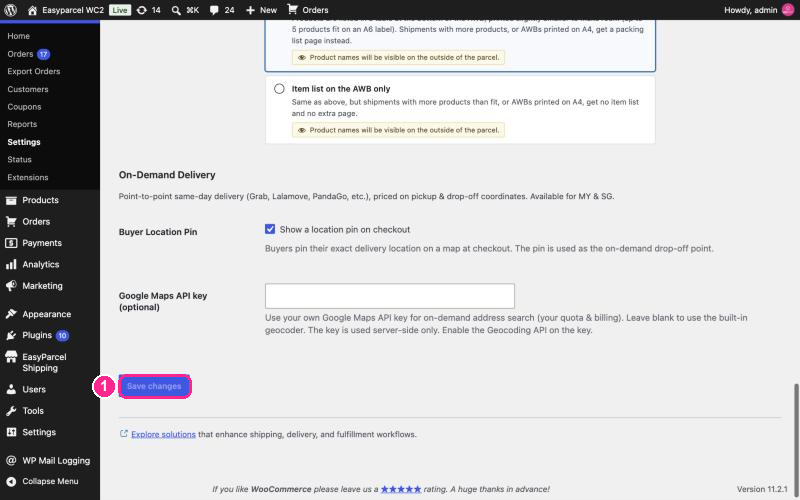
Click Save changes (1) at the bottom of the page.
On this page you also see your EasyParcel Credit Balance, with Top Up and Set Up Auto Top Up links, and the API Version (NextGen).
Next: How do I set up the EasyParcel plugin settings in WooCommerce? and How do I add or change my sender address in WooCommerce?.
What's next?
Still need help?
Our team is happy to help. ? Live Chat | ✉️ Contact Us