
Quick Summary
Upload your file, check the pick-up and delivery settings, click Process File, fix any errors on the review page and click Confirm & Reprocess. Your parcels are then ready for checkout in one go.
We'll Cover:
Upload your file
- Click Send Parcel > Bulk Upload.
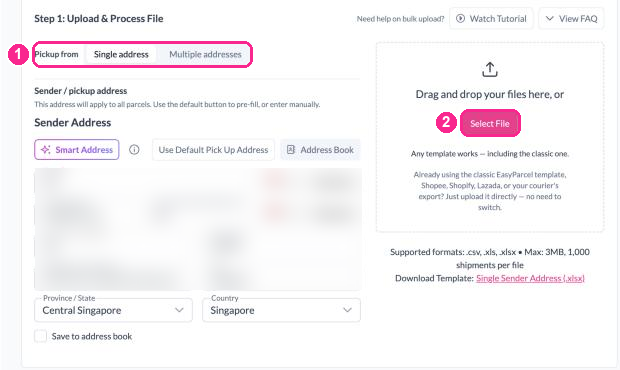
- Choose Single address or Multiple addresses for pick-up.
- Drag your file into the box or click Select File.
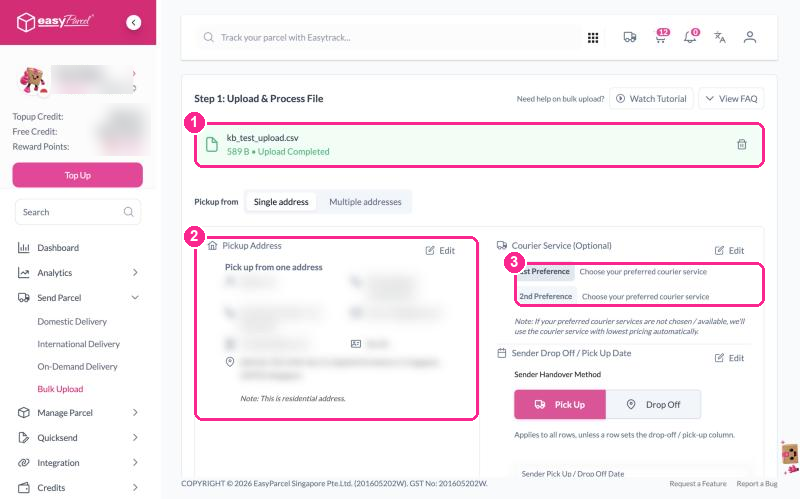
When the file is accepted, you will see Upload Completed (1). Your Pickup Address (2) is shown below. Click Edit to change it.
Check the settings
- Courier Service (3) (optional) – choose a 1st and 2nd preference. If your choices are not selected or available, the courier with the lowest price is used
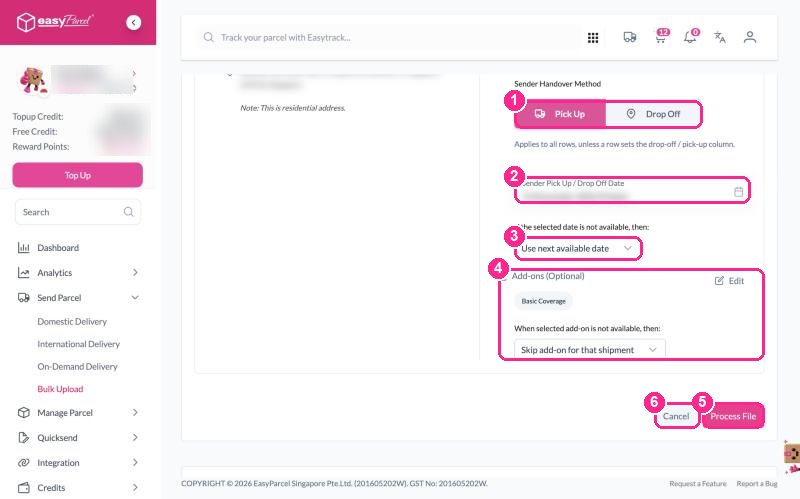
- Sender Handover Method (1) – choose Pick Up or Drop Off. It applies to all rows unless a row sets its own
- Pick Up / Drop Off Date (2) – and what to do if the date is not available (3), for example Use next available date
- Add-ons (4) (optional) – and what to do if an add-on is not available, for example Skip add-on for that shipment
Then click Process File (5). Click Cancel (6) to stop.
Process and review
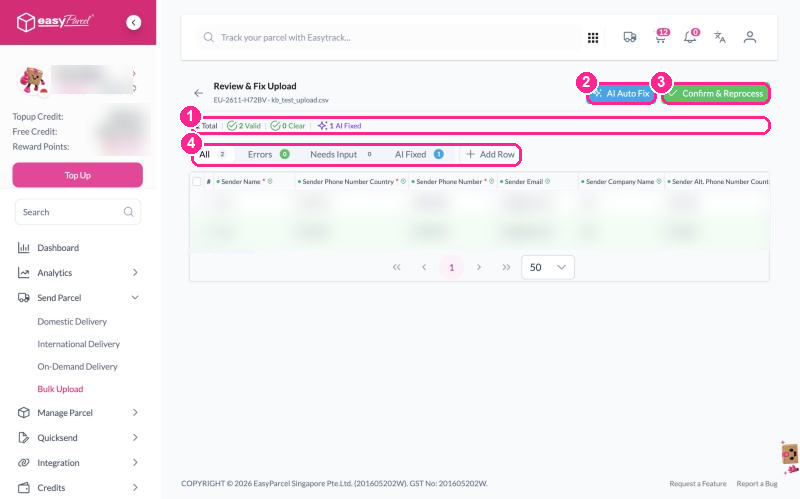
After processing, the Review & Fix Upload page shows a summary (1) of your rows. Use AI Auto Fix (2) if there are errors, then click Confirm & Reprocess (3). See My bulk file has errors. How do I fix them?
Check out your parcels
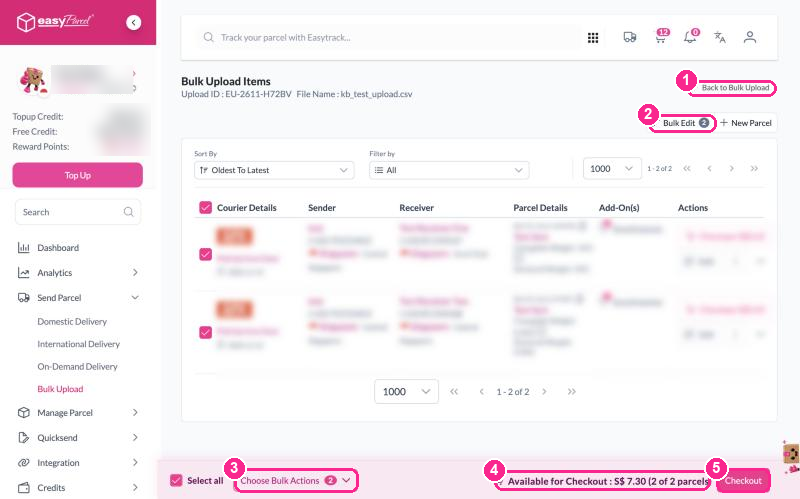
The Bulk Upload Items page lists your parcels. The bottom bar shows Available for Checkout (4), with the total and the number of parcels. Click Checkout (5) to pay, or use Bulk Edit (2) to change several parcels.
Best way to start
- Upload a small file with one or two rows first.
- Check the pick-up address, couriers, date and add-ons on the setup page.
- Process the file and fix any errors on the review page.
- Upload your full file and check out.
Note: Only rows that pass the checks are added to your cart. A parcel is booked only after payment.
Prefer a video? Watch How to Book Multiple Shipments with Bulk Upload in Support > Video Tutorial.
On the Bulk Upload page, choose Pickup from (1), then click Select File (2) to upload your small test file.
What's next after you upload your file?
- Fix any errors: rows with problems are highlighted for you. See My bulk file has errors. How do I fix them?
- Add tracking or choose couriers: see How do I add tracking notifications and choose couriers in a bulk file?
- Check your orders and pay: see Where do I find my uploaded files and orders?
Still need help?
Our team is happy to help. ? Live Chat | ✉️ Contact Us