
Quick Summary
You can include international parcels in a bulk file. For international shipments, add the HS code for each item. The Tax ID and address type (residential or business) columns are optional. If the address type is blank, it is treated as Business, so put Yes when you ship to a home address. Some destinations need extra customs details.
We'll Cover:
What to add for international parcels?
- Sender and Receiver Tax ID (optional; a receiver Tax ID is needed only for UPS from Malaysia to Vietnam and for TracX Logis to South Korea, where it is the PCCC: "P" + 12 digits)
- Sender and Receiver address is residential address? (Yes/No) (optional; if blank, it is treated as Business, so put Yes for a home address)
- Receiver Country set to the destination country
- HS Code for each item
- Parcel Currency, item names, prices and quantities
Our template shows examples of each column.
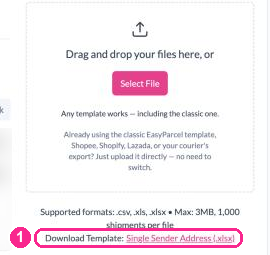
Download the template from Download Template (1) on the Bulk Upload page.
EU shipments
For shipments to the EU, our template also asks for extra customs details:
- Receiver Consignee Type (B2B or B2C)
- Receiver EORI / VAT number
- Item Country of Origin
- Item Merchant SKU, Manufacturer Product ID and Standardised Product ID
Note: Rules differ by country.
See Do I need a Tax ID for my international parcel? and How do I declare my items for an international parcel?
In the app
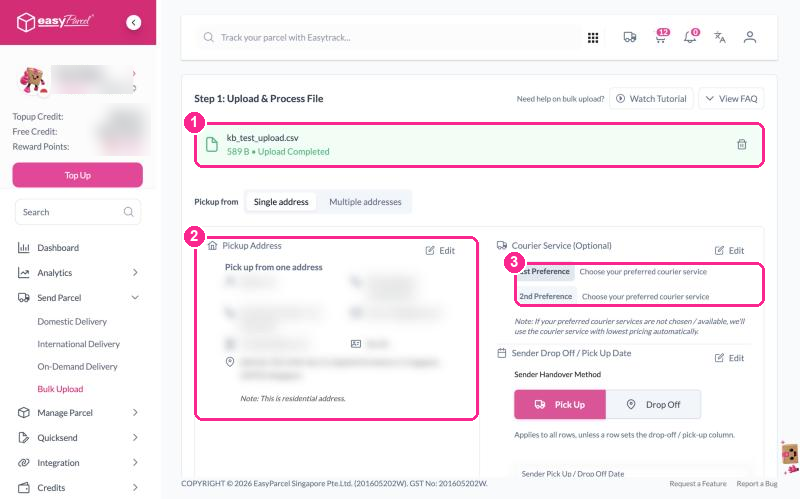
Start from the Bulk Upload page and upload your file.
What's next after you upload your file?
- Fix any errors: rows with problems are highlighted for you. See My bulk file has errors. How do I fix them?
- Add tracking or choose couriers: see How do I add tracking notifications and choose couriers in a bulk file?
- Check your orders and pay: see Where do I find my uploaded files and orders?
Want the full flow from start to end? See How do I book many parcels with Bulk Upload?
Still need help?
Our team is happy to help. ? Live Chat | ✉️ Contact Us