
Quick Summary
The Bulk Upload Assistant (BETA) lets you book many parcels by chatting. Attach your Excel file and the assistant helps you check and fix it before booking.
We'll Cover:
Open the assistant
- Open Bulk Upload Assistant (1).
- Click Choose Excel and attach your file.
- Follow the assistant's questions and fixes, then review and book.
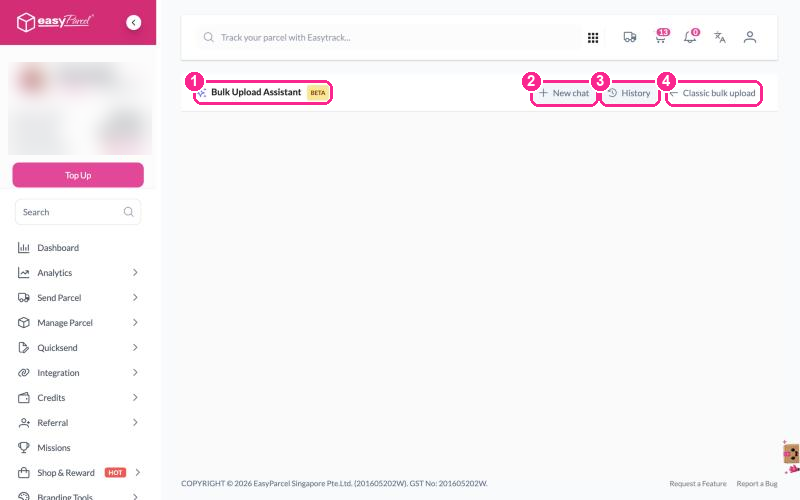
Buttons
| Button | What it does |
|---|---|
| New chat (2) | Start again with a new file |
| History (3) | See your past bulk upload chats |
| Classic bulk upload (4) | Go back to the normal Bulk Upload page |

When to use which?
- Use the assistant if your file has errors or a different layout and you want help fixing it.
- Use the classic Bulk Upload if your file already follows the template.
See How do I book many parcels with Bulk Upload?
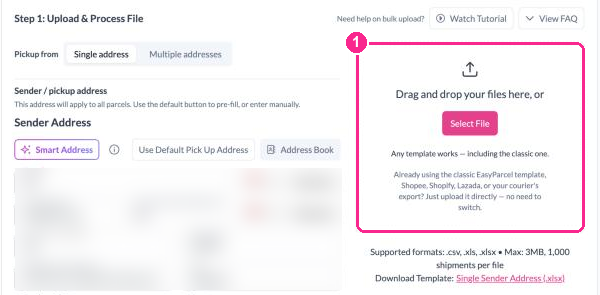
The classic page is the normal Bulk Upload page, where you drop your file in the upload box (1).
What's next after you upload your file?
- Fix any errors: rows with problems are highlighted for you. See My bulk file has errors. How do I fix them?
- Add tracking or choose couriers: see How do I add tracking notifications and choose couriers in a bulk file?
- Check your orders and pay: see Where do I find my uploaded files and orders?
Want the full flow from start to end? See How do I book many parcels with Bulk Upload?
Still need help?
Our team is happy to help. ? Live Chat | ✉️ Contact Us