
Quick Summary
Yes. You can upload your own Excel or CSV file. EasyParcel matches your column headers to the required fields, and you can change the matches yourself. The system remembers your matches for next time. You can also start from our template.
We'll Cover:
Use your own file
Upload the file as it is. Column mapping matches headers such as Receiver Name, Phone Number and Address to our fields. You can review and adjust the mapping before processing.
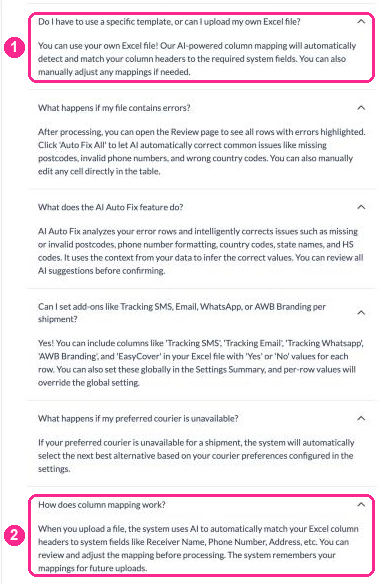
The FAQ at the bottom of the Bulk Upload page explains this in Do I have to use a specific template, or can I upload my own Excel file? (1) and How does column mapping work? (2).
Template rules
If you use our template, yellow columns are required and grey columns are optional. Please do not change the file format. A few key rules:
- Name: 3 to 35 characters
- Phone number: numbers only, up to 20 digits without the country code, and it must be a mobile number
- Address: 3 to 70 characters · City: 3 to 35 characters · Company: up to 27 characters
- Email: a valid email address
- Weight (kg): up to 3 decimal places, for example 0.085
- Length, width, height (cm): up to 1 decimal place, for example 5.0
- Reference / Remark: for your own use, up to 200 characters, and it is not printed on the label
- Currency: one currency for each shipment
Use letters and numbers only (A to Z, 0 to 9). Emojis and special characters can cause errors.
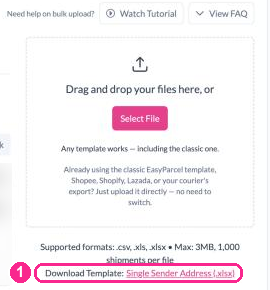
Download our template from Download Template (1) on the Bulk Upload page.
Upload several items in one row
To declare more than one item for a parcel, put each item on a new line in the same cell, in the item name, price, quantity and HS code columns.
Note: If anything in your file does not meet the rules, it is listed so you can fix it and upload again.
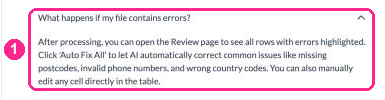
After processing, rows with problems are shown on the review page. See What happens if my file contains errors? (1) in the FAQ on the page.
In the app
On the Bulk Upload page, drag and drop your file. Any template works, including the classic EasyParcel template, Shopee, Shopify or Lazada exports, or your courier's export.
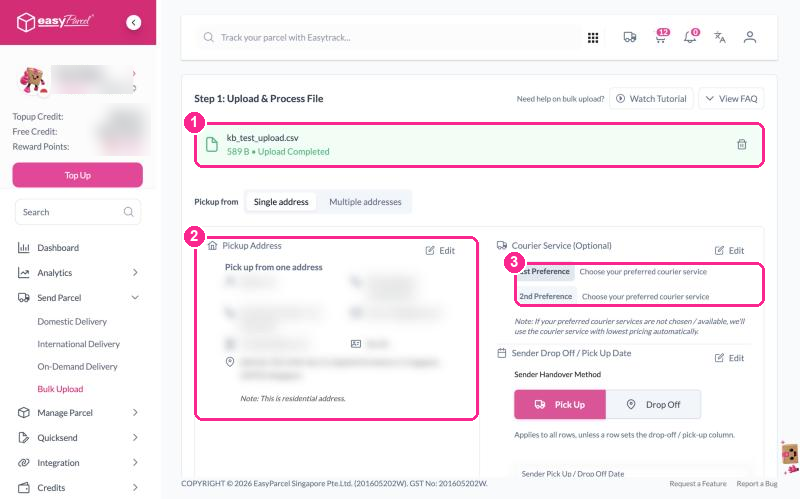
What's next after you upload your file?
- Fix any errors: rows with problems are highlighted for you. See My bulk file has errors. How do I fix them?
- Add tracking or choose couriers: see How do I add tracking notifications and choose couriers in a bulk file?
- Check your orders and pay: see Where do I find my uploaded files and orders?
Want the full flow from start to end? See How do I book many parcels with Bulk Upload?
Still need help?
Our team is happy to help. ? Live Chat | ✉️ Contact Us