
Quick Summary
After you click Process File, the Review & Fix Upload page shows every row and highlights rows with problems. Click AI Auto Fix to correct common issues, or edit any cell yourself. Click Confirm & Reprocess when you are happy.
We'll Cover:
The review page
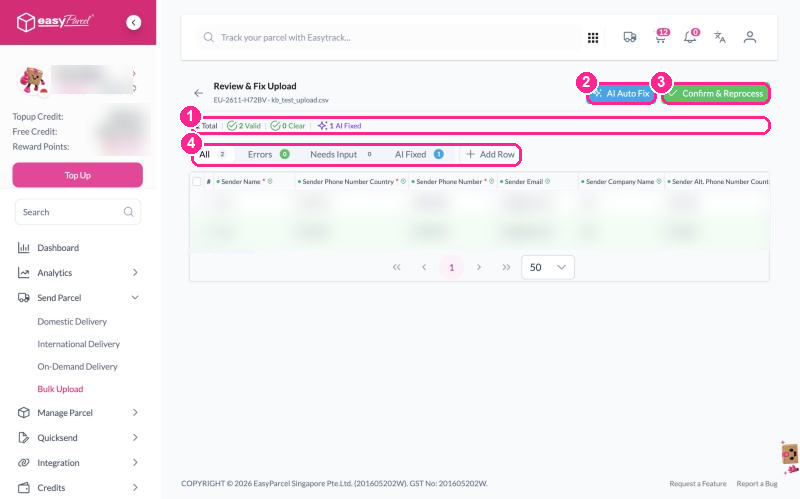
The summary (1) shows how many rows are Valid, Clear and AI Fixed. Use the tabs (4) to see All rows, only Errors, rows that Need Input or rows that were AI Fixed. Click Add Row (4) to add a row, or click a cell to edit it.
What AI Auto Fix does?
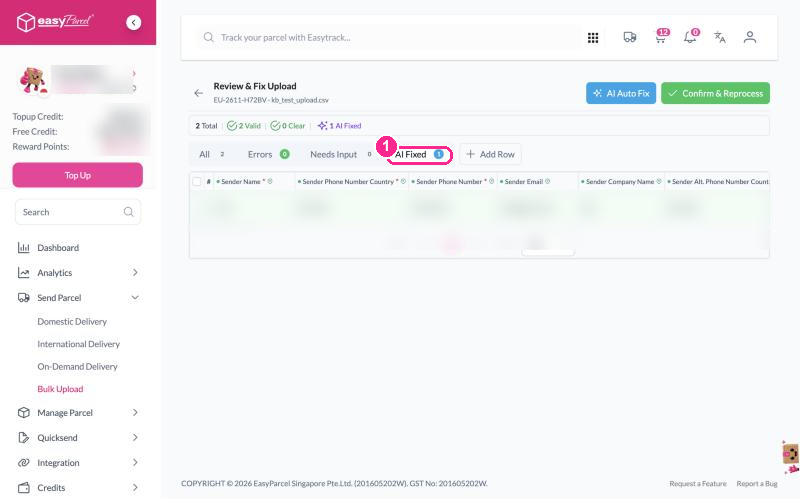
Click AI Auto Fix (2) and EasyParcel corrects common issues such as missing or invalid postcodes, phone number format, country codes, state names and HS codes. Check the AI Fixed (1) tab to see what changed before you confirm.
When everything looks right, click Confirm & Reprocess (3) on the review page.
Rows that do not go to your cart
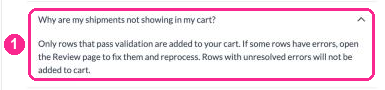
Only rows that pass the checks are added to your cart. Rows with errors that are not fixed stay out. Fix them on the review page and reprocess.
Tip: Always check the AI suggestions, especially postcodes, before you confirm.
Prefer a video? Watch How to Fix Bulk Upload Error in Support > Video Tutorial.
The FAQ on the Bulk Upload page says the same in Why are my shipments not showing in my cart? (1).
What's next after you fix the errors?
- Check your orders and pay: see Where do I find my uploaded files and orders?
- Add tracking or choose couriers: see How do I add tracking notifications and choose couriers in a bulk file?
Want the full flow from start to end? See How do I book many parcels with Bulk Upload?
Still need help?
Our team is happy to help. ? Live Chat | ✉️ Contact Us