
Quick Summary
An AWB (air waybill) is your shipping label. It carries the barcode, the tracking number and the sender and receiver details that the courier scans. After you pay, print it from Manage Parcel > All Parcels > Download and stick it flat on top of your parcel. If you cannot print it or see no label after payment, download it again or contact our support team.
We'll Cover:
- What it is?
- What to do with it?
- Where to get your AWB
- Download your labels
- Choose the label size
- If you cannot print
- If there is no label after payment
- Download your label again
What it is?
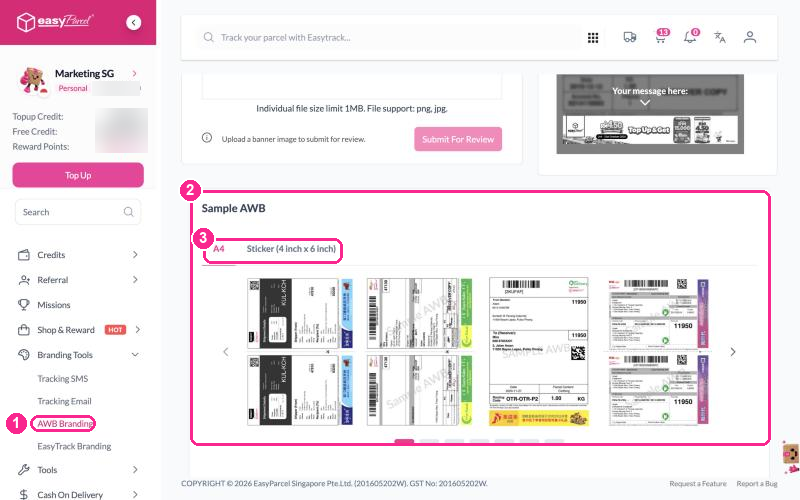
The AWB identifies your parcel and tells the courier where it goes. It comes in A4, A5 or A6 sticker size.
Go to Branding Tools > AWB Branding (1) to see the Sample AWB (2). An AWB is printed on A4 paper or a 4 x 6 inch sticker (3).
What to do with it?
- Print it from Manage Parcel > All Parcels. See How do I print or download my shipping label (AWB)?
- Stick it flat on the top of the parcel, in a clear pouch, without covering the barcode
- For international parcels, attach the commercial invoice too
Note: Some services are paperless and need no label.
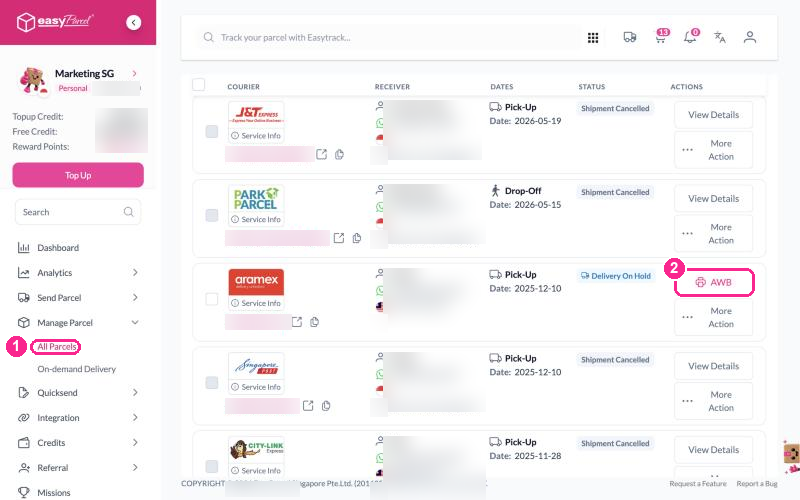
In Manage Parcel > All Parcels (1), click the AWB (2) button on an active parcel to get it.
Where to get your AWB
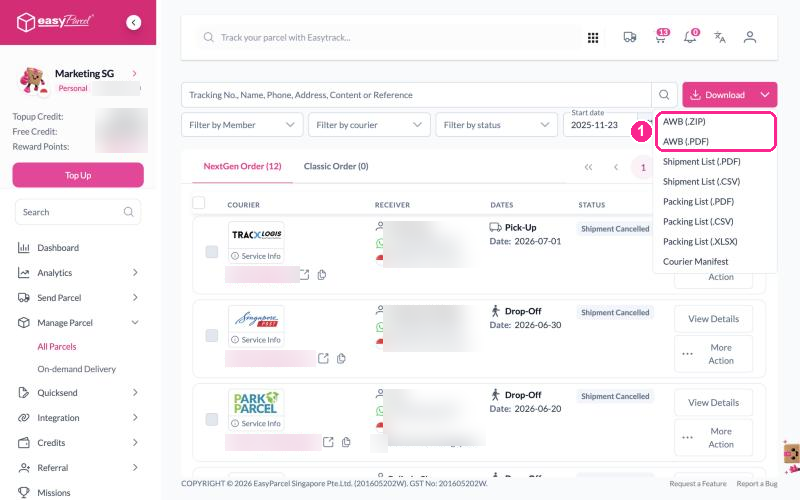
Download your AWB from Manage Parcel > All Parcels > Download. Choose AWB as ZIP or PDF (1).
Download your labels
- Go to Manage Parcel > All Parcels.
- Tick the parcel or parcels you want.
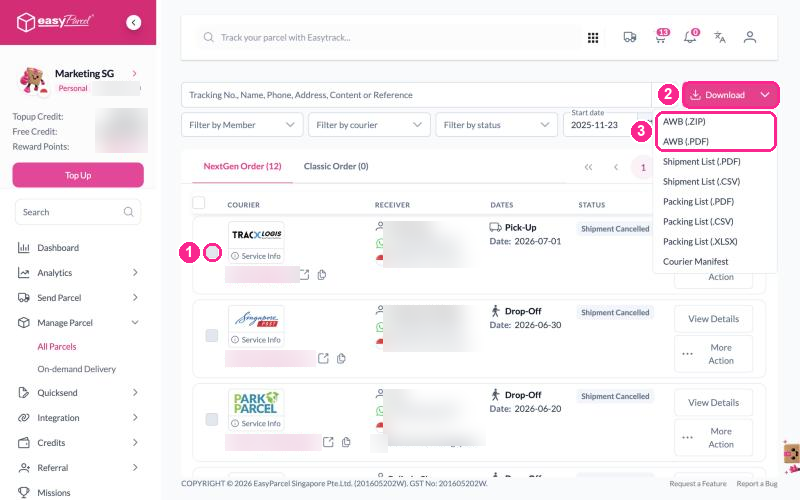
- Click Download (1) and choose AWB (.PDF) or AWB (.ZIP) (2).
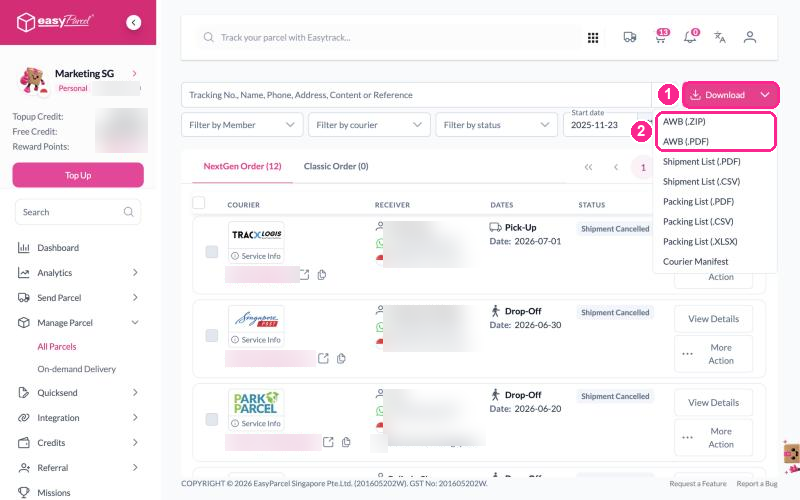
Note: If you click Download without ticking a parcel, the page shows "No Shipments selected".
Choose the label size
In Settings > Account Settings > AWB Settings, set the label size order: A4, A5 or A6 sticker. The system uses your first choice, and falls back to the next one if the courier does not support it.
See How should I pack my parcel? to stick the label correctly.
In Settings > Account Settings (1), choose the Label Size (2) for each priority.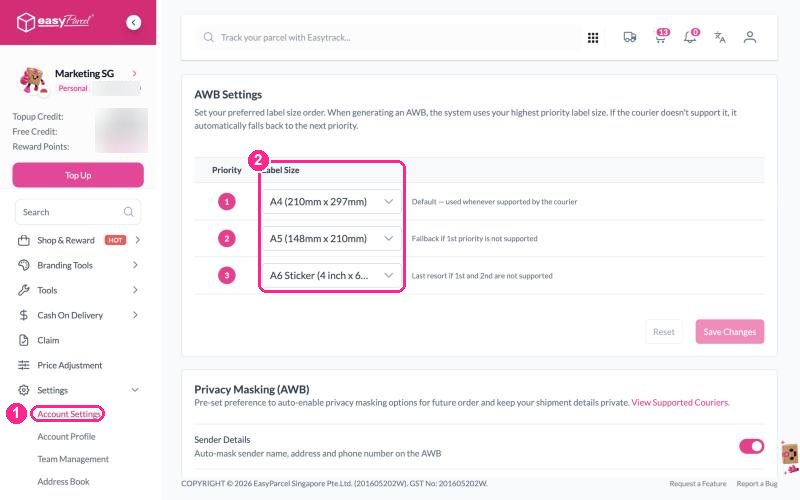
If you cannot print
- Nothing opens: allow pop-ups and downloads for app.easyparcel.com in your browser, then click Download again.
- The PDF will not open: open it with a PDF reader, or download AWB (.ZIP) instead.
- The label is the wrong size: set your label size in Settings > Account Settings > AWB Settings (A4, A5 or A6 sticker).
- Printer problem: print a test page, check the paper size, and use "Actual size" (not "Fit to page").
You can also try the other file type: tick the parcel (1), click Download (2) and choose AWB (.PDF) or AWB (.ZIP) (3).
If there is no label after payment
- Check that the parcel appears in All Parcels and not in Pending payment
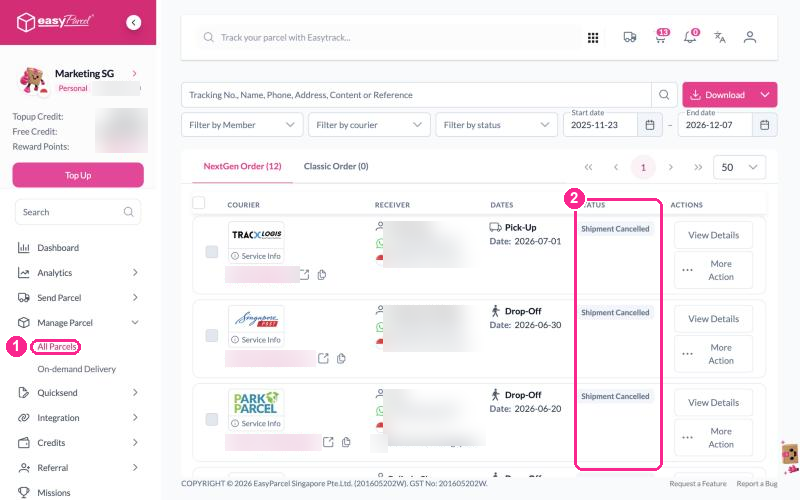
- Check the status. A parcel in Pending AWB is still being arranged
- Some services are paperless and need no label. See How do I send a parcel without a shipping label?
Check the Status (2) column in Manage Parcel > All Parcels (1).
Download your label again
In Manage Parcel > All Parcels, click Download and choose an AWB format (1). If the label is still missing, contact our support team.
What's next?
Still need help?
Our team is happy to help. ? Live Chat | ✉️ Contact Us