
Quick Summary
Open Settings > Account Profile to see and update your account information, company and billing details, addresses and photo. The same page also has your credits, e-invoice details, social media links, verification and account status. Click Edit beside the section you want to change.
We'll Cover:
- Account Profile
- Update your photo
- What else is on Account Profile?
- Where to find them?
- The three addresses
Account Profile
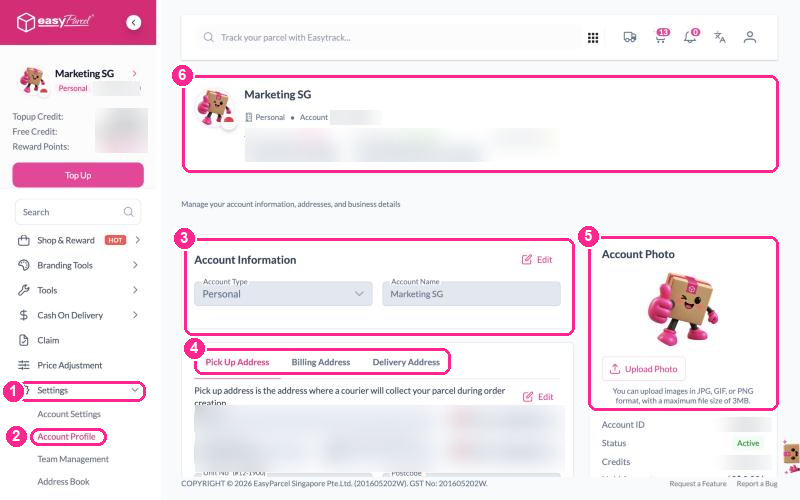
Click Settings (1) > Account Profile (2) in the left menu. The page shows your Account Information (3), the address tabs (4) and your Account Photo (5). Your credits and account status are at the top (6). Click Edit to change a section.
Update your photo
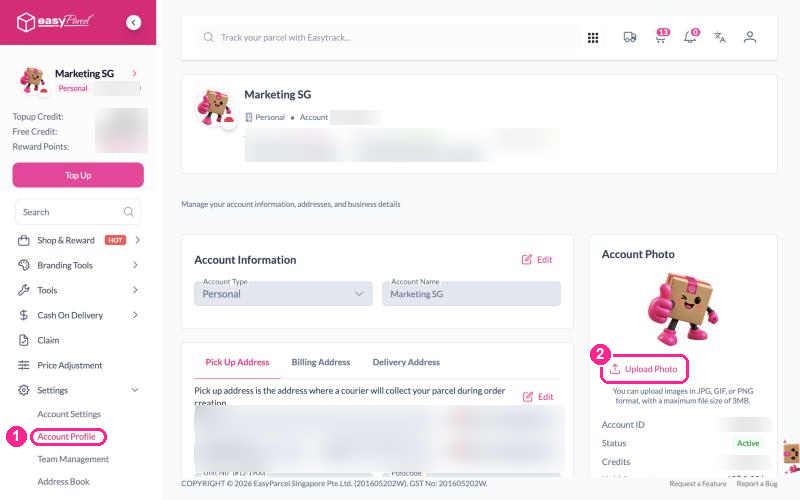
Go to Settings > Account Profile (1) and click Upload Photo (2). Choose a JPG, GIF or PNG image of up to 3MB.
What else is on Account Profile?
- Credits and points (top of the page): your Top-up Credits, Free Credits and Reward Points. Free credits show a Spend it before date.
- Account ID and Status: shown under your Account Photo.
- Pick Up, Billing and Delivery Address: see Update your company, billing and address details
- E-Invoice Information: the name, ID, phone and address used for your e-invoices. Click Edit to fill it in.
- Social Media Link: add your social media pages. Click Edit.
- Verification: verify your account with your identity card or passport.
See What is account verification (eKYC) and what do I need? - Account Status: switch between Active and Suspended.
See How do I suspend or reactivate my account? - Terms & Conditions and Privacy Policy: shows which version you agreed to and when.
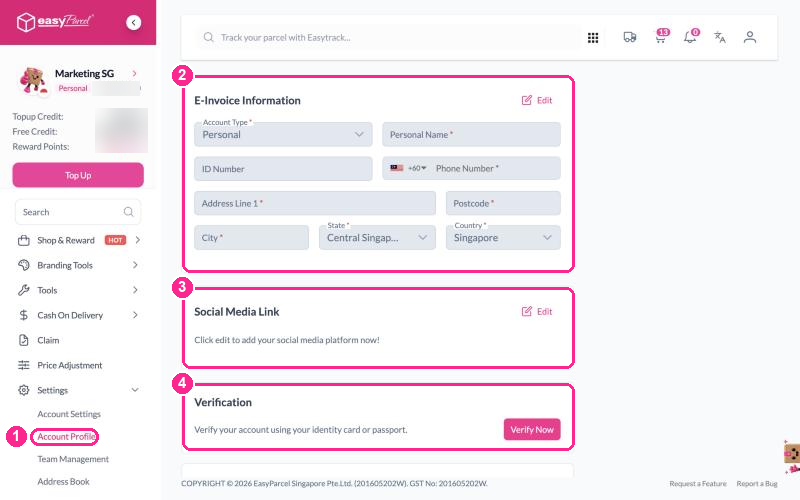
Scroll down in Settings > Account Profile (1) to find E-Invoice Information (2), Social Media Link (3) and Verification (4).
Where to find them?
- Account Information – account type and name
- Billing Address tab
- E-Invoice Information – account type, name, ID number, address
- Social Media Link
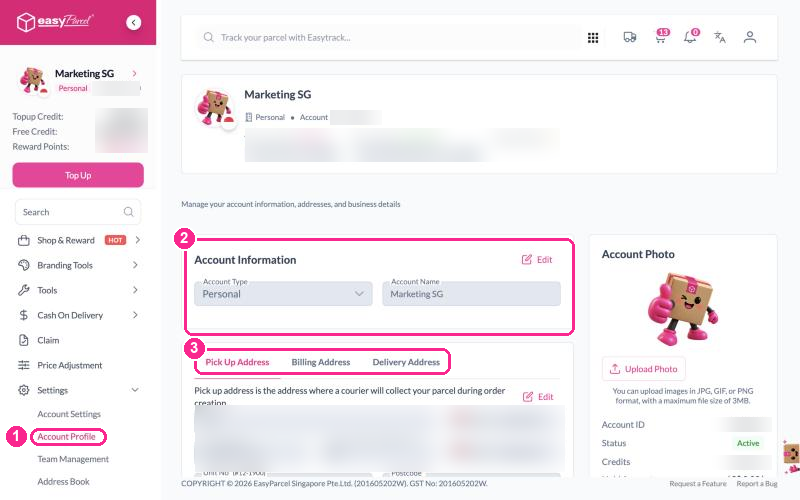
In Settings > Account Profile (1): Account Information (2) and the address tabs (3).
The three addresses
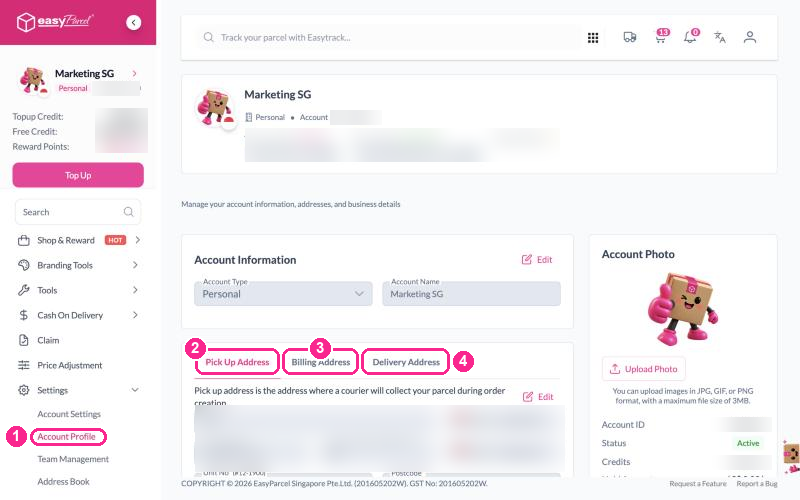
- Pick Up Address: where a courier collects your parcel when you create an order. It is also the default for Use Default Pick Up Address
- Billing Address
- Delivery Address
Find them under Settings > Account Profile. See How do I set a default pick-up address?
In Settings > Account Profile (1), the tabs are Pick Up Address (2), Billing Address (3) and Delivery Address (4).
What's next?
Still need help?
Our team is happy to help. ? Live Chat | ✉️ Contact Us