
Quick Summary
The Orders page lists your Shopify orders. Use the tabs and filters to find an order, then ship it.
We'll Cover:
- Buttons
- Tabs
- Filters
- Columns
- How do I find an order with the Orders tabs and filters?
- What do the Orders page columns mean?
Buttons
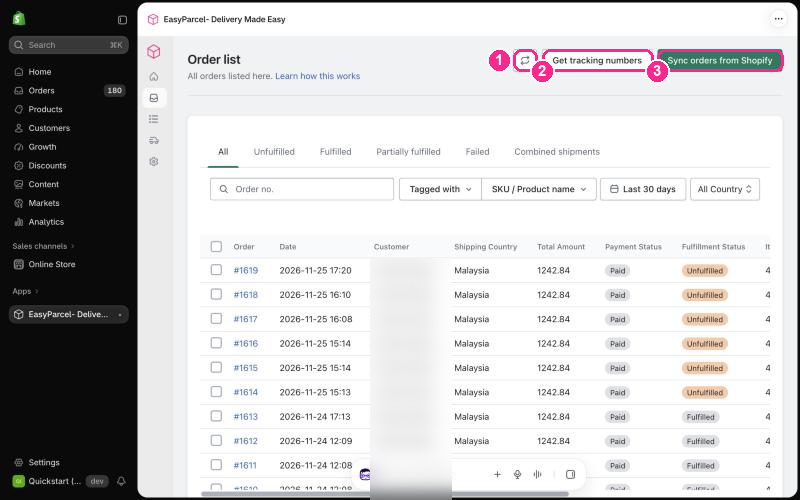
| Button | What it does |
| Reload Page | Refreshes the view |
| Get tracking numbers | Fetches the latest AWB numbers |
| Sync orders from Shopify | Pulls in your newest orders |
In the app: Reload (1), Get tracking numbers (2) and Sync orders from Shopify (3).
Tabs
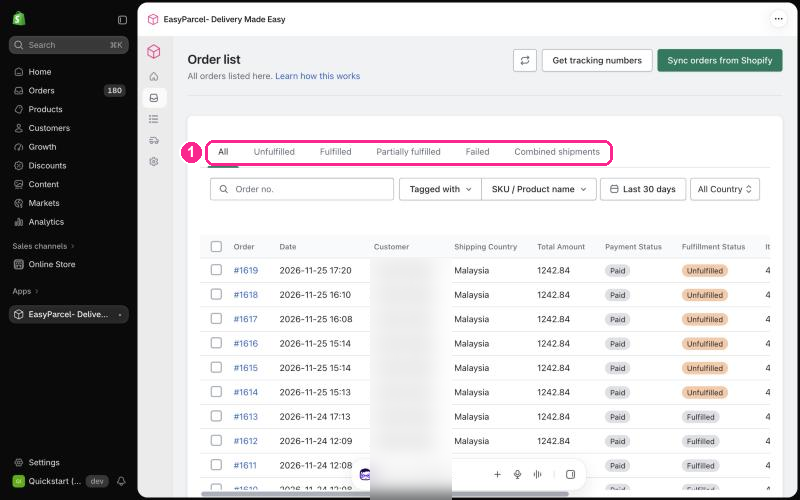
All, Unfulfilled, Fulfilled, Partially fulfilled, Failed and Combined shipments. Check the Failed tab and the Fulfillment Error Message column to see why an order failed.
The tabs (1) are at the top of the order list.
Filters
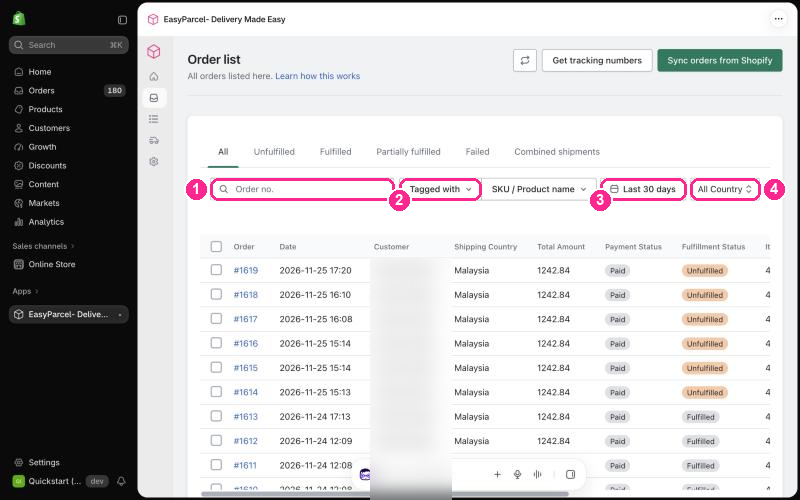
Search by order number, filter by Tagged with (Paid or Unpaid), by SKU / Product name, by date range and by country.
Use Order no. (1), Tagged with (2), the date range (3) and All Country (4). You can also use the SKU / Product name filter to find orders with a certain product.
Columns
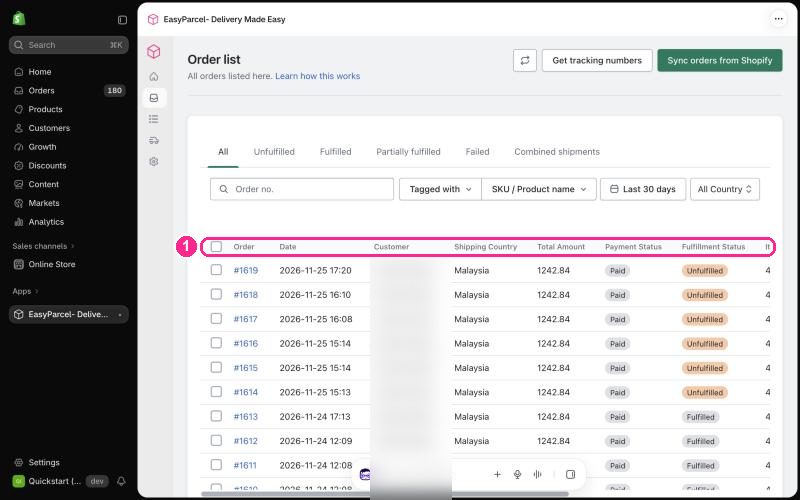
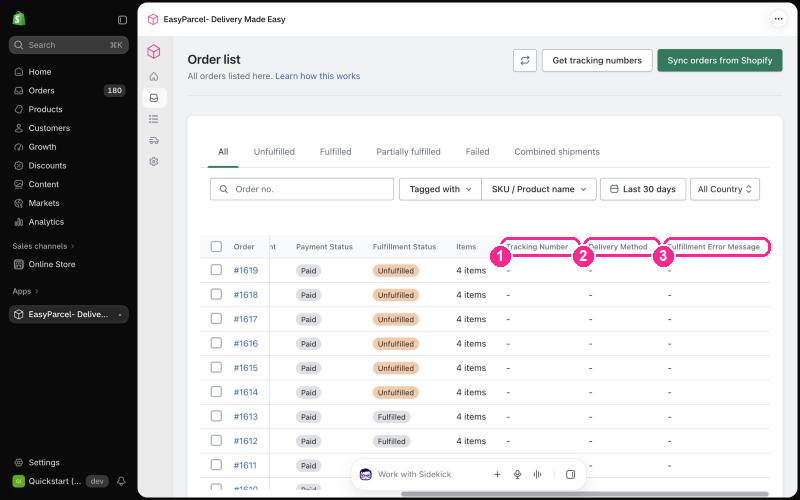
The list shows the order, date, customer, shipping country, total, Payment Status (only paid orders can be fulfilled), fulfilment status, items, tracking number, Delivery Method (the courier chosen at checkout when Live Rates is on) and any error message.
The column headers (1) run across the list.
Scroll right to see Tracking Number (1), Delivery Method (2) and Fulfillment Error Message (3).
How do I find an order with the Orders tabs and filters?
Tabs
| Tab | What you find |
| All | Every order |
| Unfulfilled | Orders waiting to ship. Check daily |
| Fulfilled | Fully shipped orders |
| Partially fulfilled | Only some items shipped |
| Failed | Orders that could not be fulfilled |
| Combined shipments | Orders shipped together in one parcel |
Search and filters
| Tool | Use it to |
| Order no. search | Jump to an order |
| Tagged with | Show Paid or Unpaid orders |
| Date range | Narrow by date |
| All Country | Show orders for one country |
In the app: Order no. (1), Tagged with (2), date range (3) and All Country (4).
What do the Orders page columns mean?
Columns
| Column | Meaning |
| Order | The Shopify order number. Click to open |
| Date | When it was placed |
| Customer | Who ordered |
| Shipping Country | Where it is going |
| Total Amount | The order total |
| Payment Status | Only paid orders can be fulfilled |
| Fulfillment Status | Unfulfilled, Fulfilled, Partial, Processing or Failed |
| Items | Number of items |
| Tracking Number | The AWB number once shipped |
| Delivery Method | The courier the customer picked at checkout |
| Fulfillment Error Message | Why an order failed |
Delivery Method
If the customer chose an EasyParcel courier at checkout (live rates), it shows here. A dash means a non-EasyParcel shipping method, so you pick the courier when you fulfil.
Scroll right for Tracking Number (1), Delivery Method (2) and Fulfillment Error Message (3).
What's next?
Still need help?
Our team is happy to help. ? Live Chat | ✉️ Contact Us
