
Quick Summary
Before you pay, you can change the pick-up or drop-off date, the courier and the add-ons of a parcel. Open Pending payment, click the more (⋮) icon on the parcel row and choose Change date, Change courier or Change Add-ons. To change many parcels at once, tick them and use Choose Bulk Actions.
We'll Cover:
- Open the options for a parcel
- Change the pick-up or drop-off date
- Change the courier
- Change the add-ons
- Change many parcels at once
- If Checkout is greyed out
Open the options for a parcel
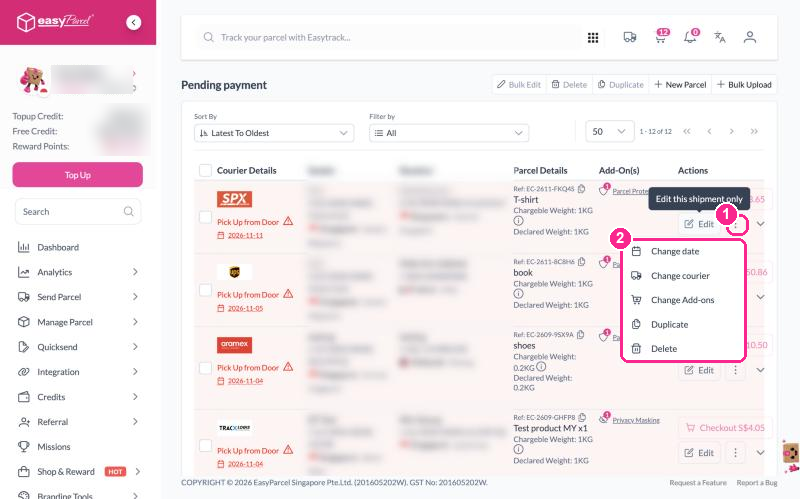
Go to Pending payment and click the ⋮ icon (1) on the parcel row. The menu (2) shows Change date, Change courier, Change Add-ons, Duplicate and Delete.
Change the pick-up or drop-off date
- Choose Change date.
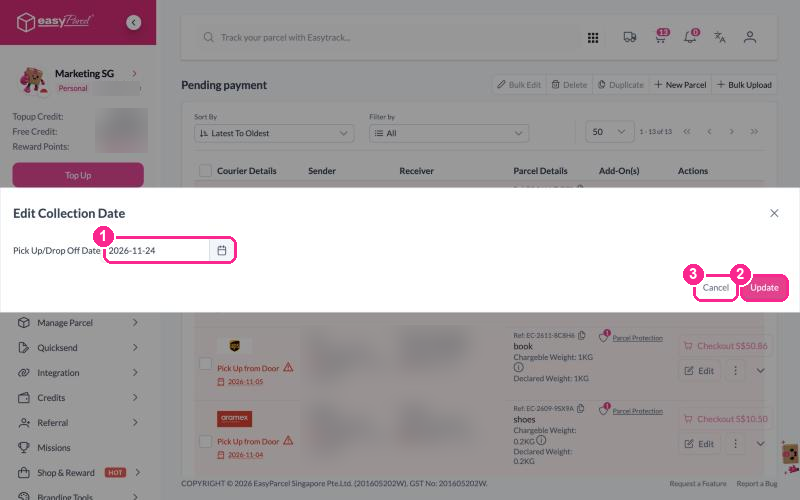
- In Edit Collection Date, click the Pick Up/Drop Off Date (1) box and choose a new date.
- Click Update (2). Click Cancel (3) to keep the old date.
Change the courier
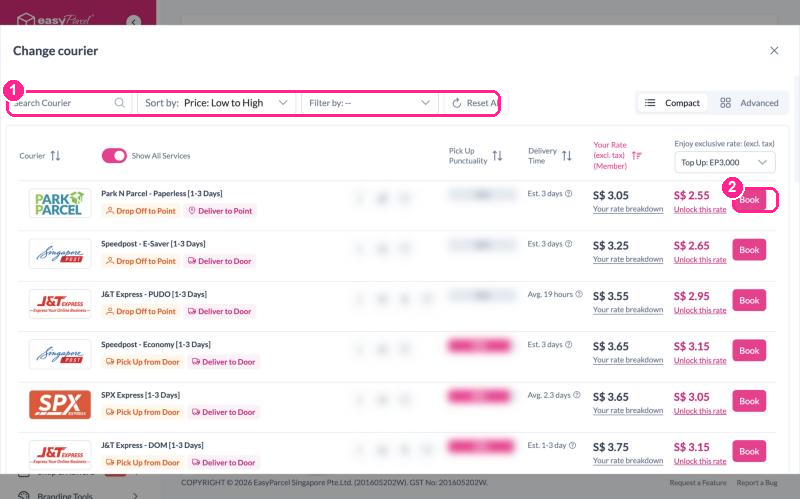
Choose Change courier. The quote list opens again. Use search, sort and filter (1) to compare, then click Book (2) on the courier you want.
Change the add-ons
- Choose Change Add-ons from the ⋮ menu.
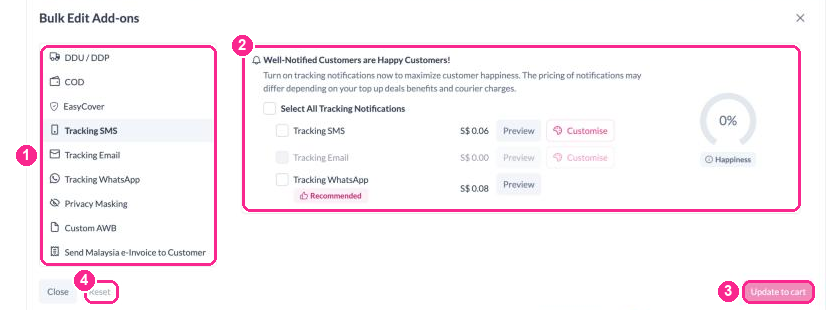
- In Bulk Edit Add-ons, pick an add-on from the list (1).
- Choose the option you want in the panel (2), for example tick Tracking SMS or Tracking WhatsApp.
- Click Update to cart (3) to save. Click Reset (4) to undo your changes, or Close to leave without saving.
The add-ons you can change:
- DDU / DDP: who pays the duty and tax. For international parcels only.
- COD: turn Cash on Delivery on or off and enter the amount to collect.
- EasyCover: choose the courier's basic coverage or EasyCover protection.
- Tracking SMS, Tracking Email and Tracking WhatsApp: tracking updates for your receiver. Use Preview to see the message.
- Privacy Masking: hide shipment details, for supported couriers.
- Custom AWB and Custom EasyTrack Branding: put your brand on the AWB and tracking page.
The price of each add-on is shown beside it. Some add-ons are not available for every courier or destination.
Change many parcels at once
- On Pending payment, tick the parcels you want to change, or tick Select all (1).
- Click Choose Bulk Actions (2) at the bottom of the page. You can also click Bulk Edit at the top.
- Choose what to change for all the selected parcels:
- Change courier (3)
- Collection date (4): Set to next available date or Choose another collection date
- Add-on services (5): DDU / DDP, COD, EasyCover, Tracking SMS, Tracking Email, Tracking WhatsApp, Privacy Masking, Custom AWB and Custom EasyTrack Branding
- Save the change, then check out the parcels.
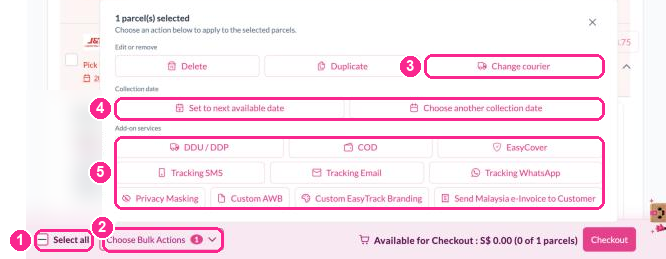
You can also Delete or Duplicate the selected parcels from the same menu.
If Checkout is greyed out
A red warning icon (1) beside the date means the pick-up date needs to be changed. Move your mouse over it to see the message (2): Please reschedule the pick up/drop off date. The Checkout (3) button stays greyed out until you update the shipment.
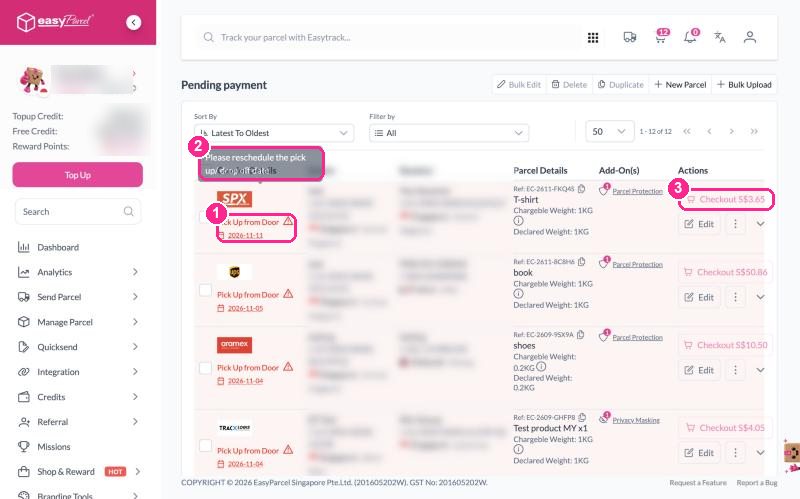
Note: You can change these only before you pay.
What's next?
Still need help?
Our team is happy to help. ? Live Chat | ✉️ Contact Us