EasyParcel (Singapore) Help Centre

Login Sign Up
Welcome
Login

How To Book My Parcel Using Bulk Express?

Quick Summary

To book shipments using Bulk Express, navigate to the "Bulk Express" section on your dashboard. You can either manually enter multiple recipient details or upload a CSV/Excel file containing your shipment data. Once the details are populated, select your preferred courier for each parcel, review the total costs, and proceed to a single checkout to finalize all bookings simultaneously.


New to EasyParcel’s new feature - Bulk Express? Fret not as we'll guide you to make a complete parcel delivery order using EasyParcel, so you can kick start delivery quicker and hassle free in the comfort of home at an affordable rate without leaving anything behind.


How do I arrange a domestic pickup from a single address?


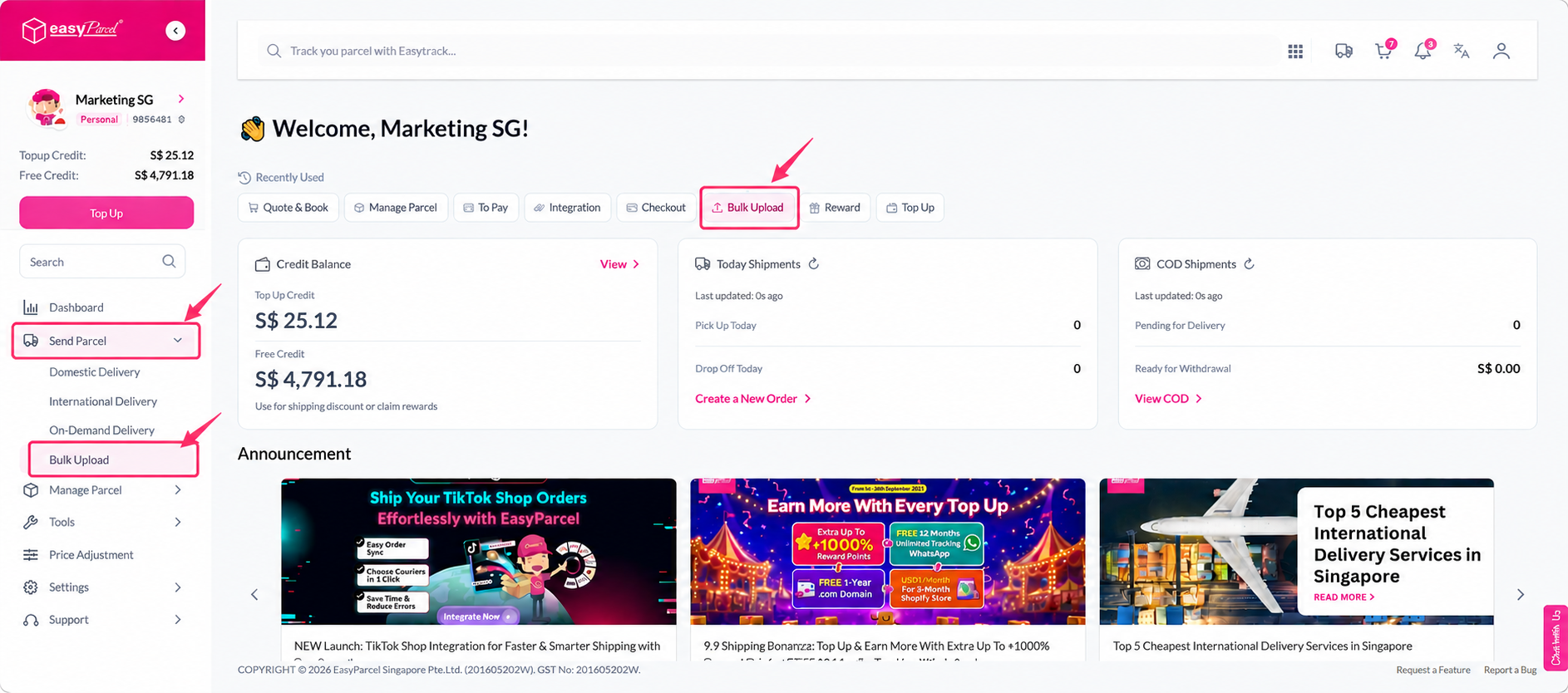
Step 1: Click on “Send Parcel” at your Dashboard sidebar, then select “Bulk Express”.

Selecting Bulk Express from the Send Parcel menu in the EasyParcel dashboard


Step 2: At the Bulk Express page, choose “Domestic (Pick Up from One Address)”.Selecting the Domestic (Pick Up from One Address) option on the Bulk Express page

Step 3: Fill in sender details, and click “save”. A pop up banner will appear, that means you are ready to proceed with importing orders.
Success pop-up confirming sender details are saved and ready for import


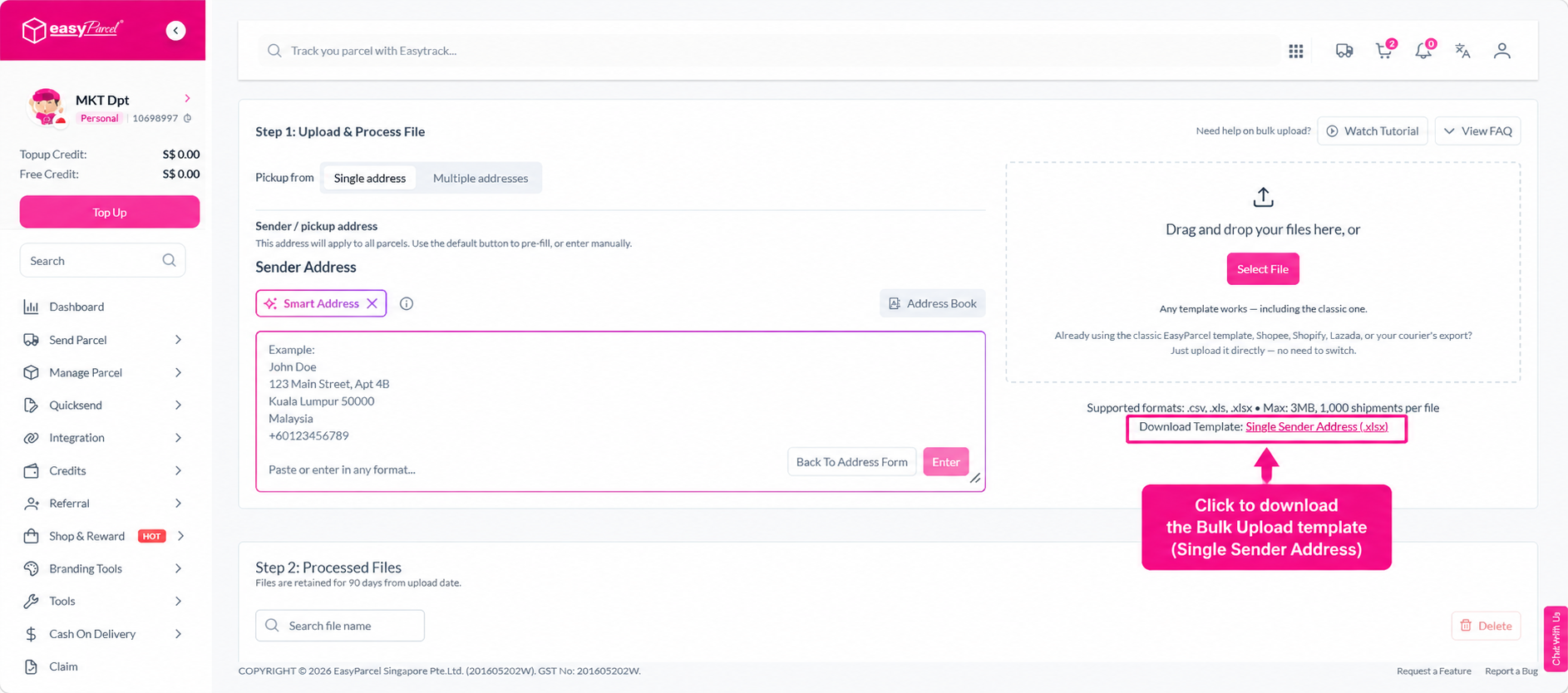
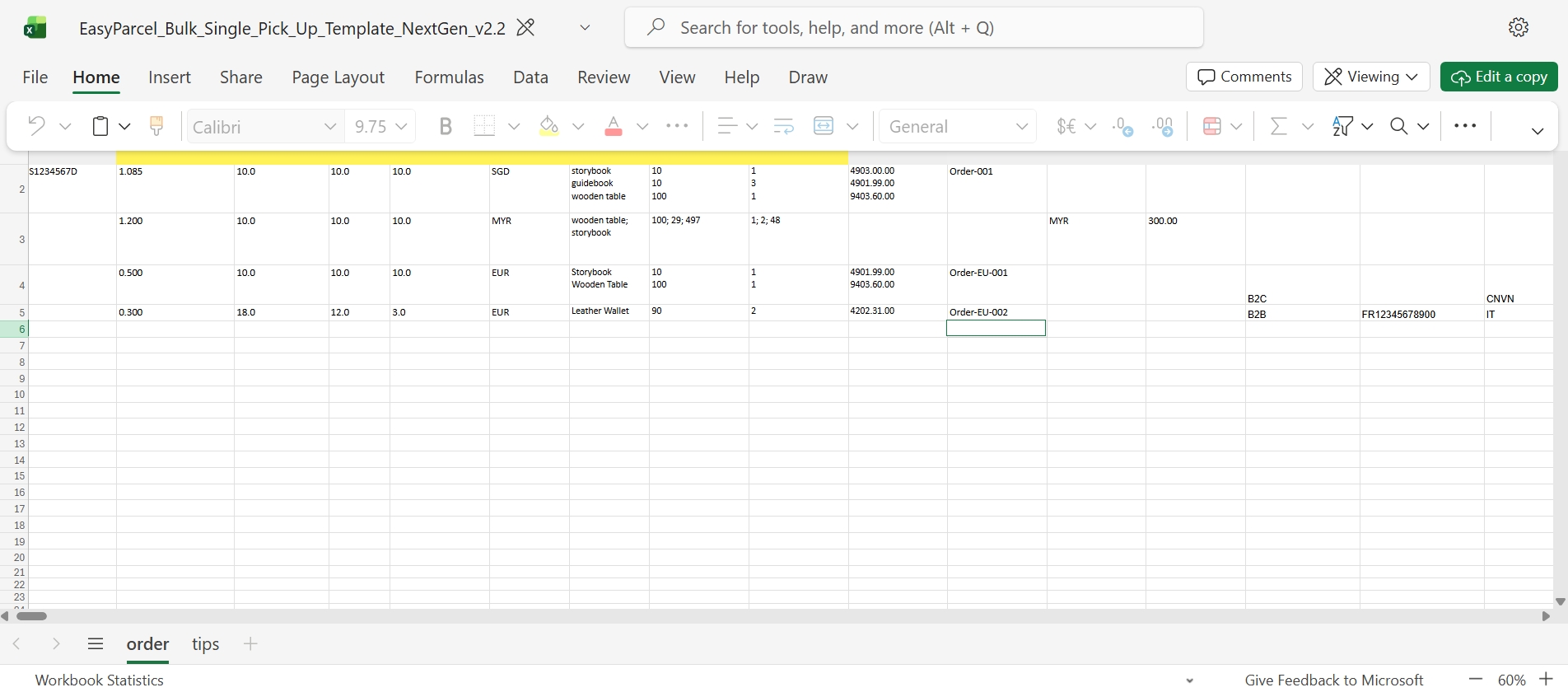
Step 4: To import orders, you are required to use the ready made bulk template prepared by EasyParcel. Click “Download Bulk Template” to download. Clicking the Download Bulk Template button for single address pickup


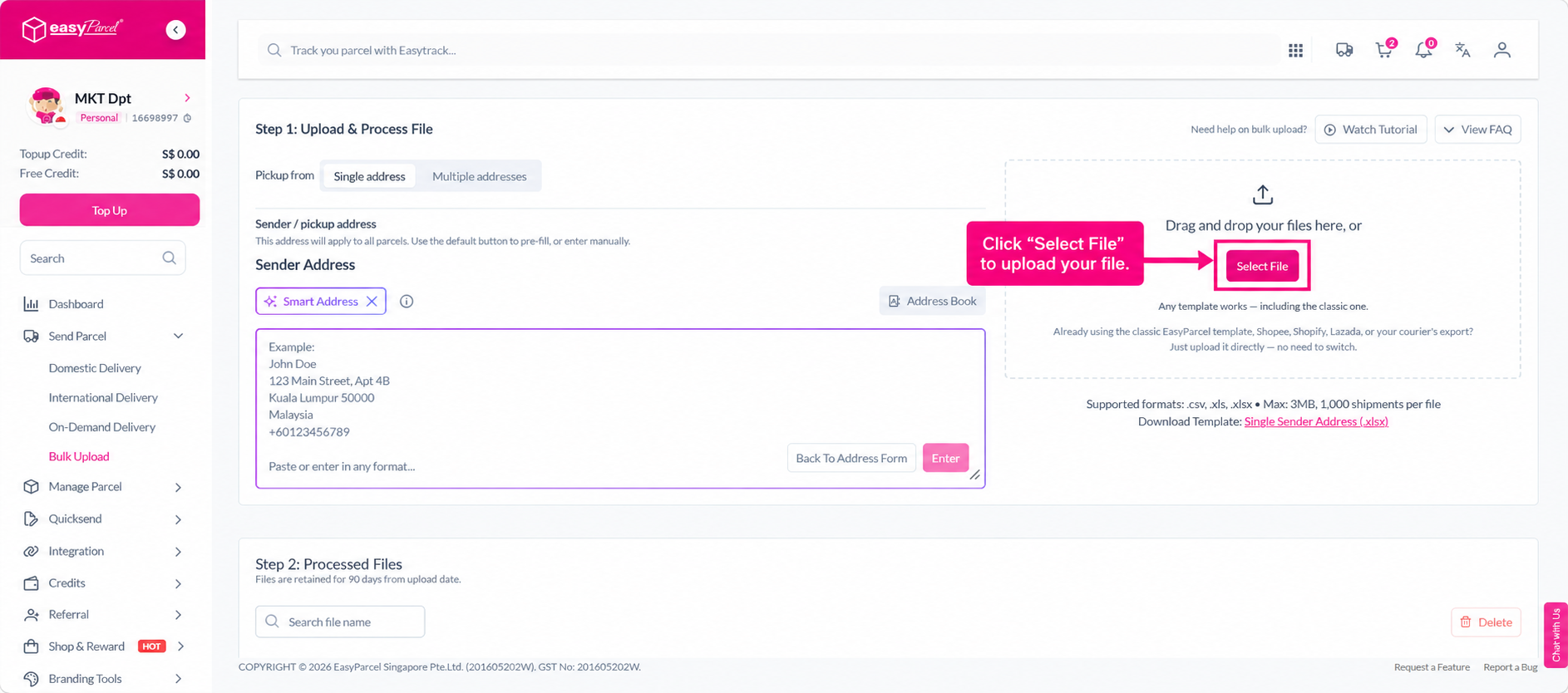
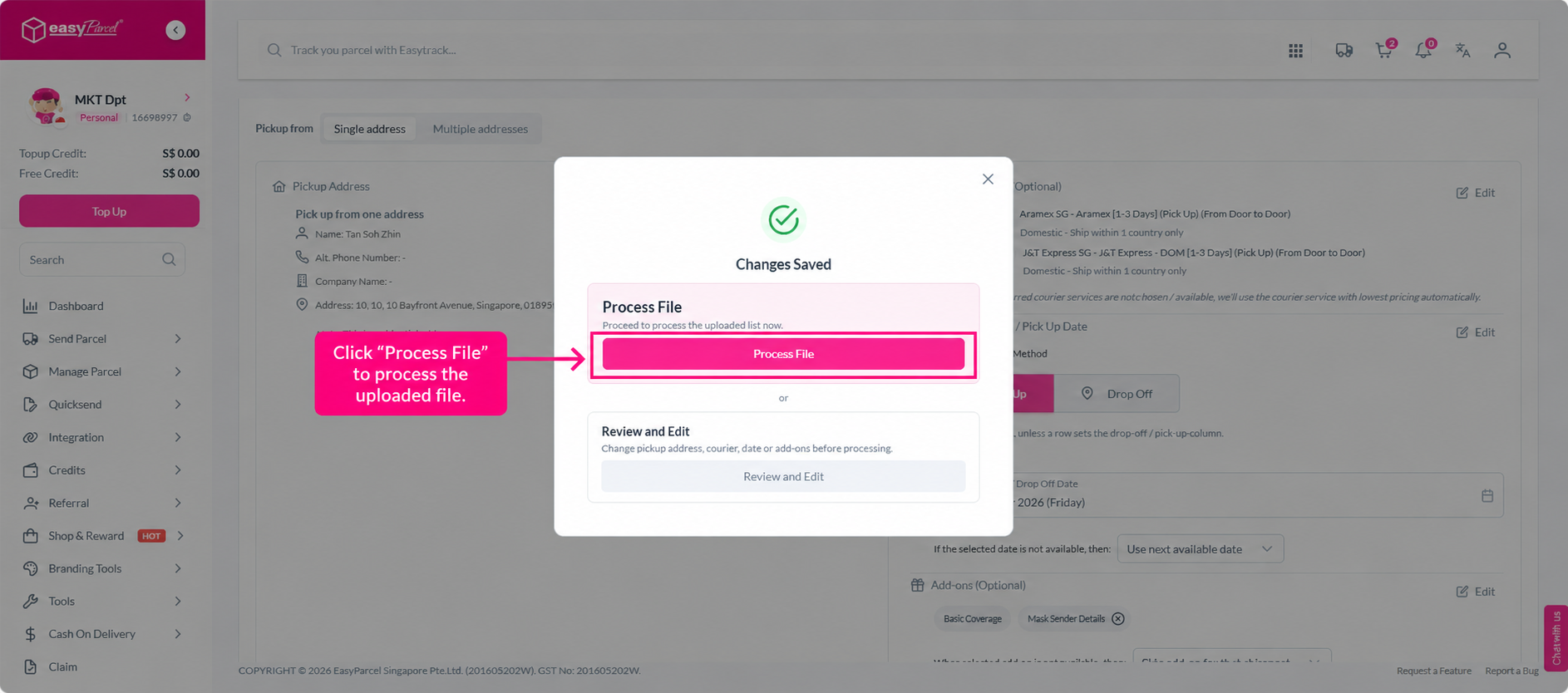
Step 5: Once you are done filling up the bulk template,  upload your order by clicking “Import Order”.
Clicking the Import Order button to upload the completed bulk template
Upload screen showing the progress of importing bulk orders
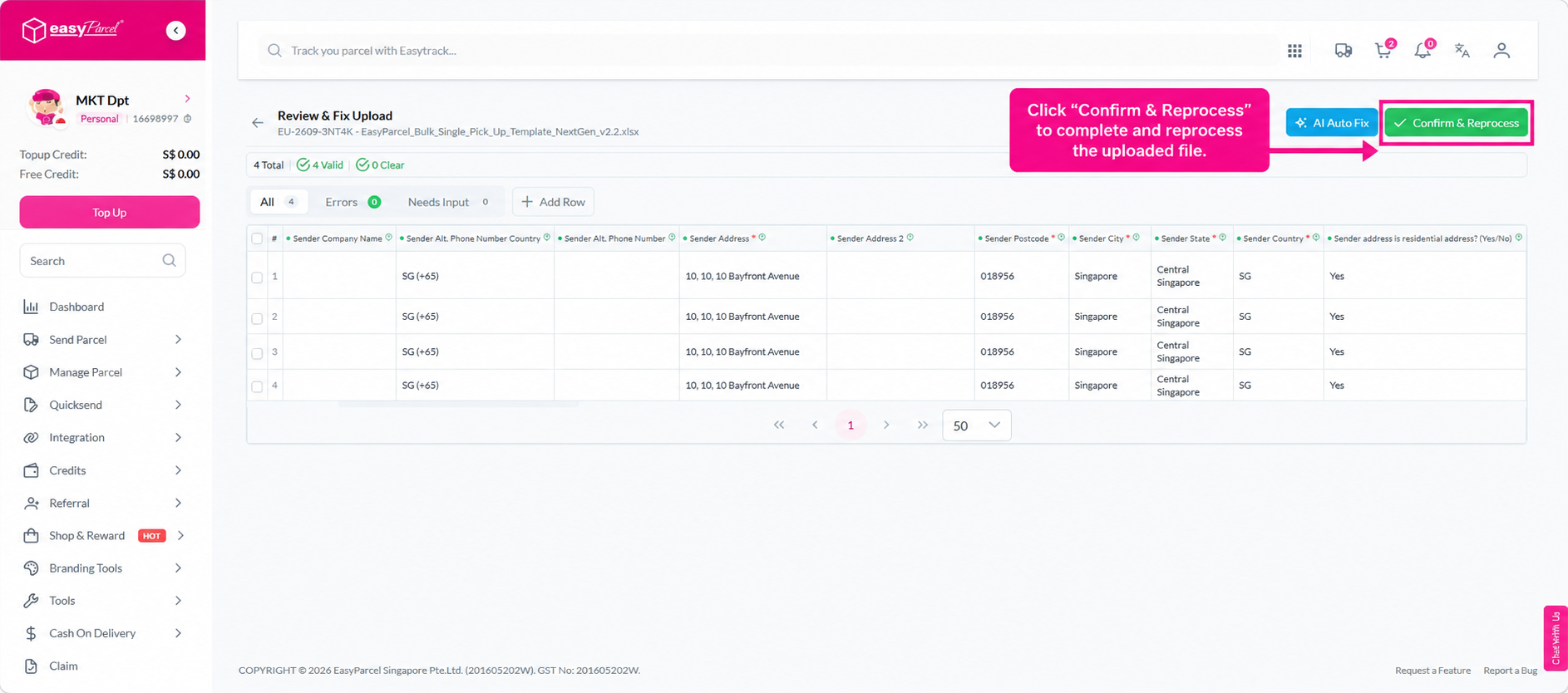
Scroll all the way down, you’ll see the uploaded orders and its details such as “file name”, “upload time”, “collection date”, “status”, “progress” and “total delivery charges” there. 
To view each of the parcels’ details, click the “
Three dots icon for more options” icon.

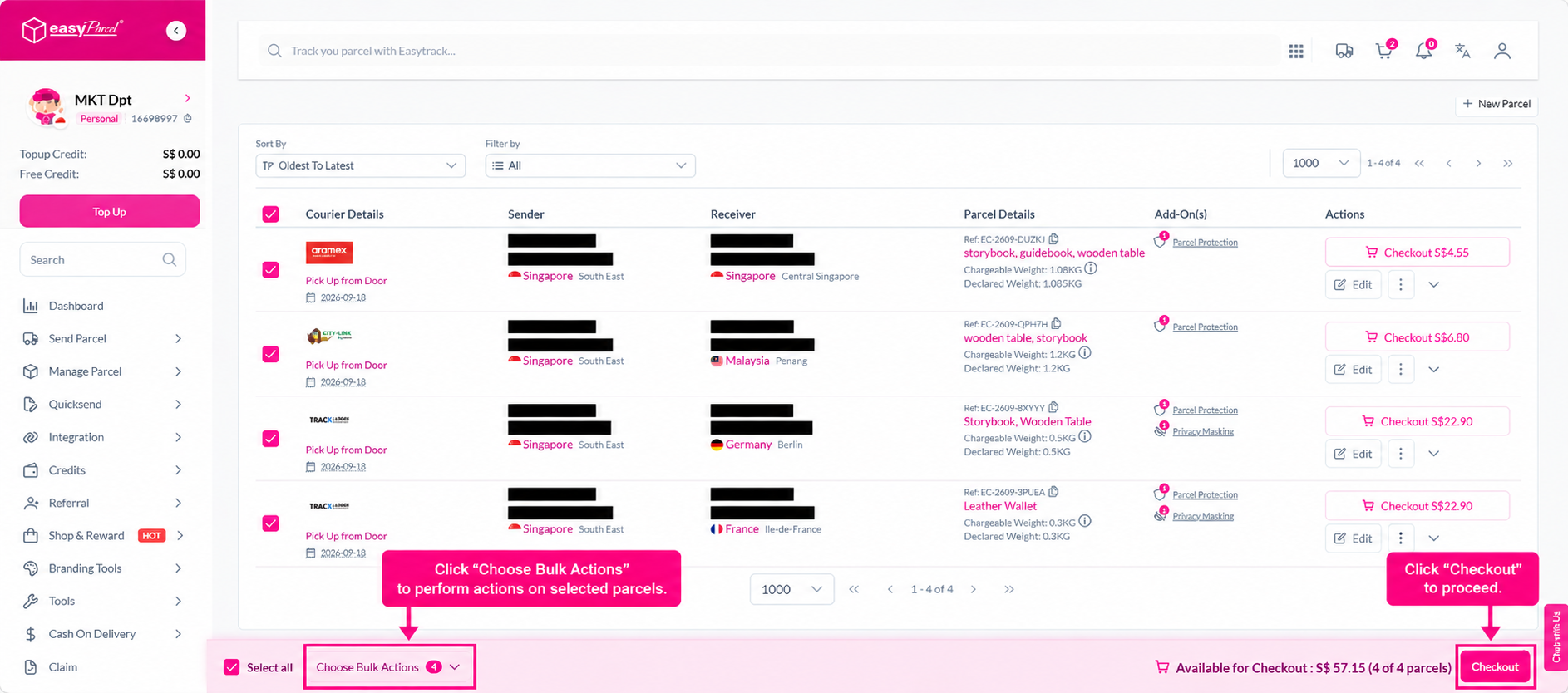
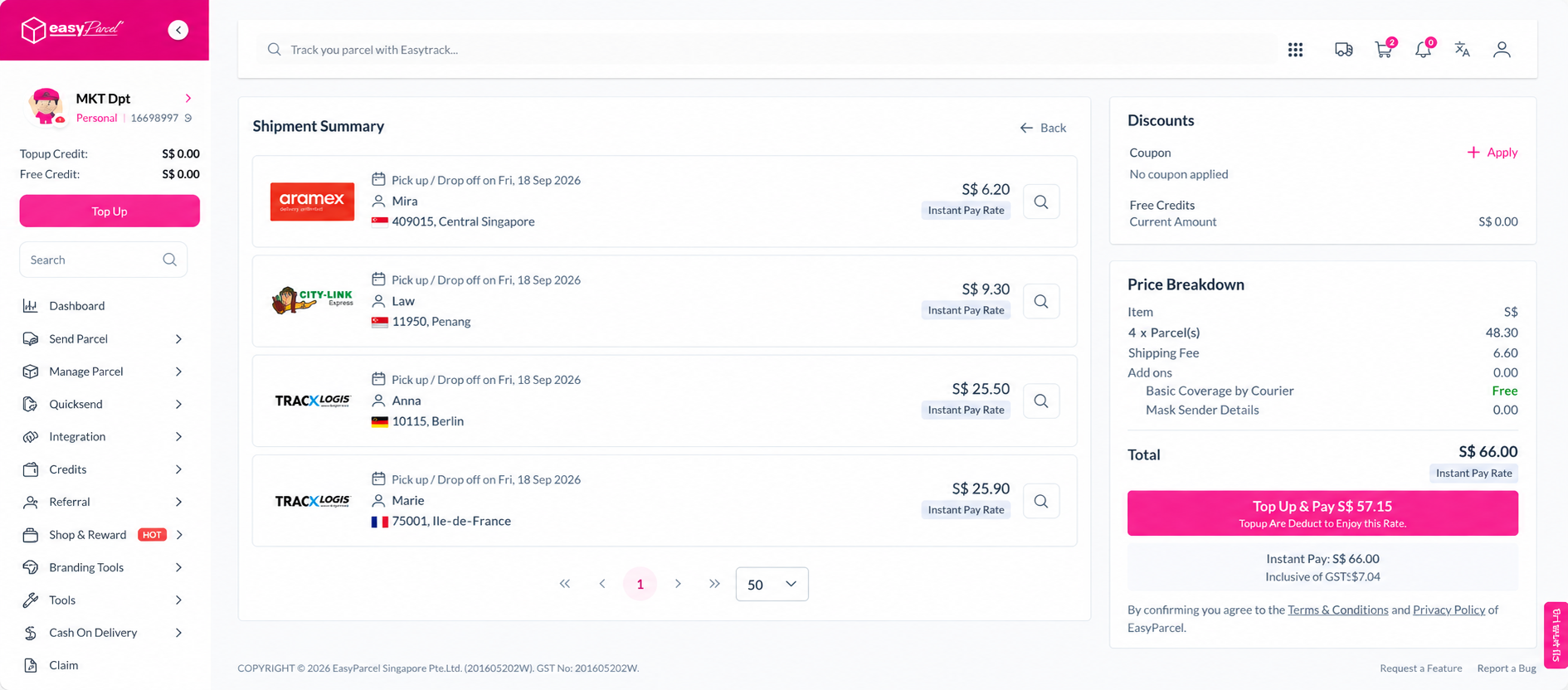
Step 6: Once the status indicates “Ready”, you may proceed to checkout. Click the  “Three dots icon for more options icon and choose “Checkout”  to perform checkout. You may refer here for other statuses meaning.
Checkout option selected from the dropdown menu for ready orders


Step 7: After the order is made, the webpage will bring you back to the Bulk Express page. Scroll all the way down. Once the status indicates “Complete”, you may click the click the “Three dots icon for more options” icon and select “Download AWB” to download the Airway Bills.
Download AWB option selected from the dropdown menu for completed orders

How do I arrange domestic pickup from multiple addresses?

Step 1: Click on “Send Parcel” at your Dashboard sidebar, then select “Bulk Express”.
Selecting Bulk Express from the Send Parcel menu to start multiple addresses pickup


Step 2: At the Bulk Express page, choose “Domestic (Pick Up from Multiple Addresses)”.
Selecting the Domestic (Pick Up from Multiple Addresses) option


Step 3: To import orders, you are required to use the ready made bulk template prepared by EasyParcel. Click “Download Bulk Template” to download. For “Pick Up from Multiple Addresses”, you may fill up all the pick up addresses in the template. 
Clicking the Download Bulk Template button for multiple address pickups


Step 4: Once you are done filling up the bulk template,  upload your order by clicking “Import Order”.
Clicking the Import Order button to upload the template with multiple addresses
Scroll all the way down, you’ll see the uploaded orders and its details such as “file name”, “upload time”, “collection date”, “status”, “progress” and “total delivery charges” there. To view each of the parcels’ details, click the “Three dots icon for more options” icon.

Step 5: Once the status indicates “Ready”, you may proceed to checkout. click the “Three dots icon for more options” icon; and choose “Checkout” to perform checkout. You may refer here for other statuses meaning.
Checkout option selected from the dropdown menu for multiple address orders


Step 6: After the order is made, the webpage will bring you back to the Bulk Express page. Scroll all the way down. Once the status indicates “Complete”, you may click the “Three dots icon for more options” and select “Download AWB” to download the Airway Bills.
Download AWB option selected for completed multiple address shipments
E
EasyParcel is the author of this solution article.

Did you find it helpful? Yes No

Send feedback
Sorry we couldn't be helpful. Help us improve this article with your feedback.