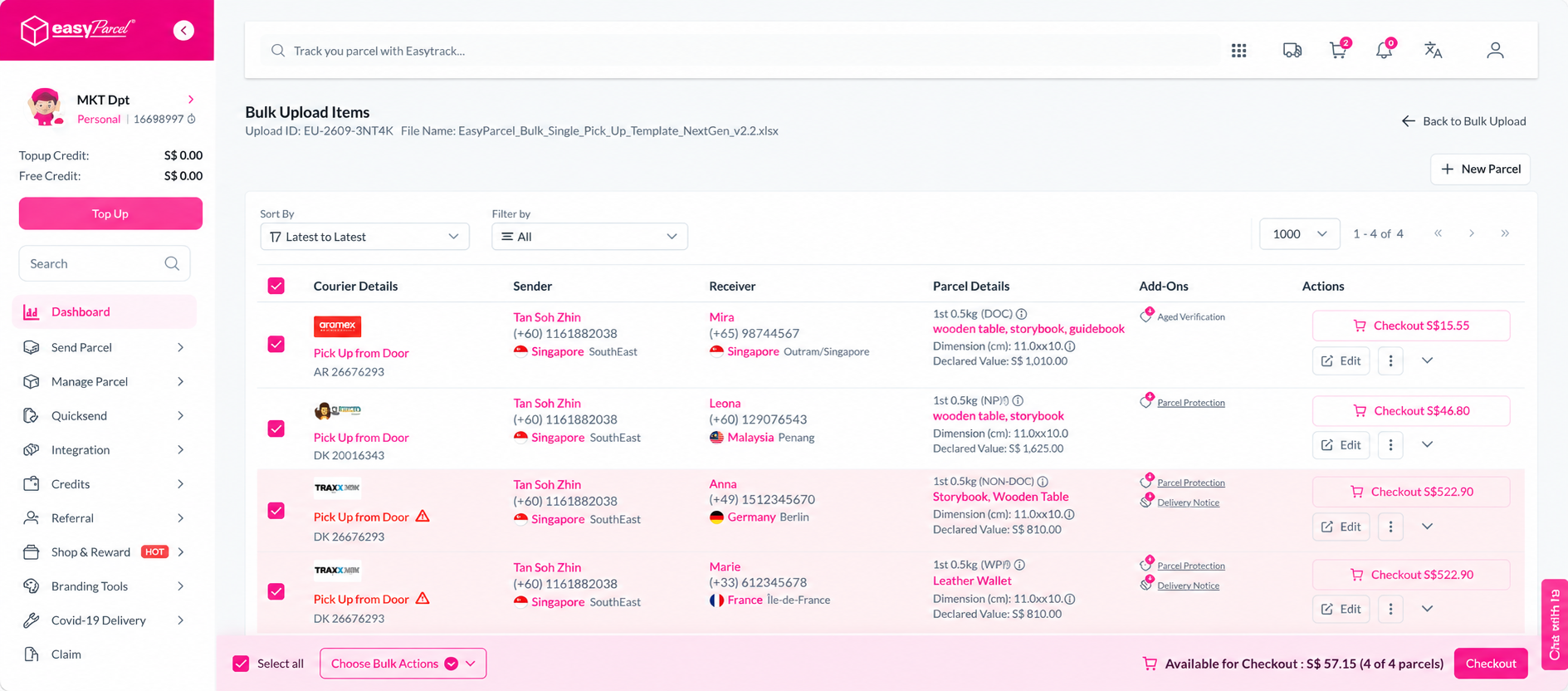
Quick Summary
To view the parcels in a bulk upload, go to Send Parcel > Bulk Upload and find the listing you want to review. Click Review and Checkout to view the parcels included in that upload and review their shipment details before checkout.
Follow these steps to view the parcels in a bulk upload listing:
Step 1: Go to Send Parcel from your dashboard and select Bulk Upload.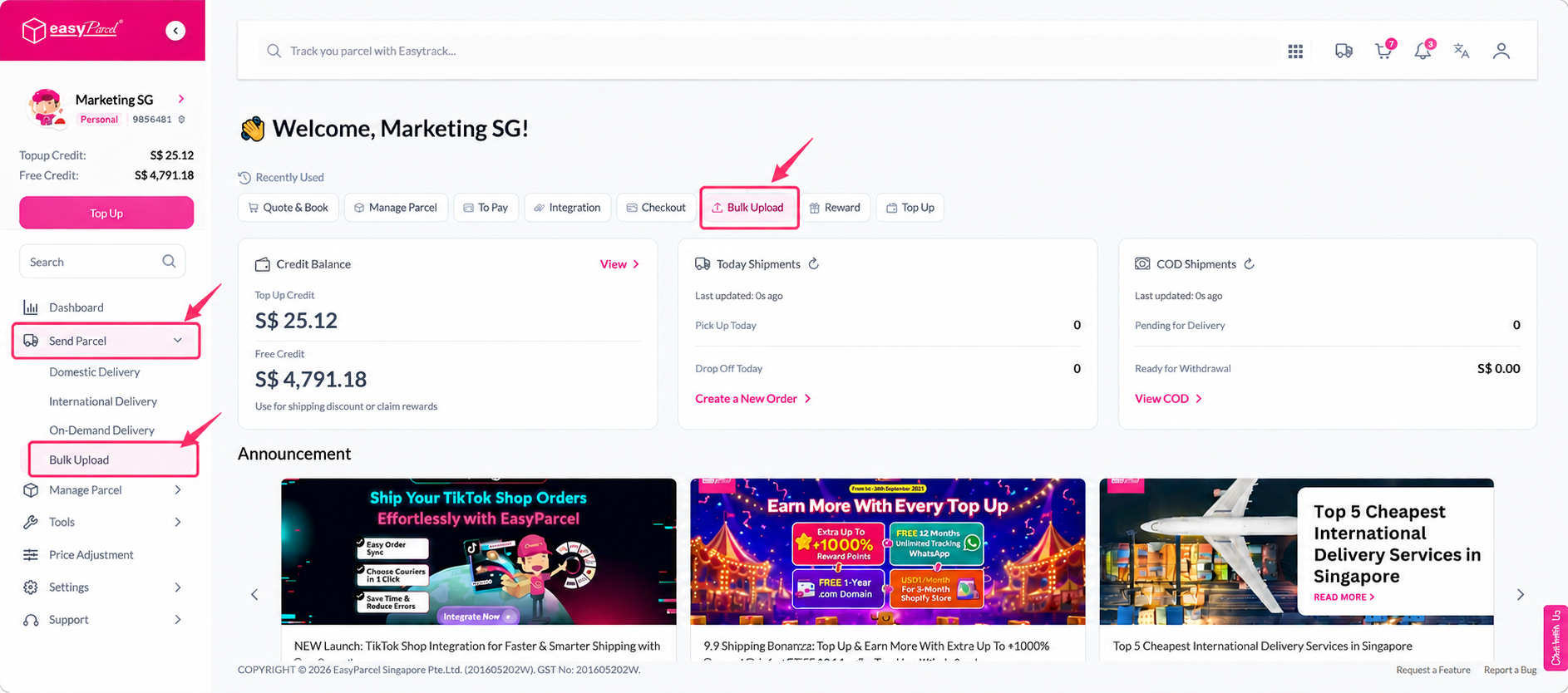
Step 2: Find the bulk upload listing you want to review. You can check the file name, upload date, uploader, and shipment status from the listing.
Step 3: Click Review and Checkout on the listing to view the parcels included in the bulk upload.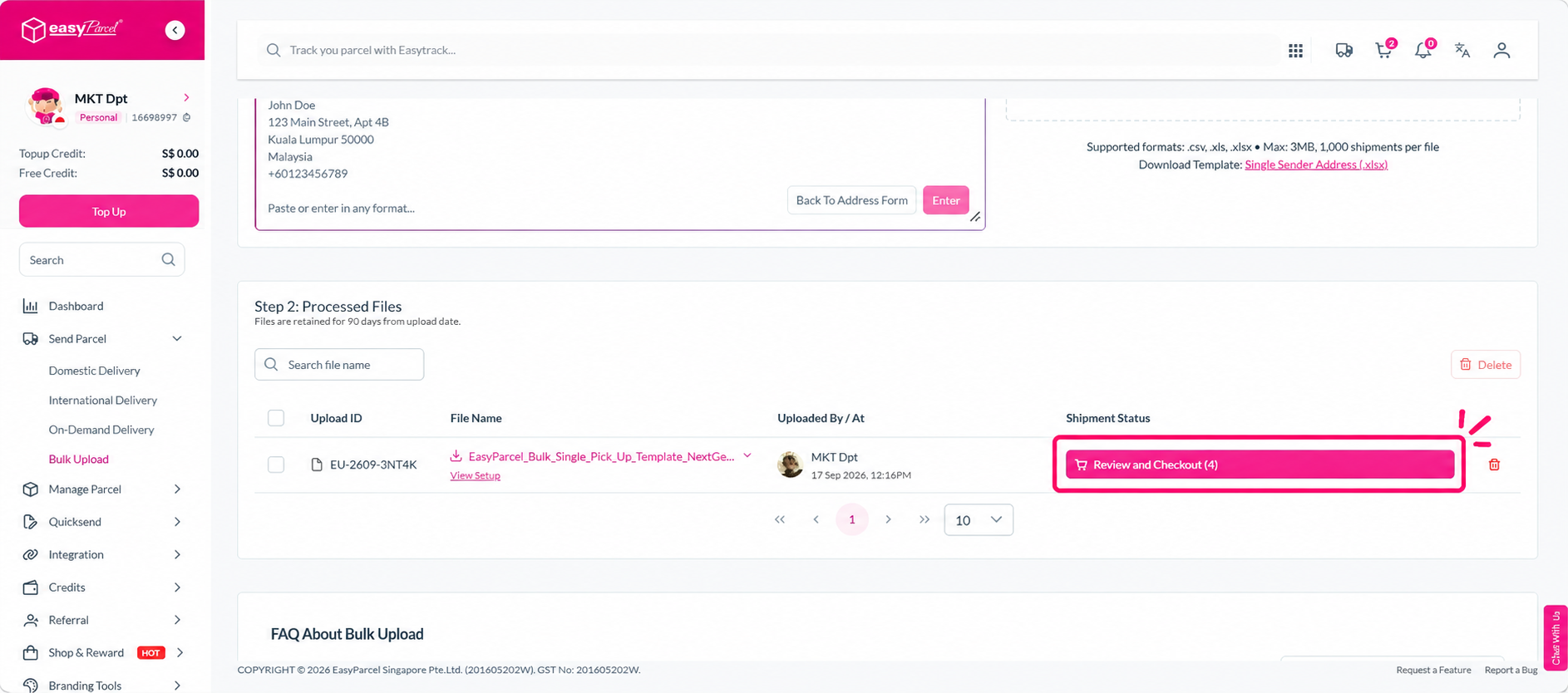
Step 4: The parcels included in the listing will be displayed. You can review the shipment details before proceeding with checkout.