Quick Summary
Bulk Upload allows you to create multiple shipments at once by uploading a completed CSV or Excel template to the EasyParcel portal. You can use Bulk Upload for shipments from a single pickup address or multiple pickup addresses. You can upload up to 300 shipments at a time.
How do I arrange shipments using Bulk Upload for single or multiple pick up addresses?
Step 1: Click on “Send Parcel” at your Dashboard sidebar, then select “Bulk Upload”.
Step 2: Download the latest Bulk Upload template from the portal by clicking “Download Bulk Template”.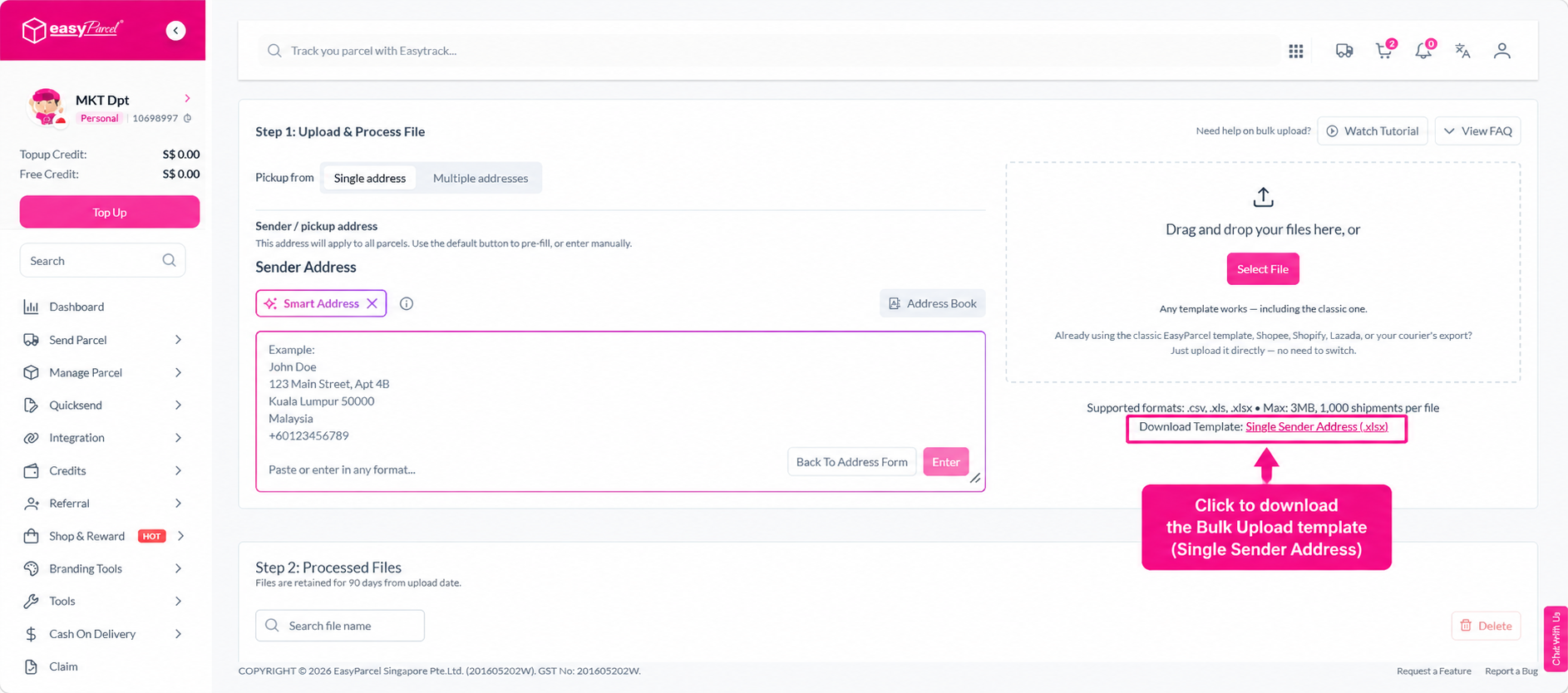
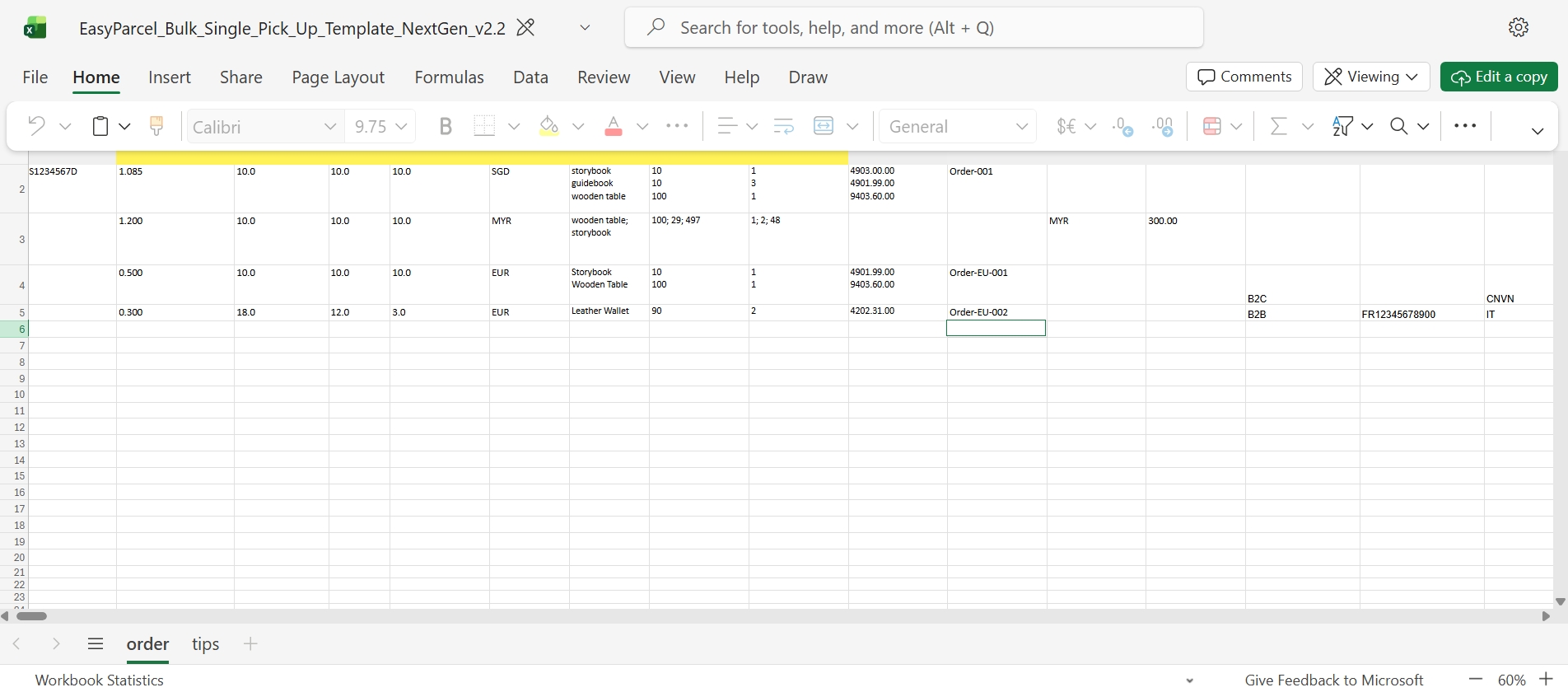
Step 3: Open the downloaded template and fill in your shipment details. You can refer to the Tips sheet in the template for guidance on each field.
When filling in the template:
- For a single pickup address, use the same sender address for all shipments in the template.
- For multiple pickup addresses, enter the required pickup address for each shipment individually in the template.
 Step 4: Once the template is complete, return to the Bulk Upload page and click “Import Order” to upload your file.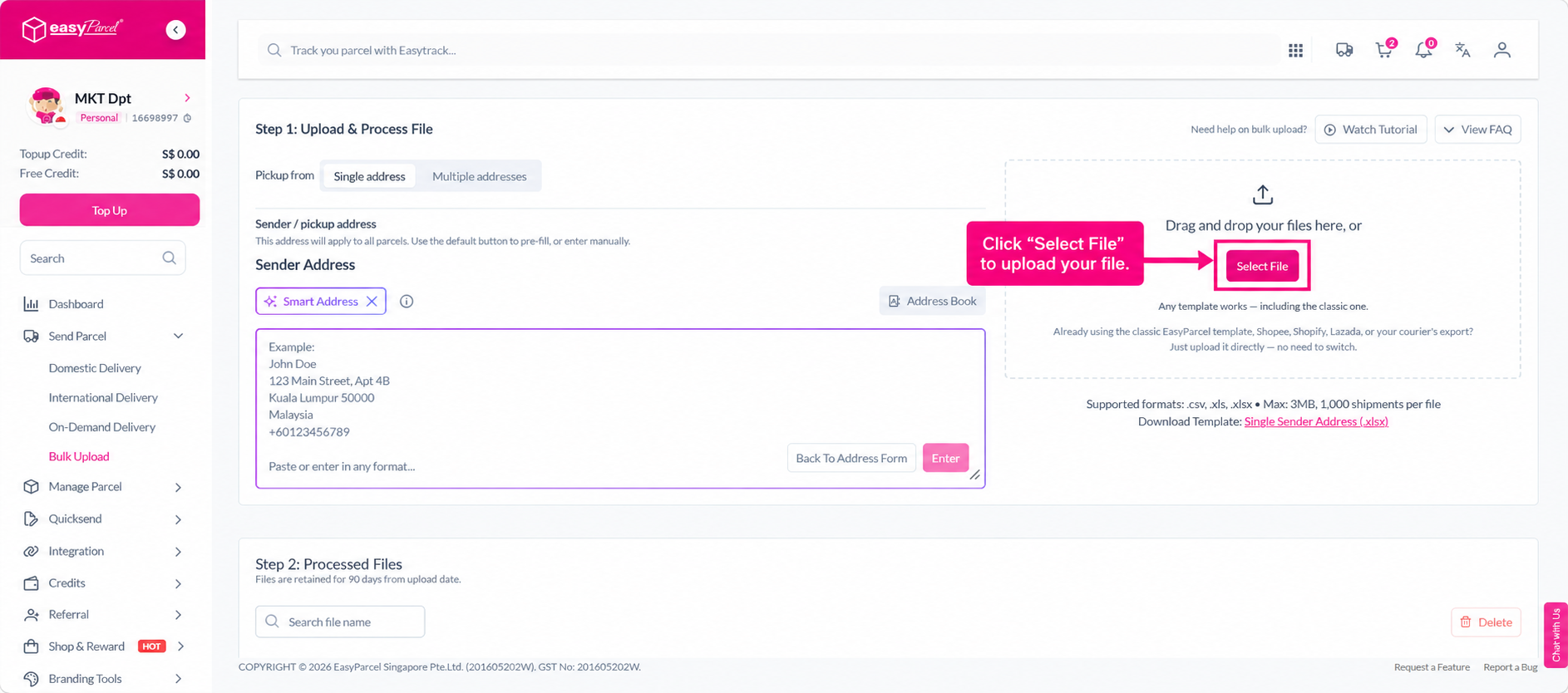
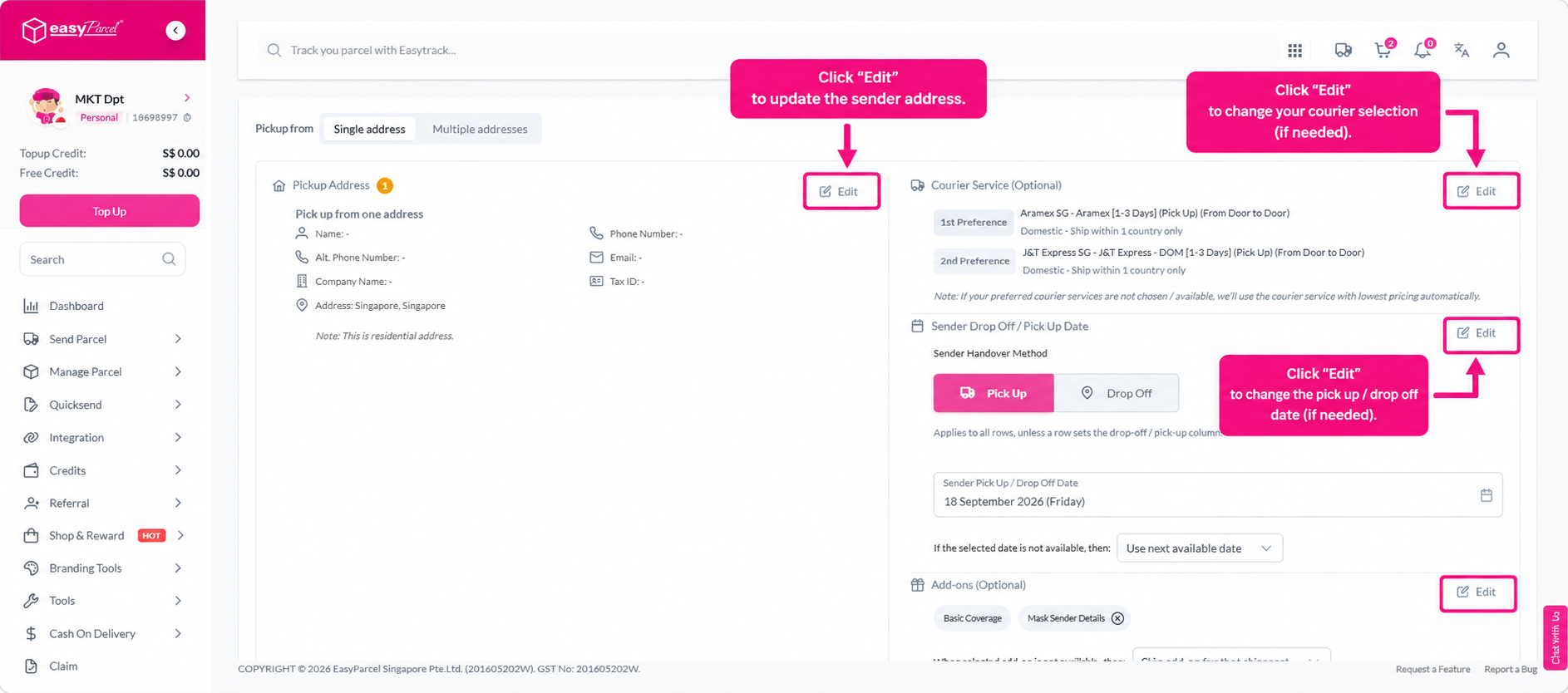
Step 5: Select your preferred courier for the shipments. Where available, select a second courier preference as a backup in the event your primary courier is unavailable.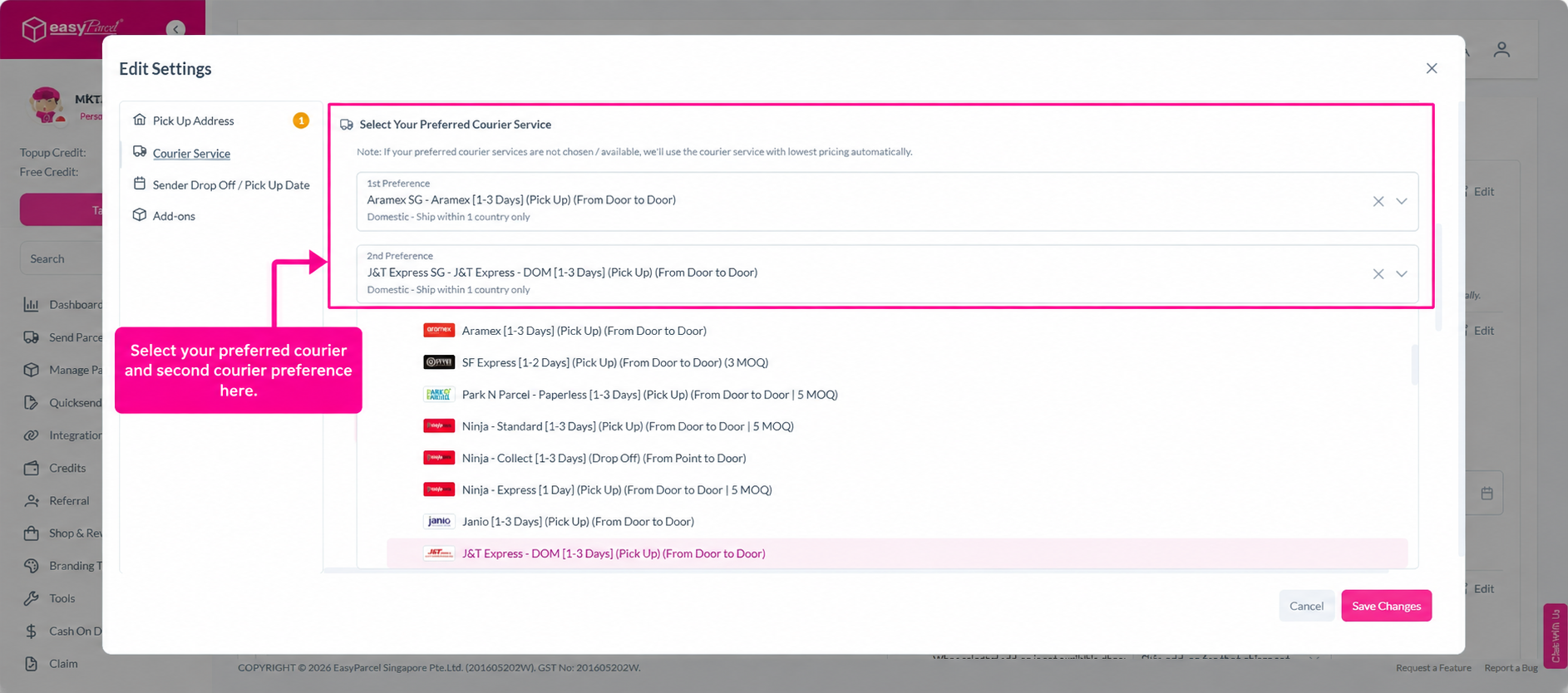
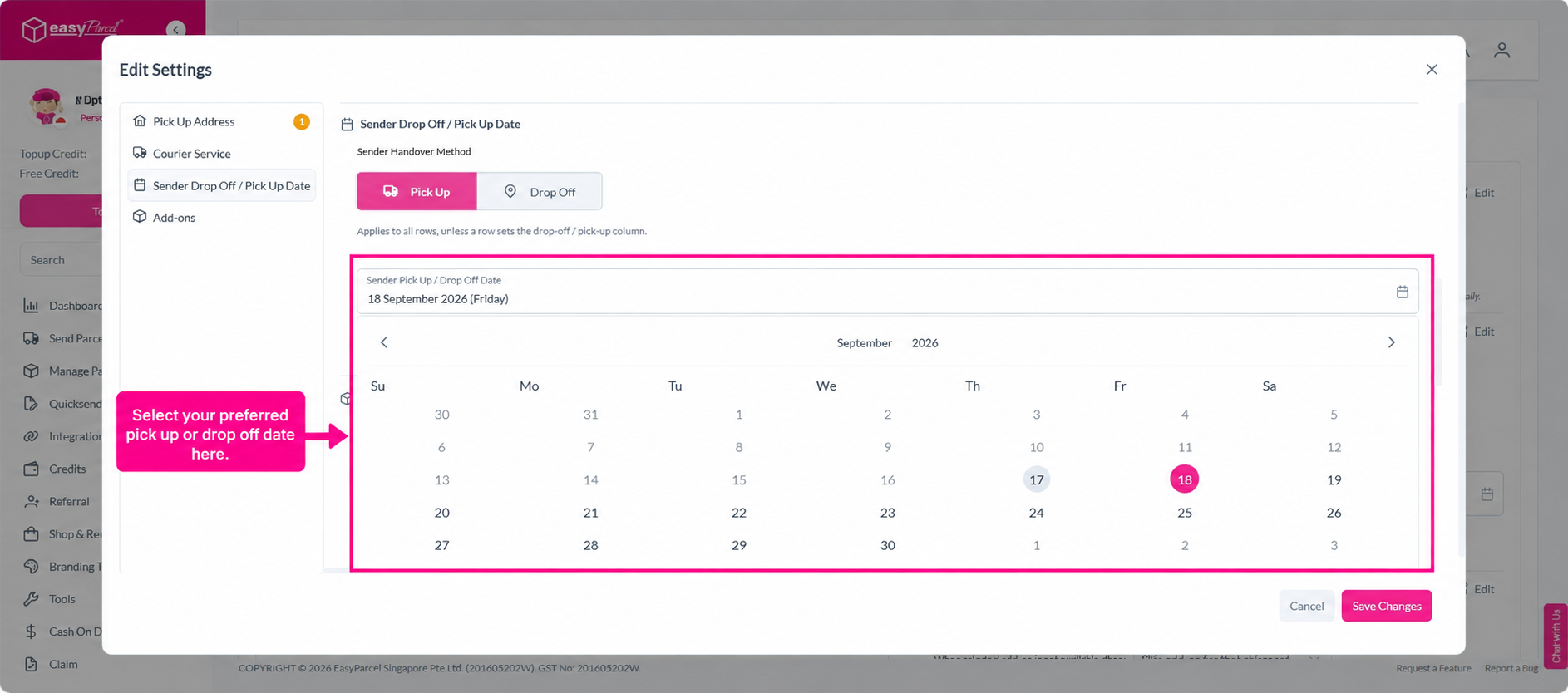
Step 6: Select your preferred pickup or drop-off date for the shipments.
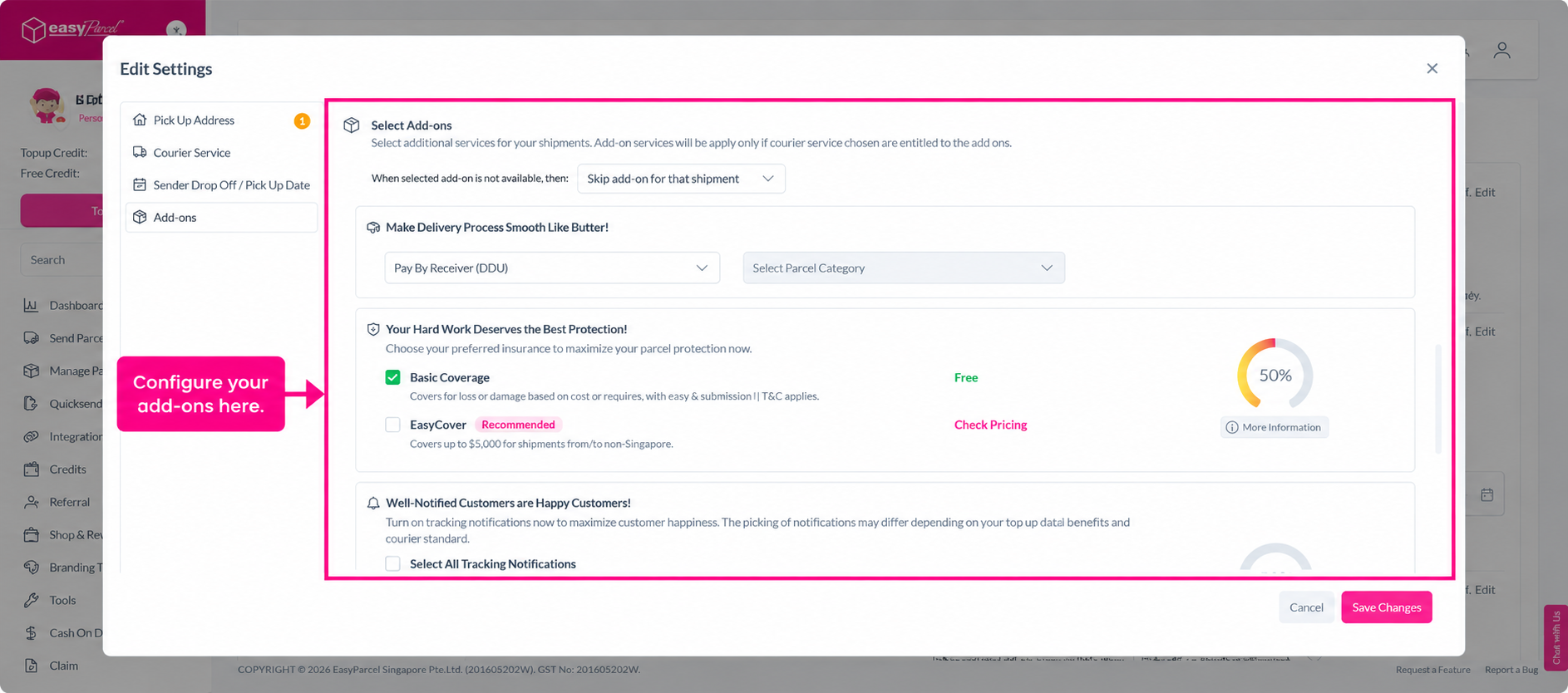
Step 7: Review and select any applicable add-on services for your shipments.
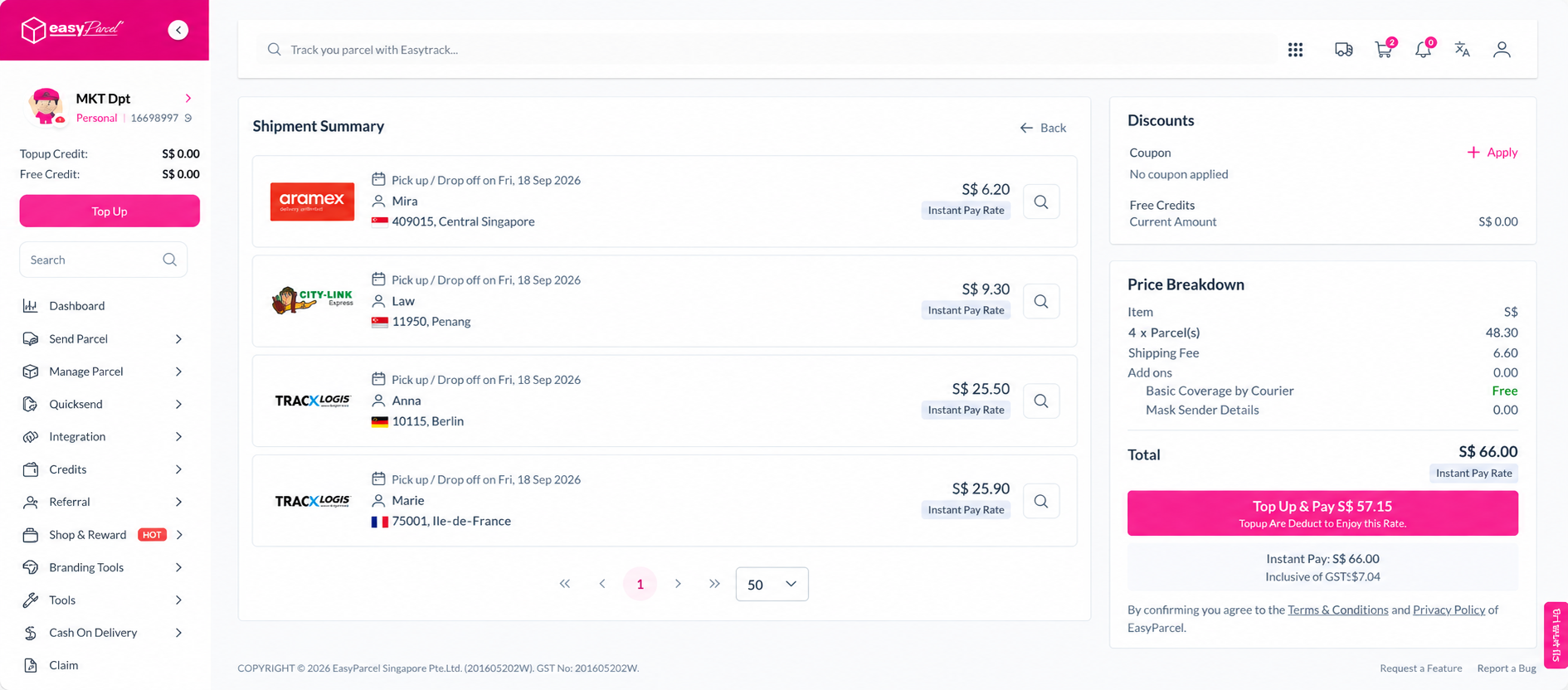
Step 8: Click “Process File” to submit the uploaded shipment information for processing. Once processed, review the shipment details carefully and make any necessary amendments before proceeding.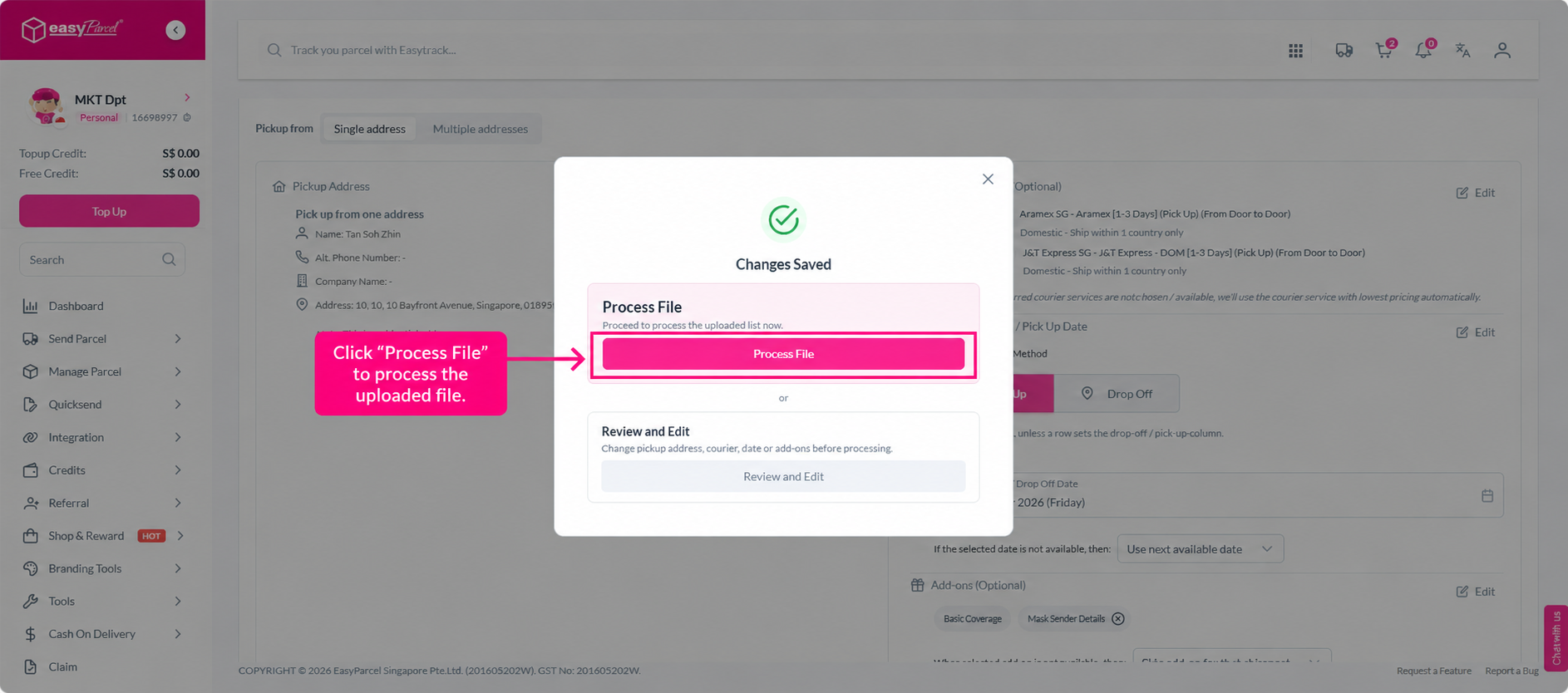
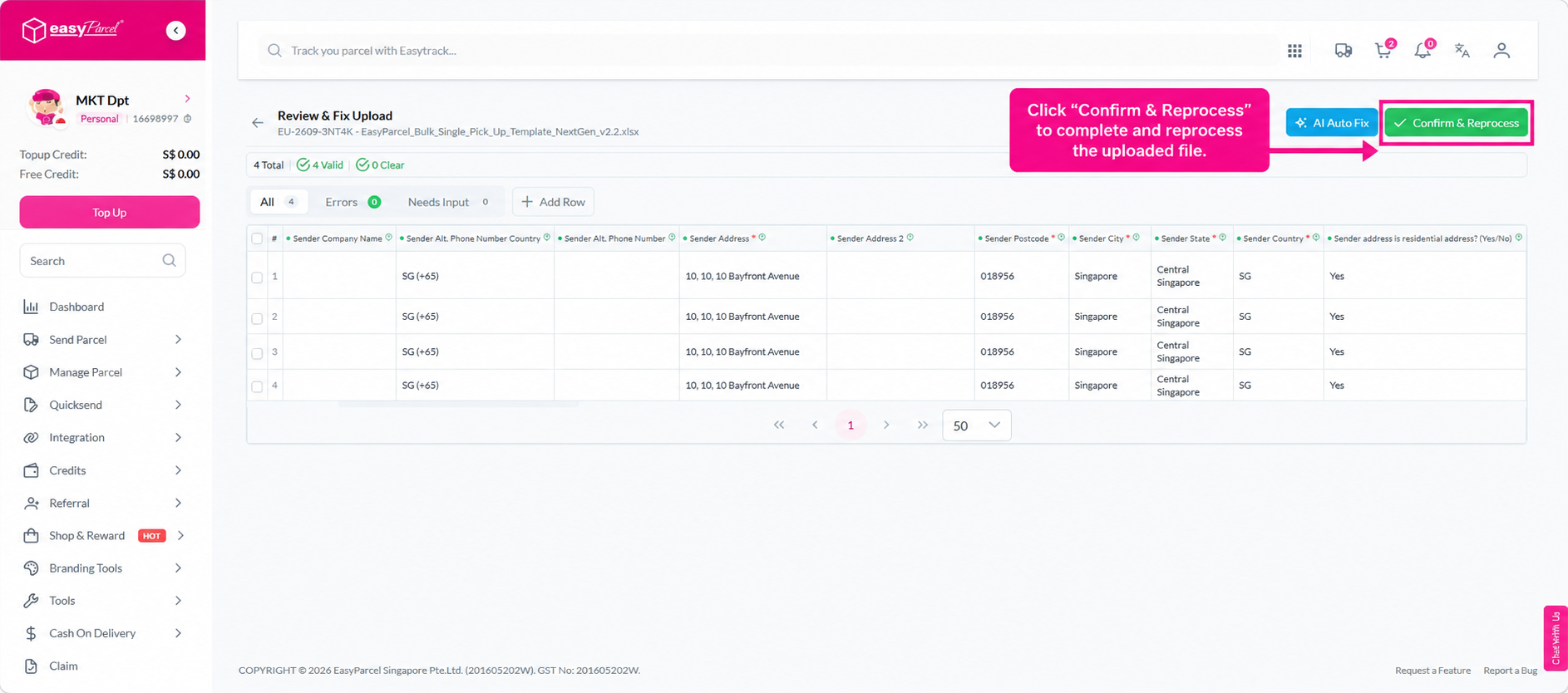
Step 9: Once you are satisfied that all shipment details are accurate, click “Confirm” to proceed. Select your preferred payment method and complete the payment to finalise your booking.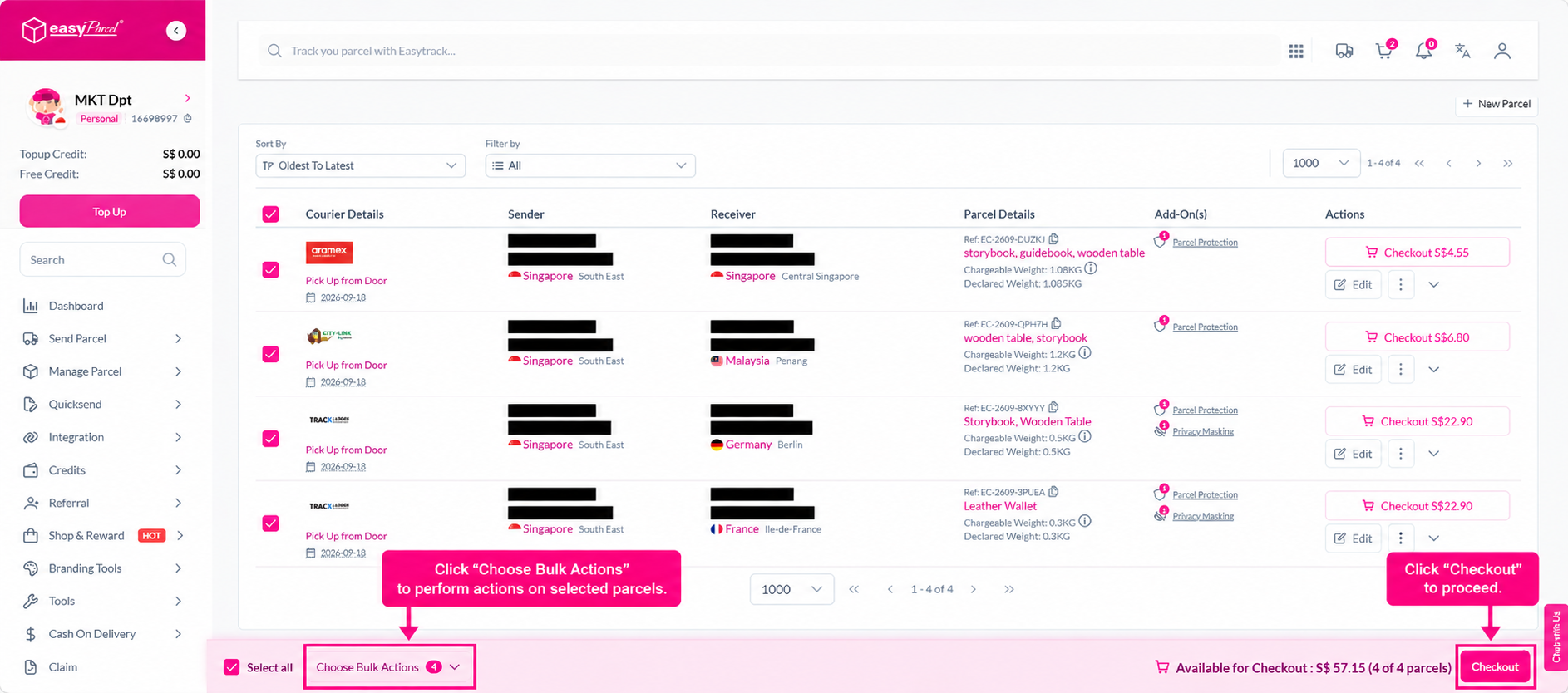
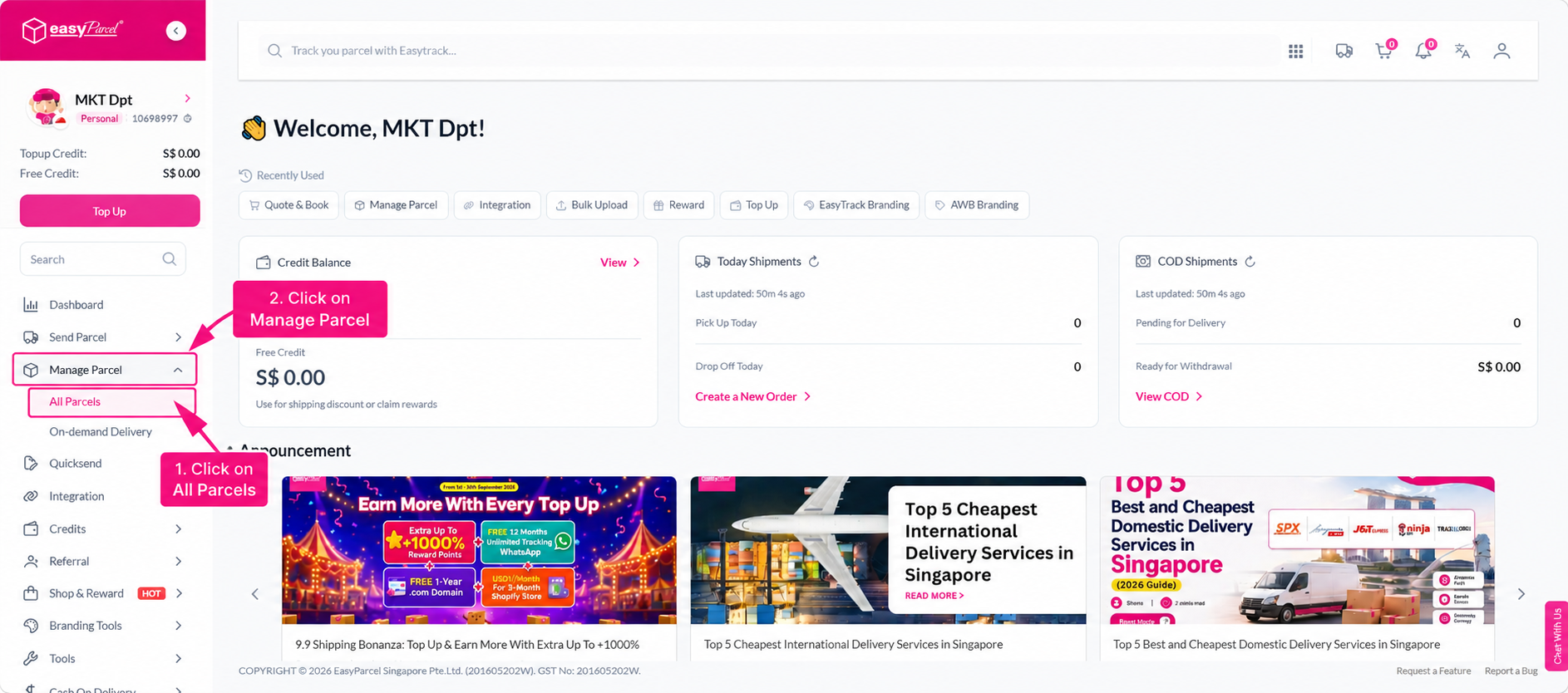
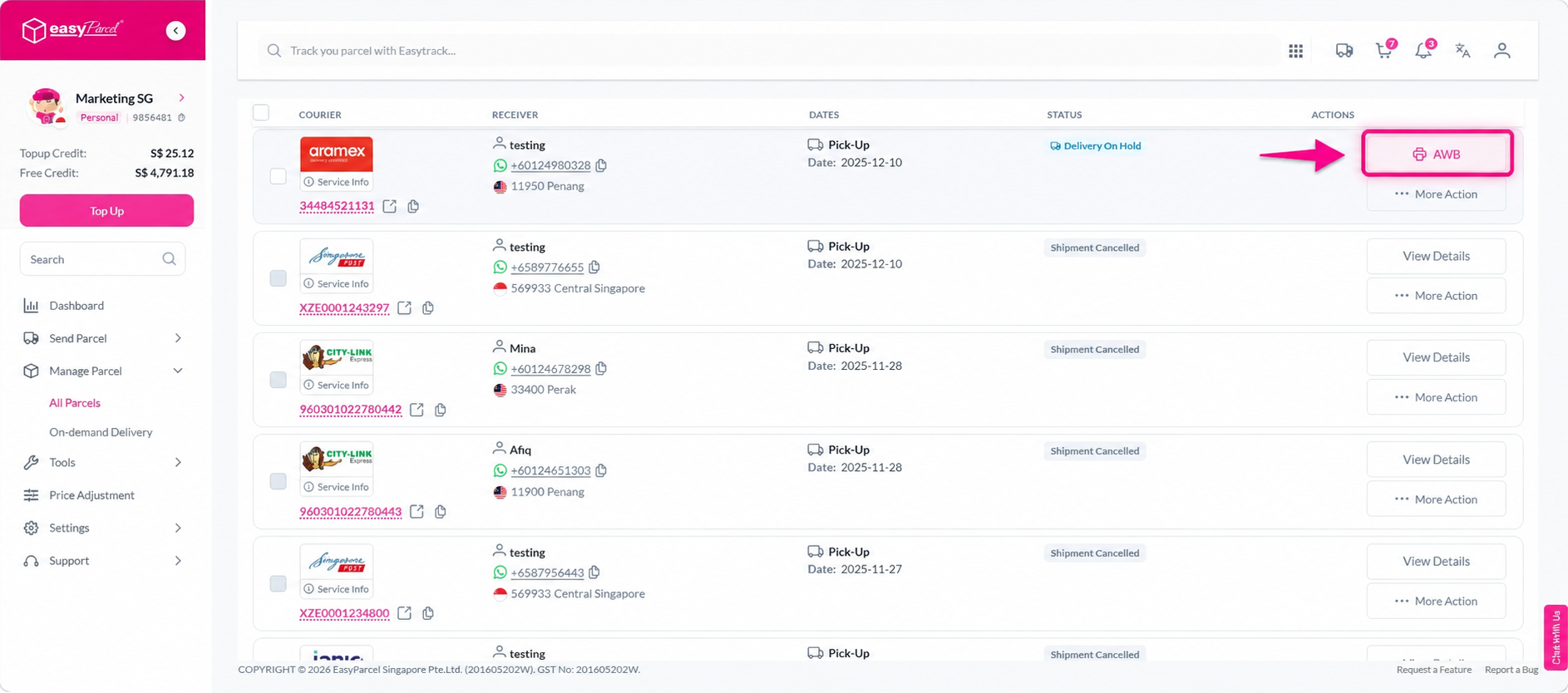
Step 10: After payment, you can download and print your Air Waybills (AWB). Navigate to Manage Parcel > All Parcels to locate your orders. You can multi-select shipments and click Download > Download AWB to download AWBs in bulk, or click the printer icon to download them individually.