
Quick Summary
To duplicate a parcel, navigate to your Cart page and find the shipment you wish to copy. Click the "Duplicate" icon (usually represented by two overlapping squares) located next to the parcel details. This action creates an identical entry in your cart, allowing you to quickly replicate shipment settings for multiple orders without re-entering all the information manually.
How to duplicate single parcel?
Need to duplicate your single parcel? It's really easy! Simply follow these simple steps:
Step 1: Log in to your EasyParcel account and click the cart on the top right of your page.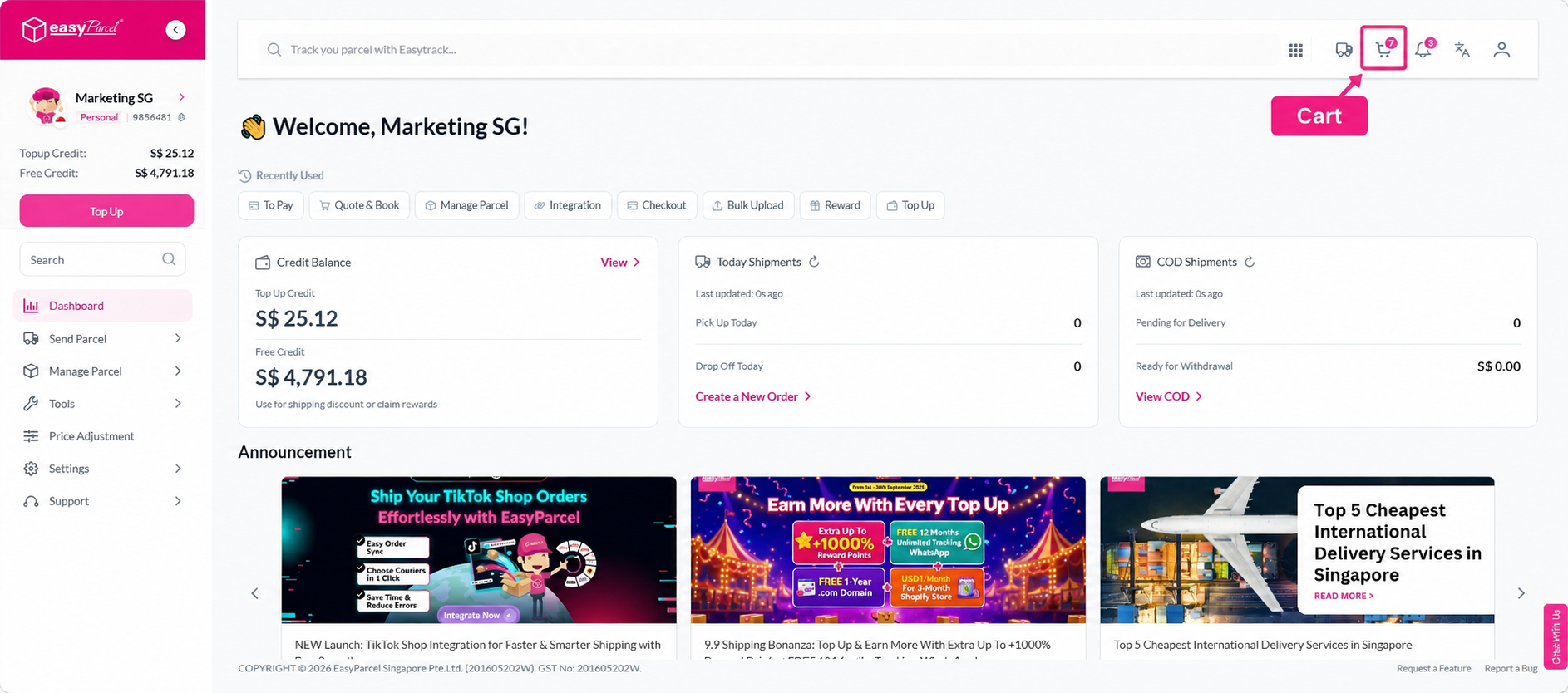
Step 2: Choose the parcel you want to duplicate, click the three lines and pick "Duplicate"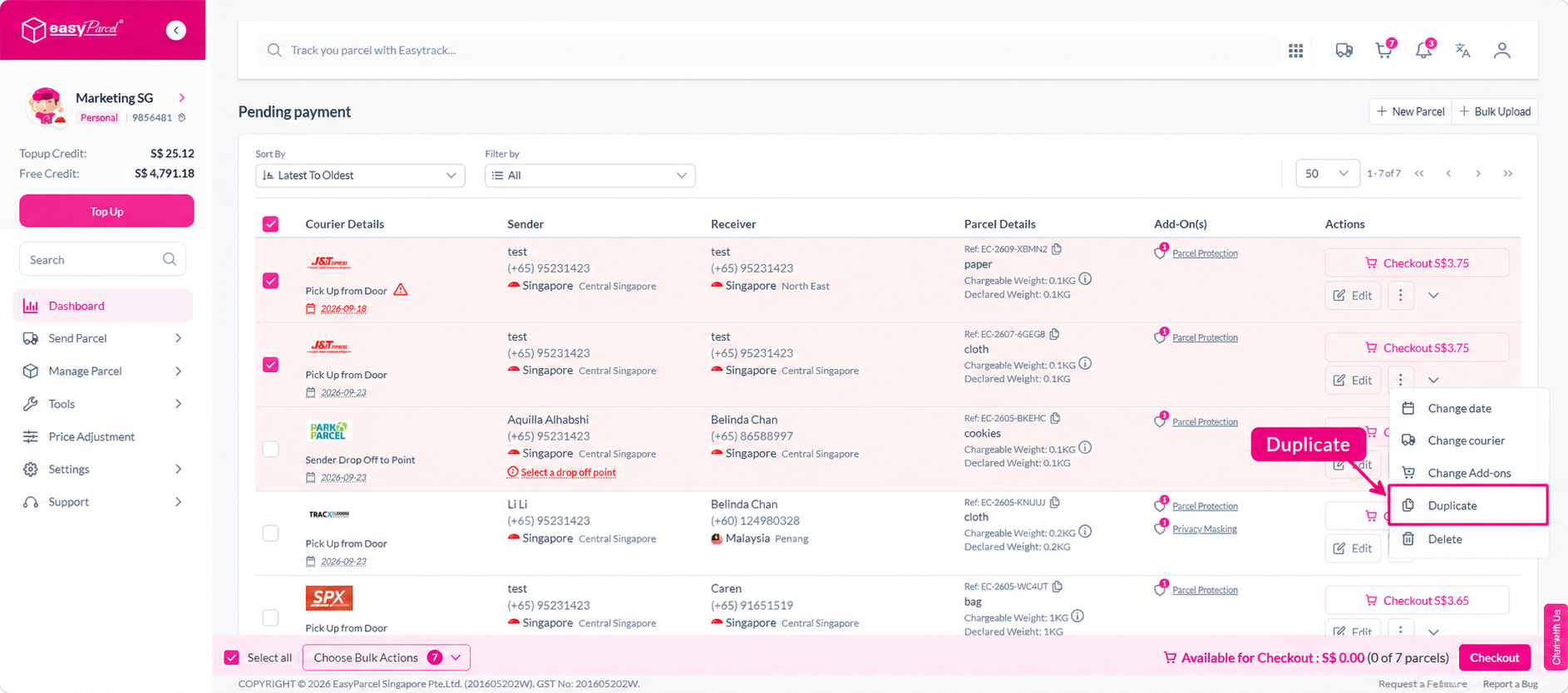
How to duplicate bulk parcel?
Step 1: Log in to your EasyParcel account and click the cart on the right top of your page.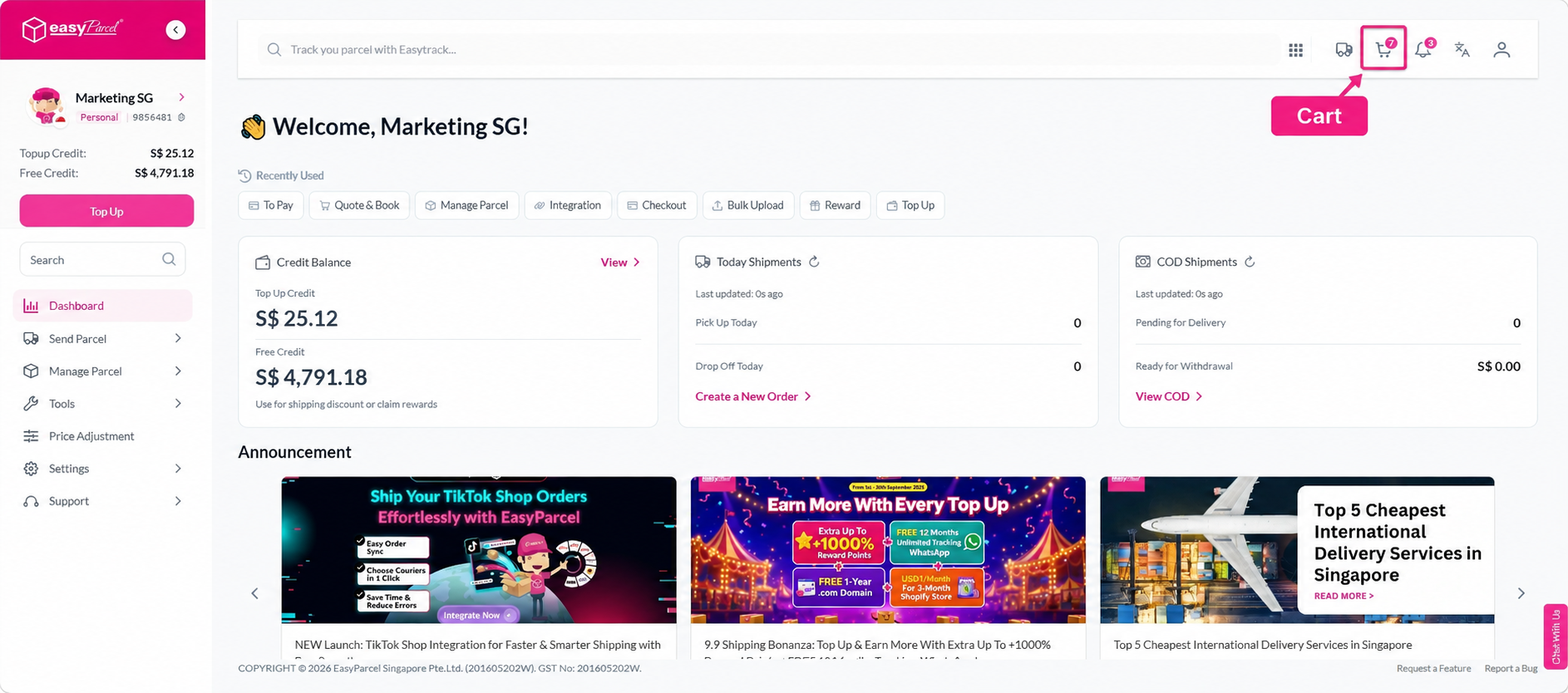
Step 2: Choose the parcels you need to duplicate, then hover over to "Duplicate" button on top of your parcels' list and click on it.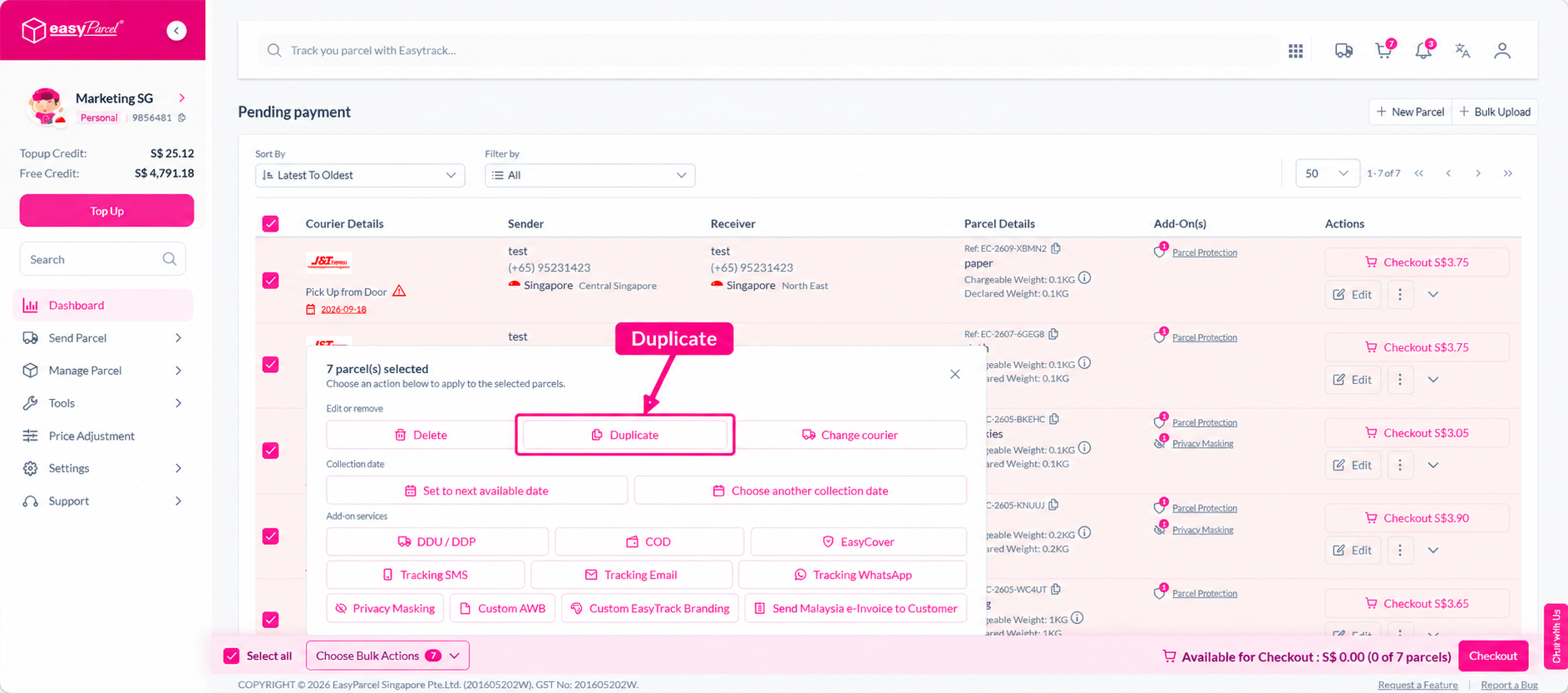
Step 3: A pop-up will appear to confirm parcels duplicate process, click "Yes" to proceed if you're confirm.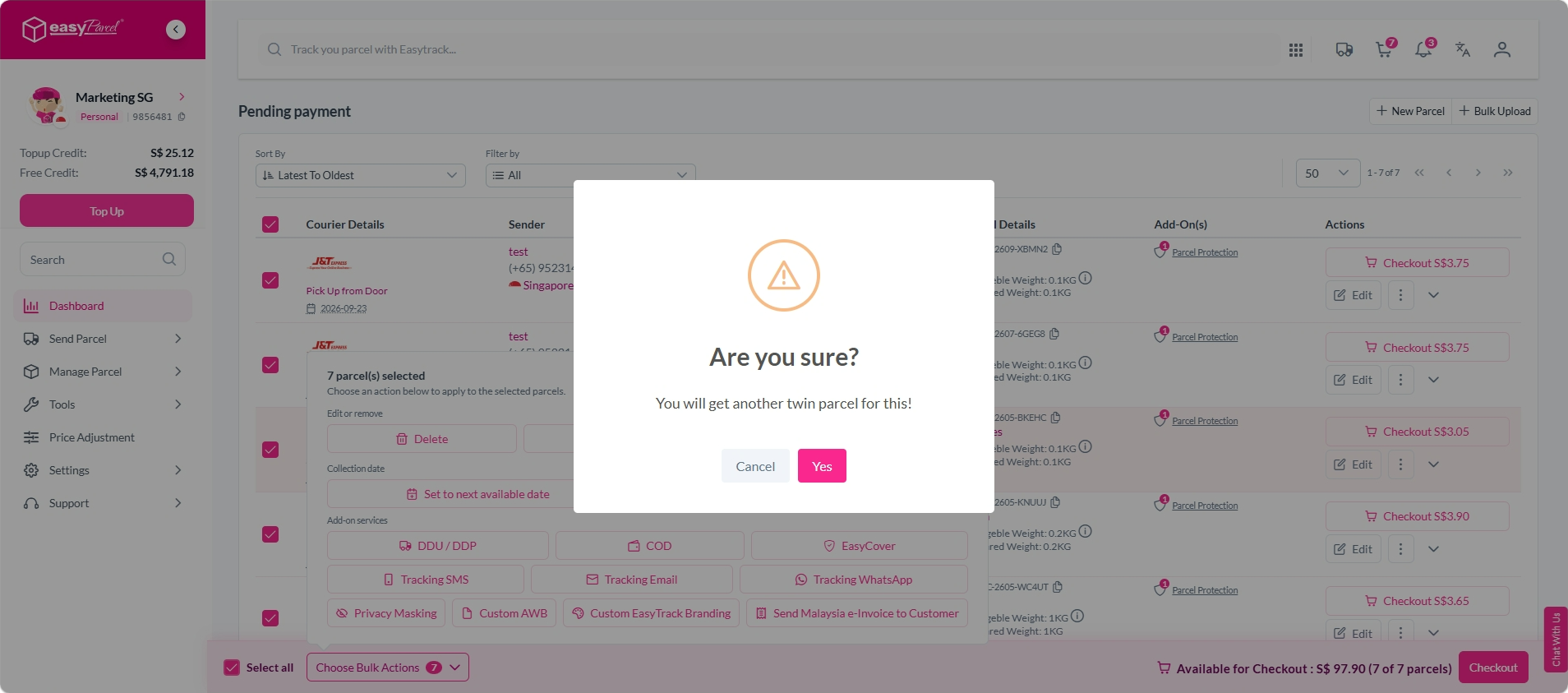
You may also check out how to edit your parcel details here.