
Quick Summary
To create international shipments in bulk on EasyParcel SG, log in and select "Bulk Upload" under "Send Parcel," then download the Excel/CSV template. Fill in sender, receiver, and parcel details, upload the completed file, select your courier and pickup date, process the file, and complete payment to download your Air Waybills (AWB). This allows up to 300 bookings at once.
How do I book a international parcel order using Upload File (Bulk Upload)?
At EasyParcel, Bulk Upload is designed to simplify the process when you need to dispatch large quantities of parcels at once.
Simply fill in your shipment details in the Bulk Upload template, upload the file to the EasyParcel portal, and our system will process your bookings automatically. You can upload up to 300 shipments at a time.
Follow the steps below:
Step 1: Download the Template
Select Bulk Upload on the dashboard, or navigate to Send Parcel > Bulk Upload. Download the latest Bulk Upload template from the portal.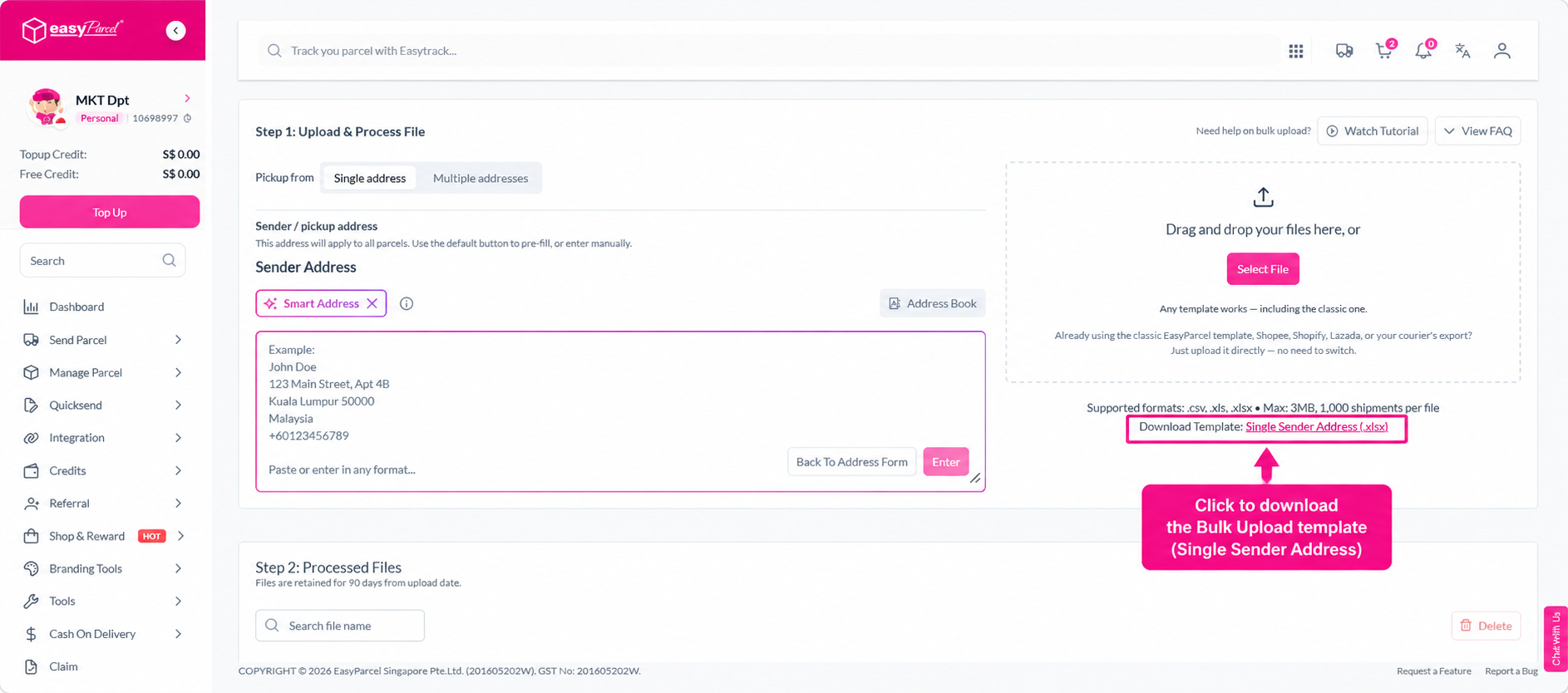
Step 2: Fill in the Template
Open the downloaded template and enter the required shipment details. This includes:
- Parcel content — Describe the item accurately. For example, use "H&M men's sweater" instead of "shirt".
- Value of goods (SGD) — Enter the accurate parcel value to ensure a smooth delivery process. This information will be kept confidential.
- Weight (kg) — Enter the correct parcel weight to avoid misdeclaration.
- Sender details — Full name, contact number, and address.
- Receiver details — Full name, contact number, and delivery address.
- Courier company and alternative courier company — If your primary courier is unavailable in your area, the shipment will automatically be assigned to your second preferred courier.
- Tracking SMS — Enable this to send tracking updates to your receiver via SMS.
- Tracking WhatsApp — Enable this to send tracking updates to your receiver via WhatsApp.
- Drop off at courier branch — Select "Yes" if you prefer to drop off your parcel at a courier branch instead of scheduling a pickup.
- Item HS Code — The Harmonized System (HS) code is used by customs authorities to classify goods. For example, the HS code for a book is 4820 20 000. View more.
- Reference — Add an internal order or reference number if required.
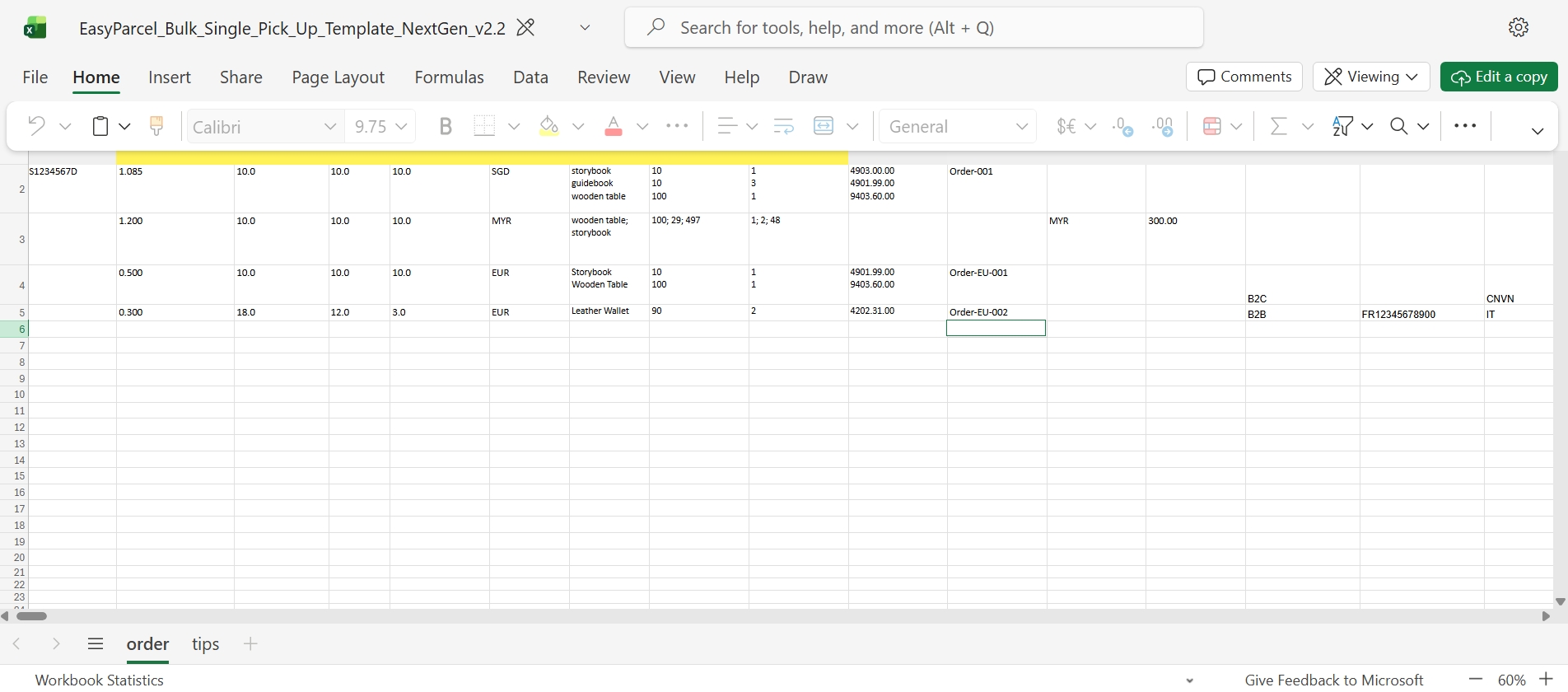
Step 3: Upload the Template
Once you have completed the template, return to the Bulk Upload page on the EasyParcel portal. Click Import Order and select your completed template file to upload it.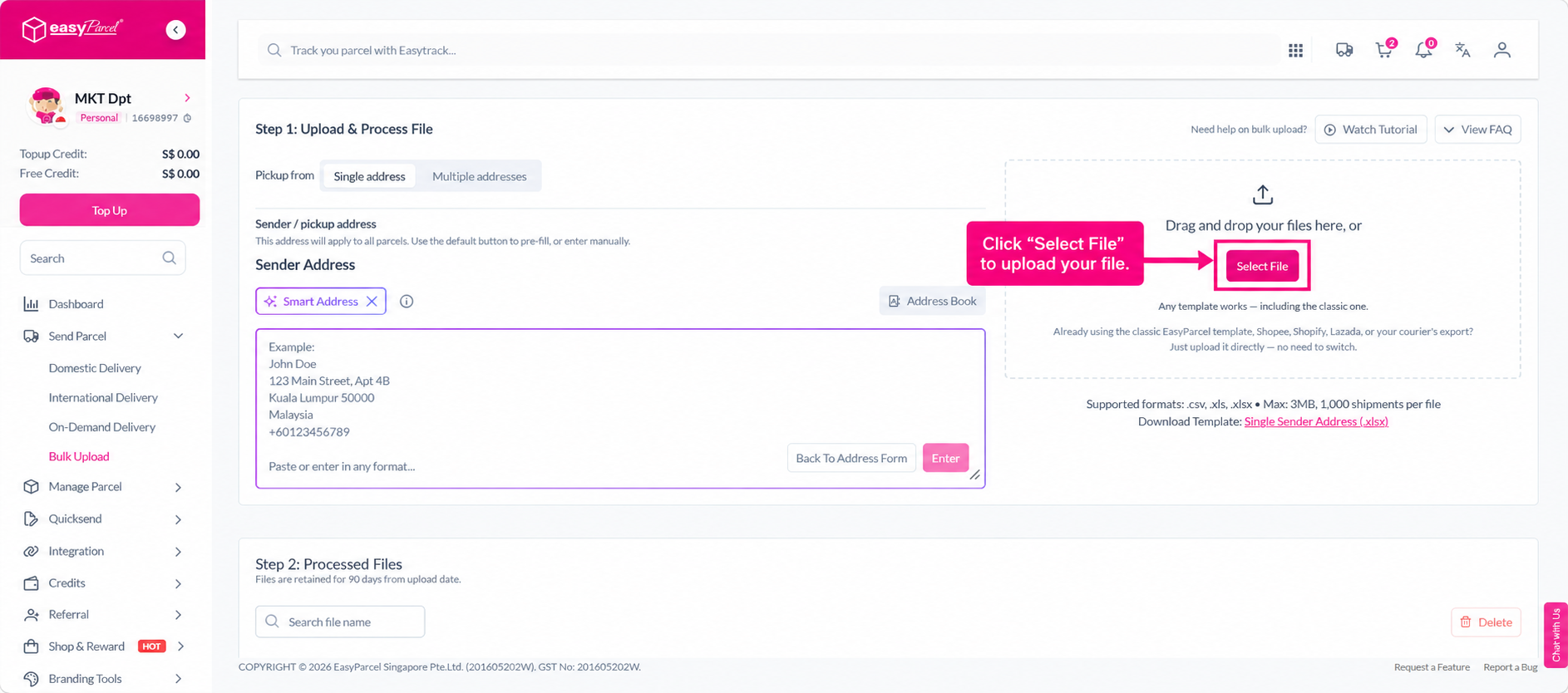
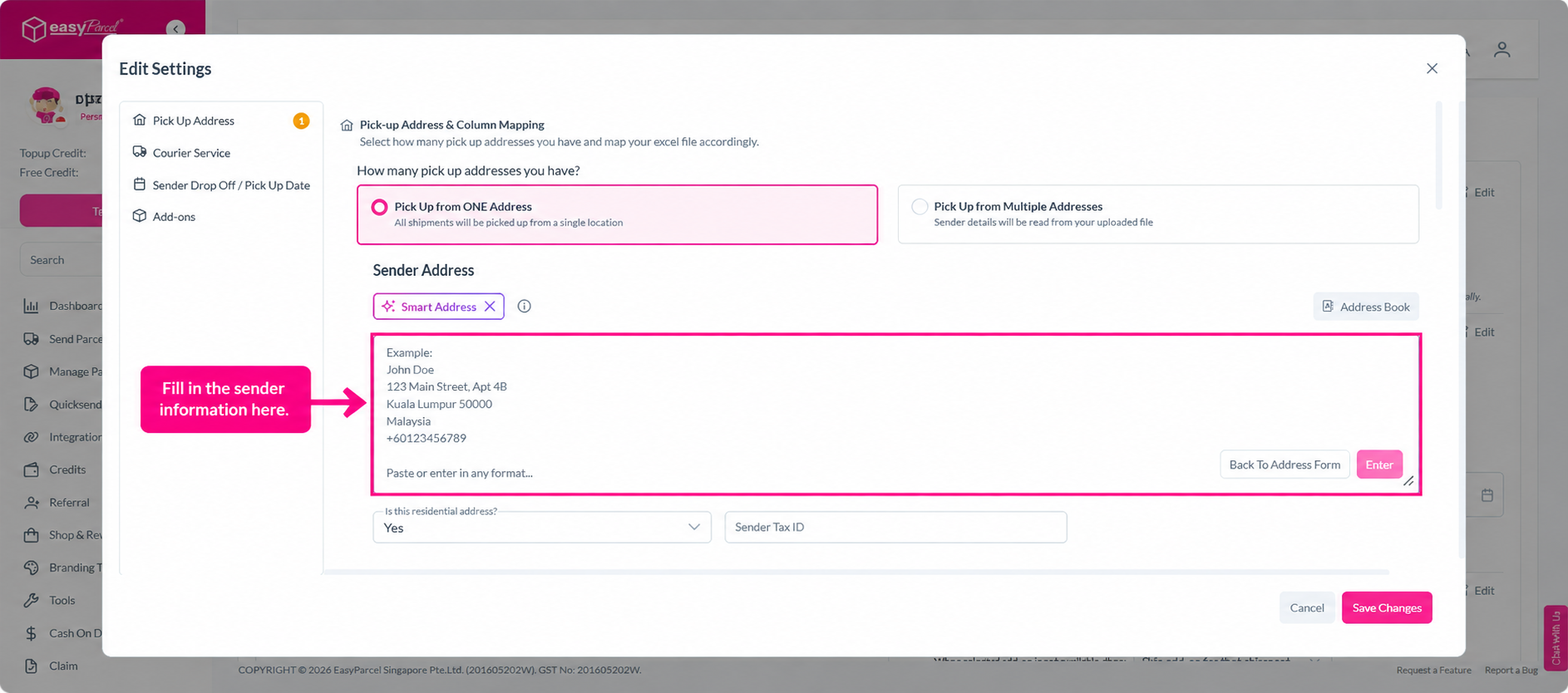
Step 4: Edit the Sender Address
Review the sender address pre-filled for your shipments. Update any entries where necessary to ensure accuracy before proceeding.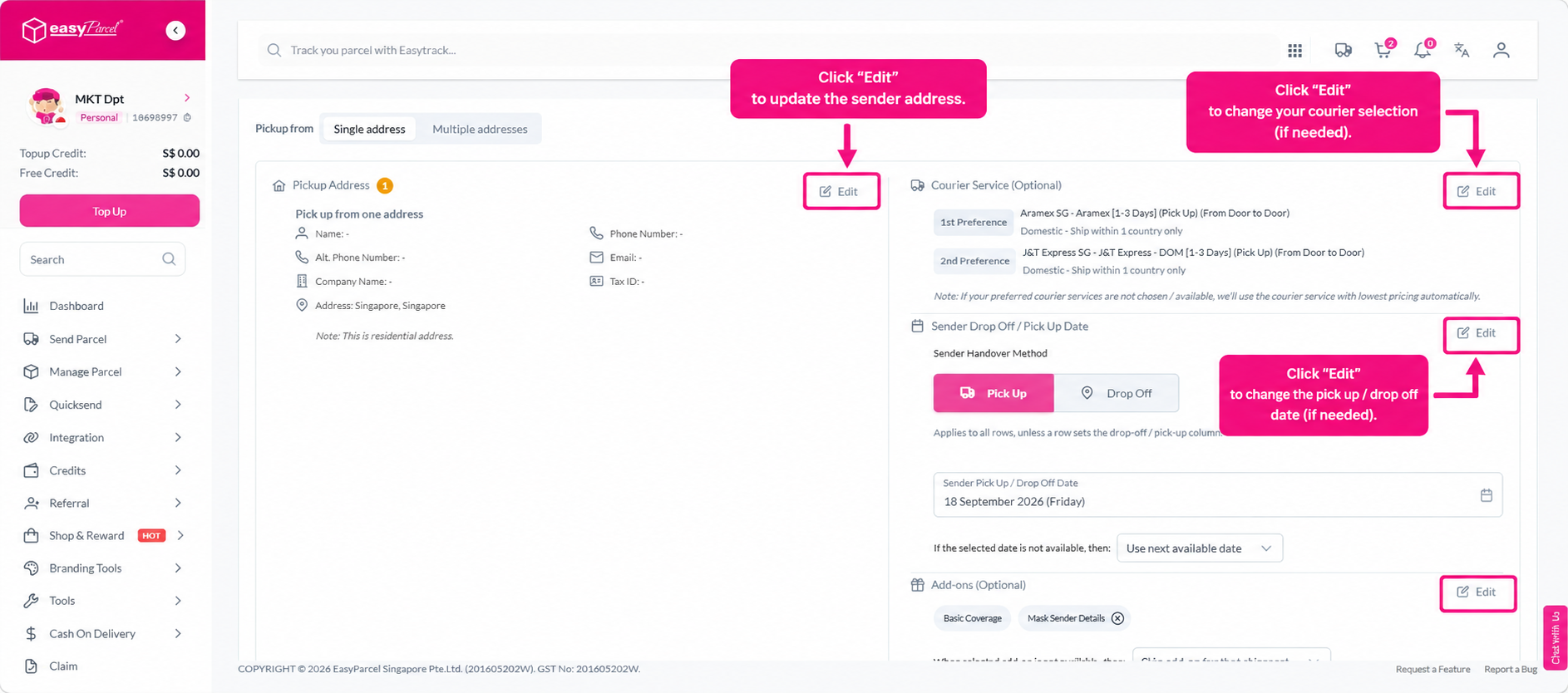
 Step 5: Select Your Courier
Choose your preferred courier for the shipments. Where available, select a second courier preference as a backup in the event your primary courier is unavailable.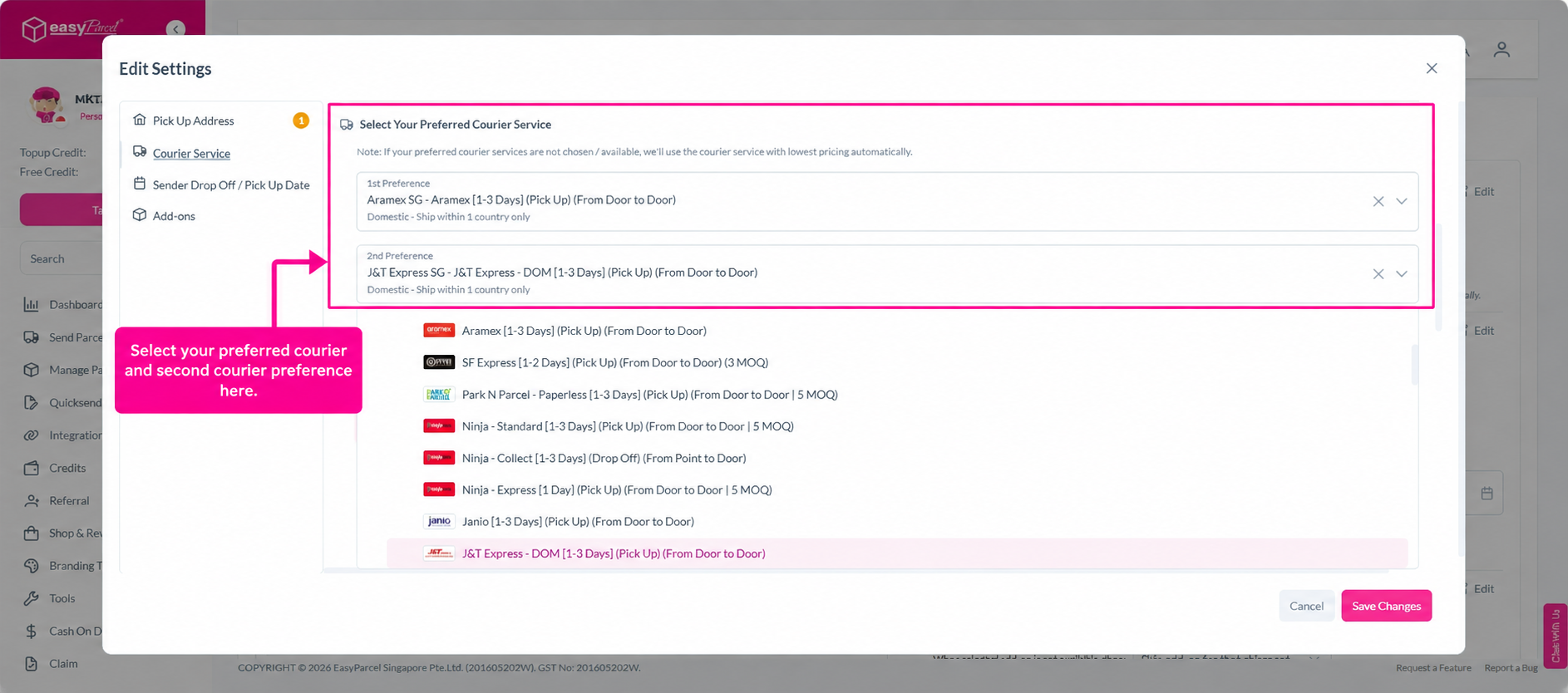
Step 6: Select the Pickup or Drop-off Date
Choose your preferred pickup or drop-off date for the shipments. Ensure the selected date is available based on your courier's schedule.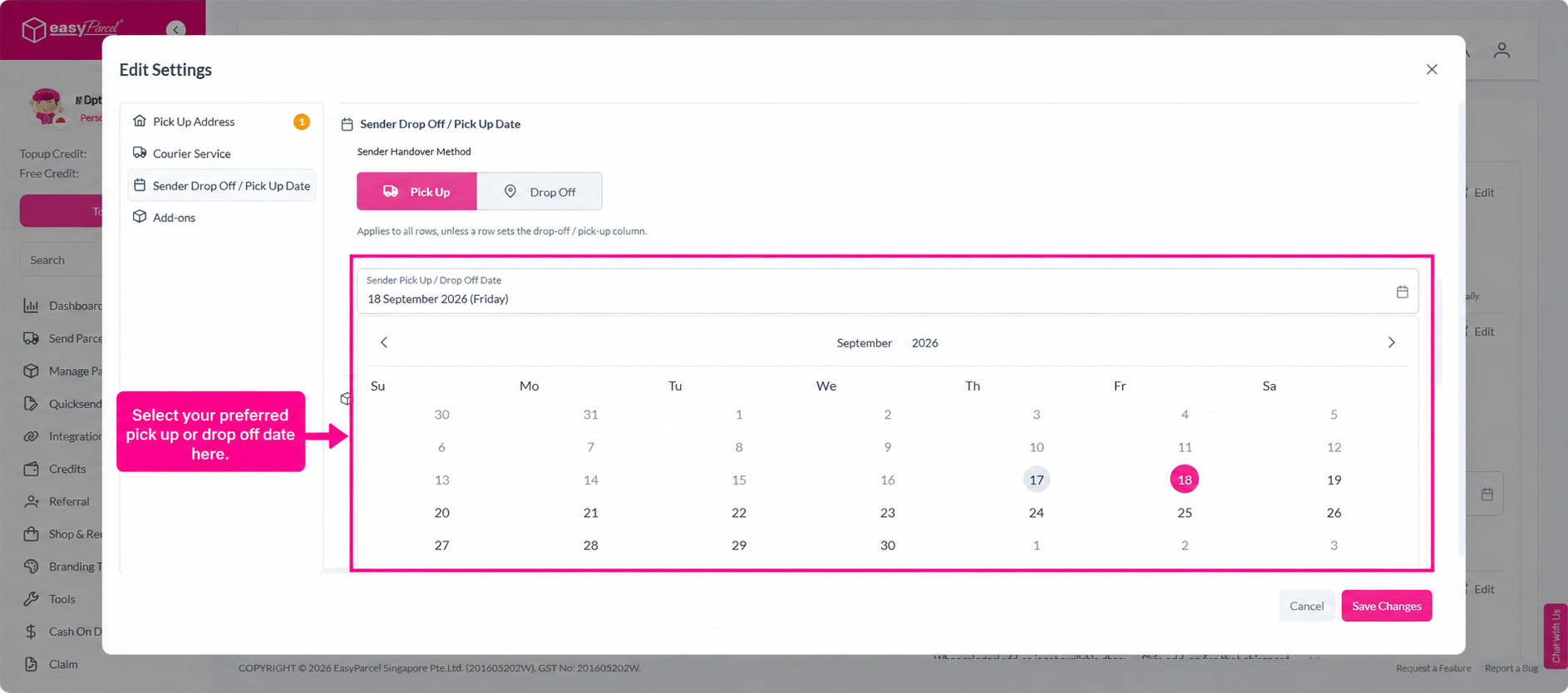
Step 7: Select Add-ons
Review and select any additional services or add-ons required for your shipments, such as insurance or special handling options.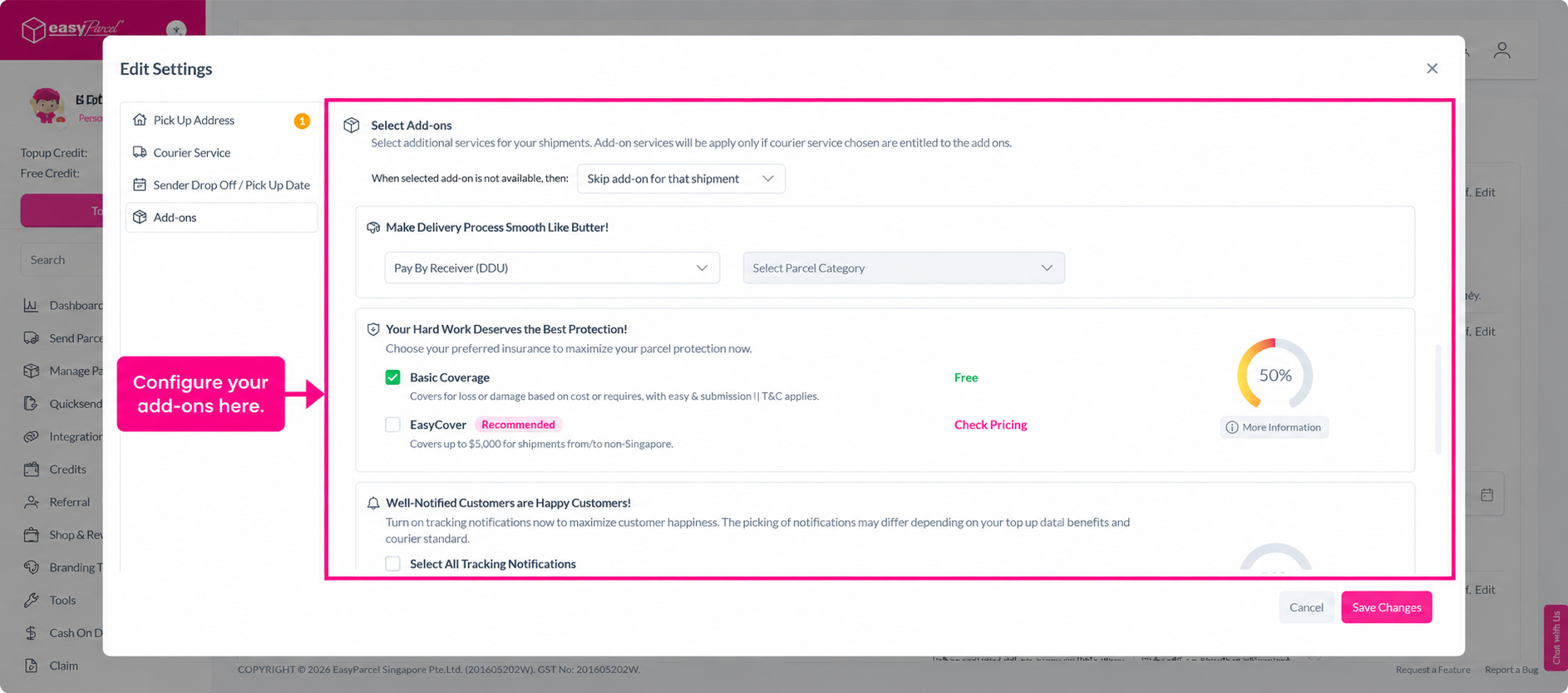
Step 8: Process the File
Click Process File to submit the uploaded shipment information for processing. The system will validate your entries and prepare the order details.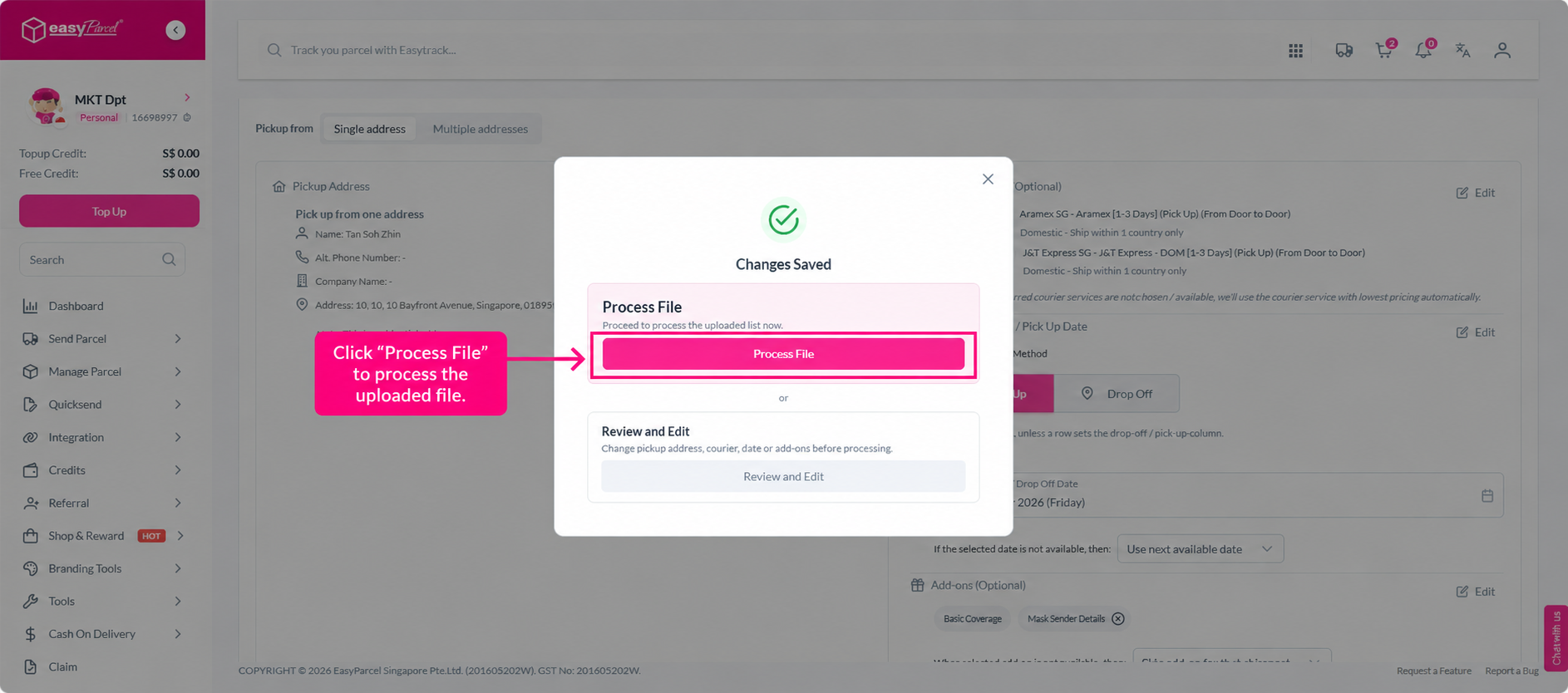
Step 9: Review the Orders
Review the processed shipment details carefully. Verify that all sender, receiver, and parcel information is correct before proceeding. Make any necessary amendments at this stage.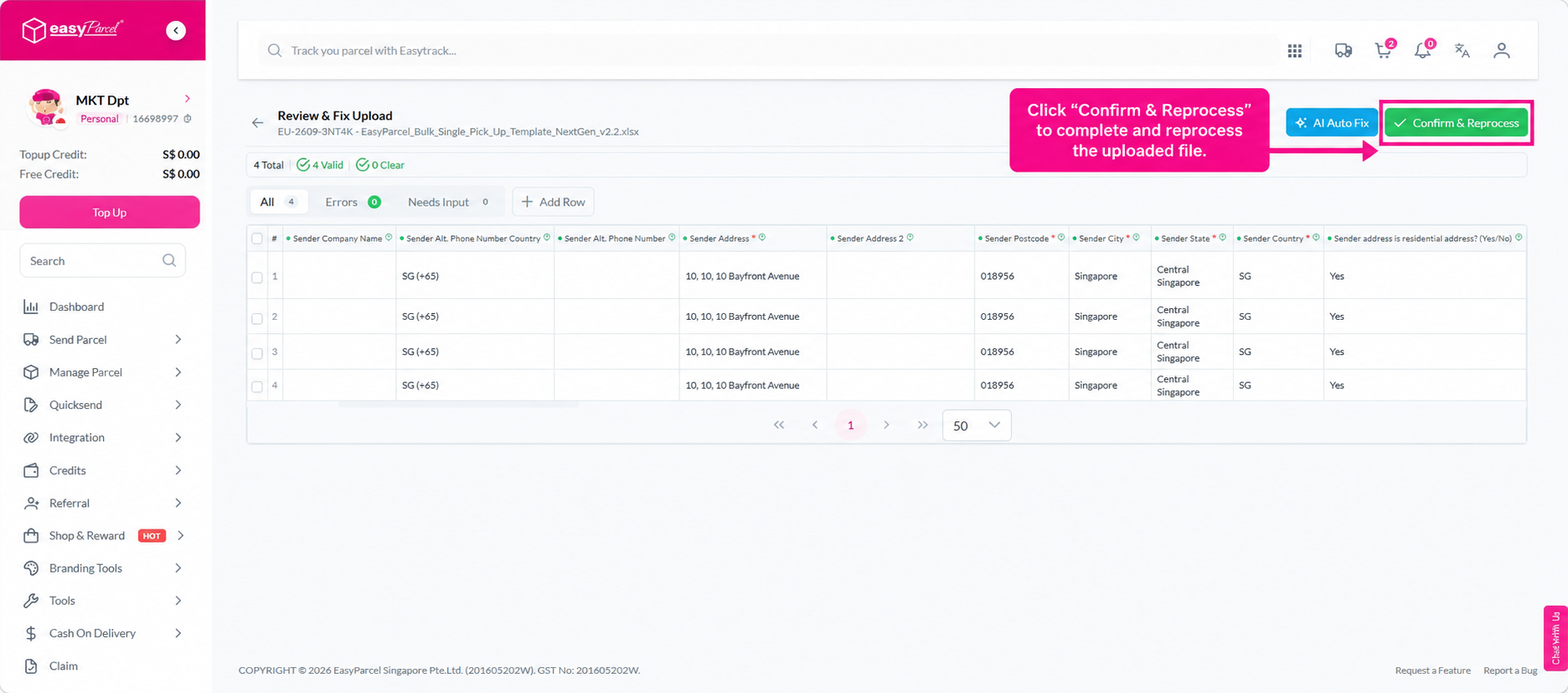
Step 10: Confirm the Shipment
Once you are satisfied that all shipment details are accurate, click Confirm to proceed with the booking.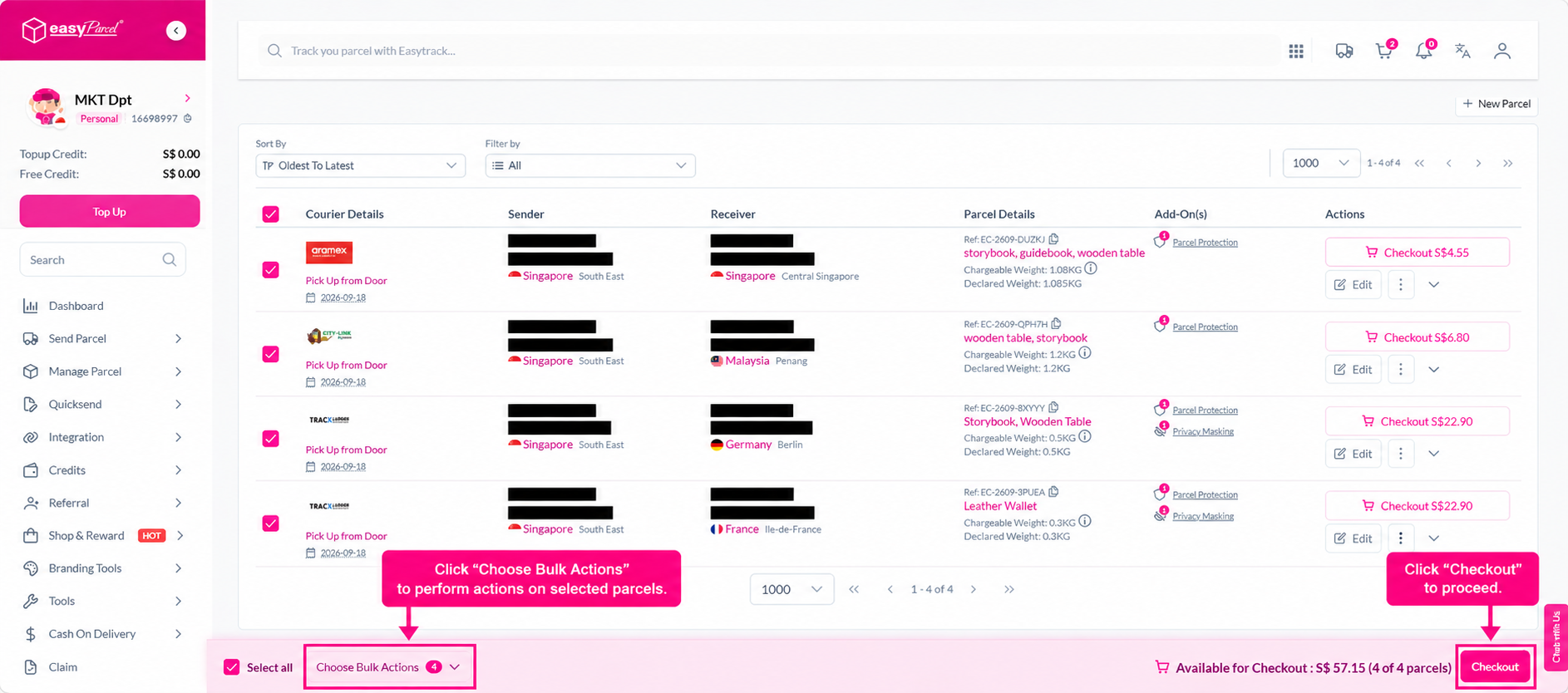
Step 11: Complete Payment
Select your preferred payment method and complete the payment to finalise your shipment booking.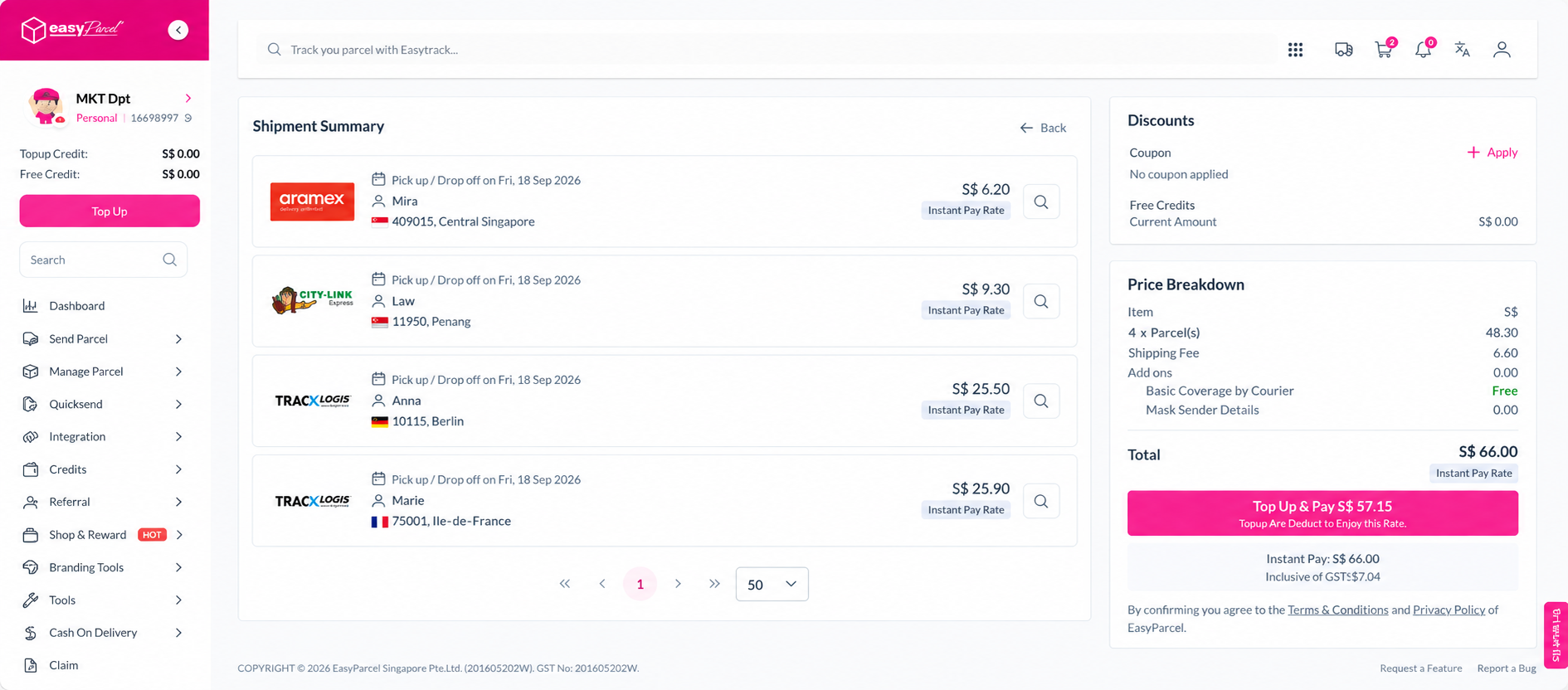
Step 12: Download or Print Your AWB
You're all set! Click Print All AWB to download and print your Air Waybills immediately after payment.
If you missed this step, you can retrieve your AWBs at any time:
- Navigate to Manage Parcel > All Parcels.
- Locate your orders. You can multi-select shipments and click Download > Download AWB to download Air Waybills in bulk, or click the printer icon to download them individually.
Need to process a large volume of orders quickly? Try our Bulk Express feature for faster order uploads and shorter processing times.